

Downloading and Extracting the App Package
- Login to MSP Process (https://app.mspprocess.com) as an Admin-level user
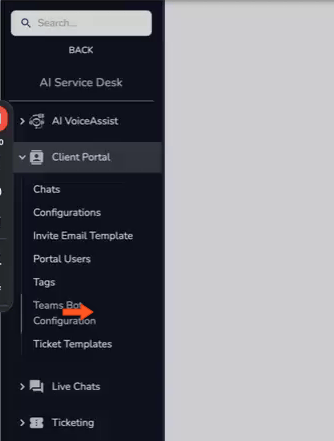
- Navigate to the AI Service Desk -> Client Portal -> Teams Bot Configuration page
-
- Click the Get Zip File button located at the bottom right of the configuration form to download the app package.
-
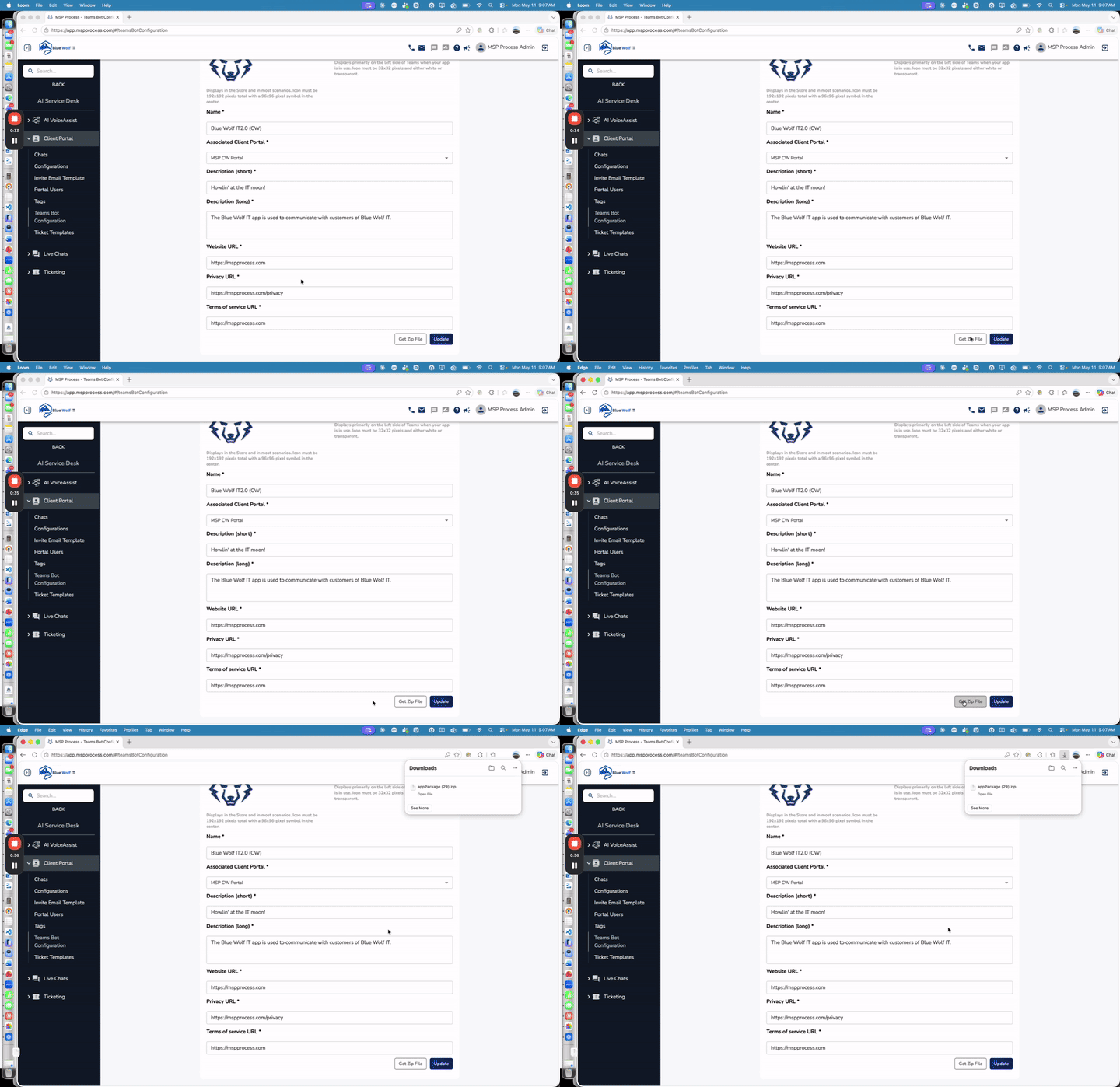
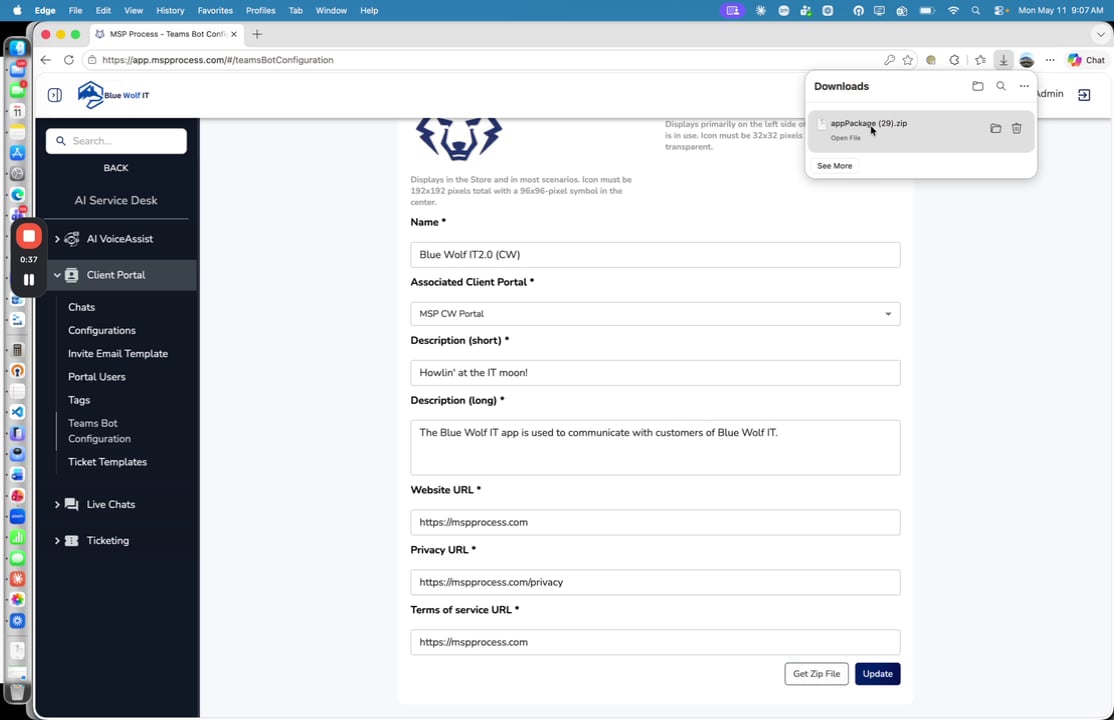
- Locate the downloaded zip file on your computer and extract its contents.
-
-
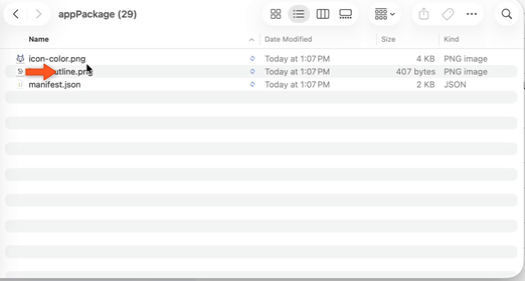
Open the extracted folder. You will see a simple structure consisting of two image files (icons) and a
manifest.jsonfile. -
Modifying the Manifest File
-
Open the
manifest.jsonfile using a code editor (such as Visual Studio Code) or a standard text editor. -
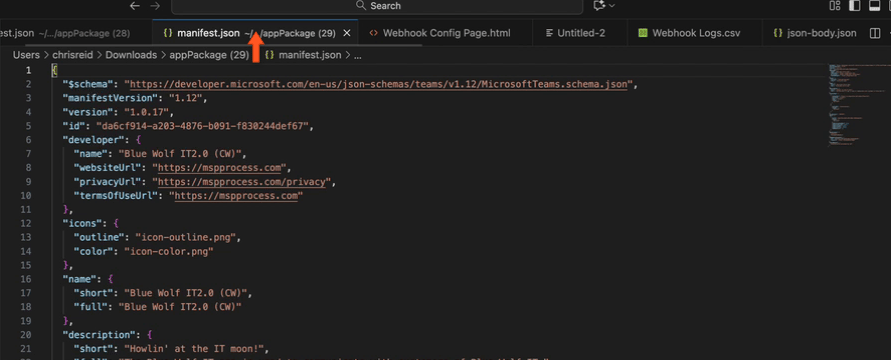
-
Scroll through the JSON structure to locate the section named
staticTabs. -
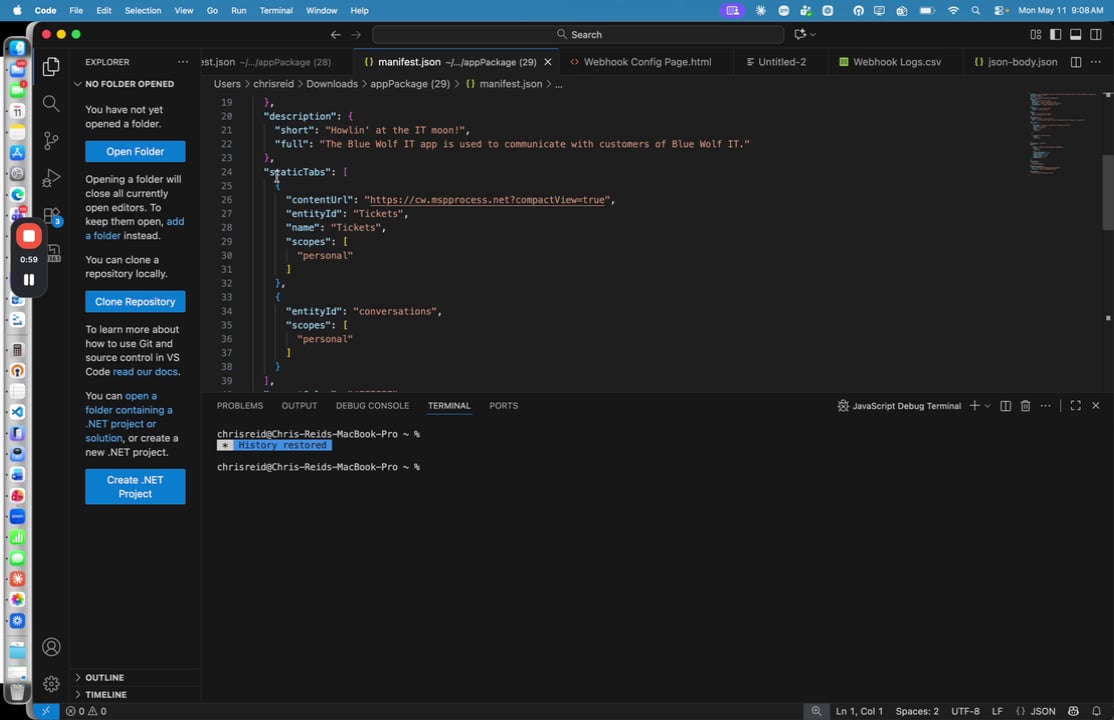
- Select the entire JSON object representing the first tab (from the opening curly brace to the closing curly brace) and copy it.
-
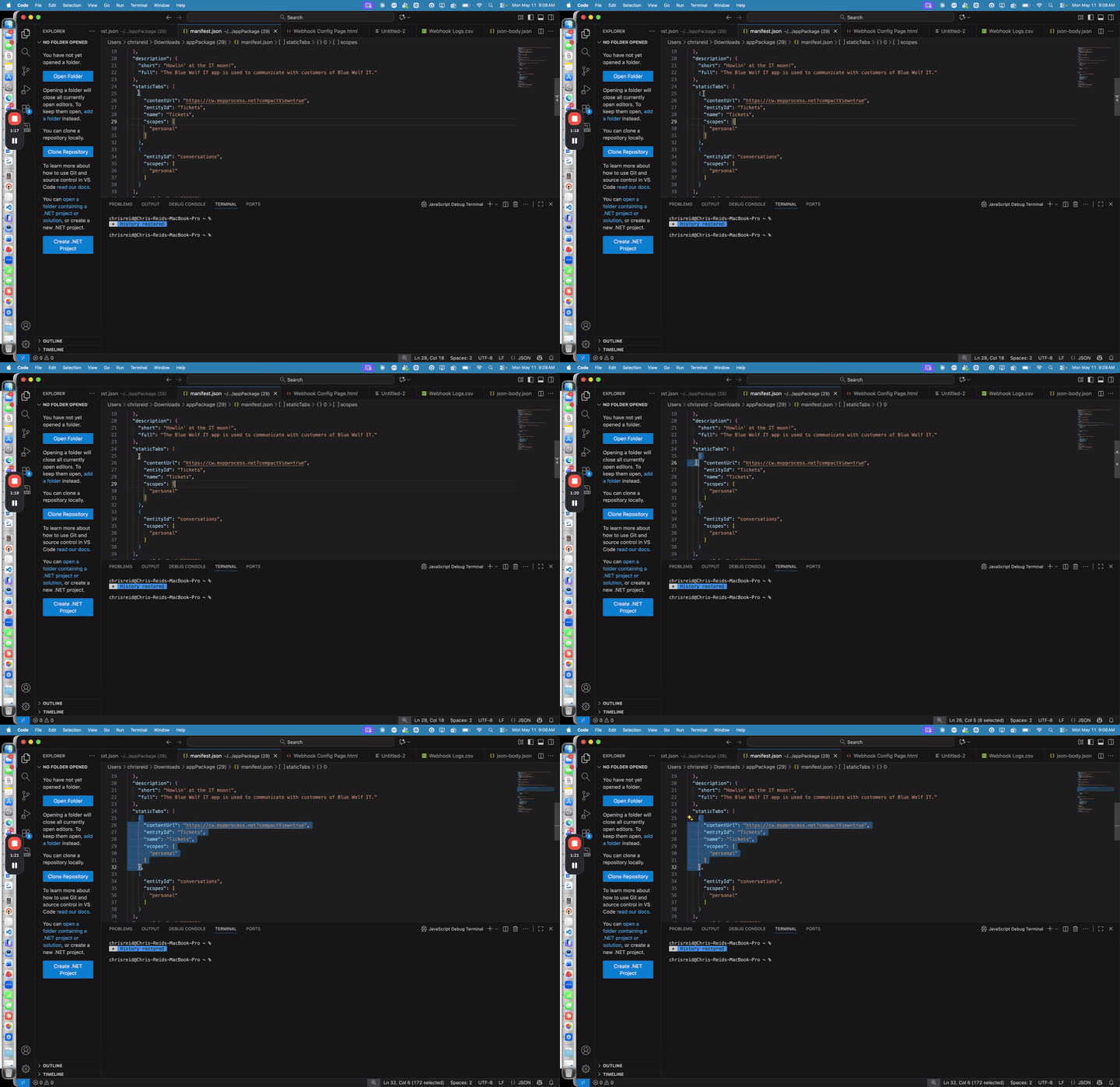
- Add a comma at the end of the first object, then paste the copied JSON object directly below it.
-
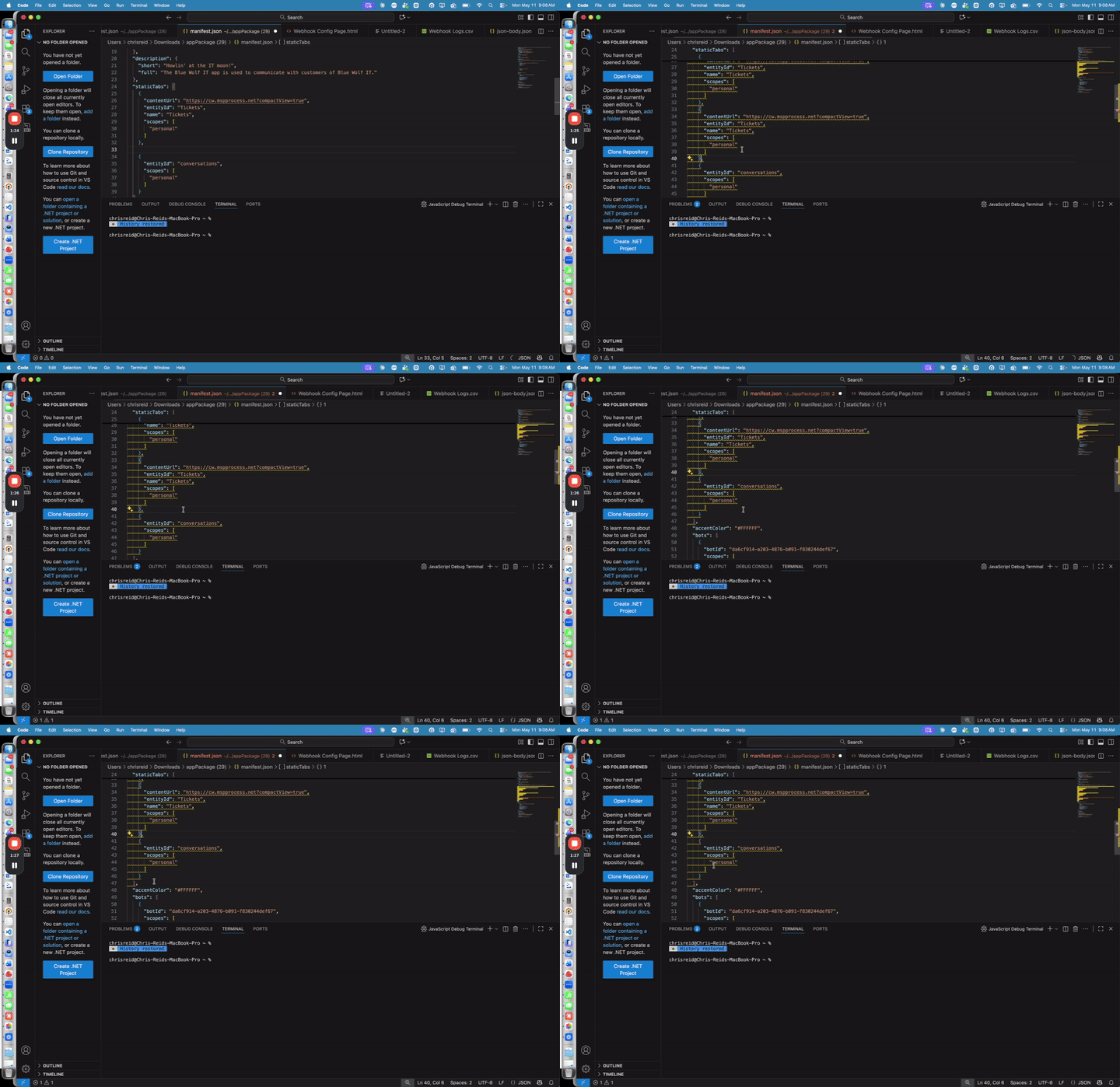
- Customize the newly pasted tab object for your external resource by updating the contentUrl to the URL of the website or resource you want to display.
-
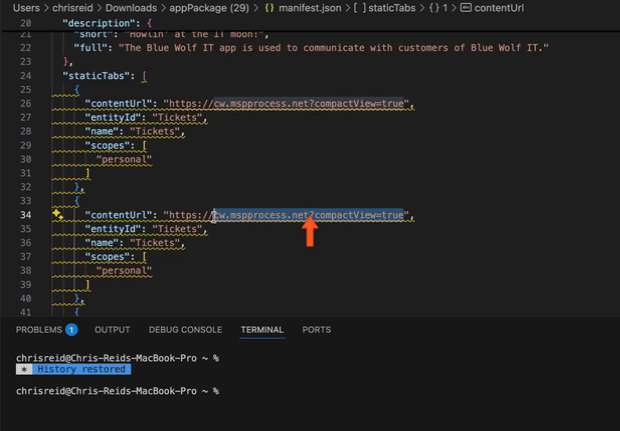
- Update the name value to the title you want displayed at the top of the tab in Teams.
- Update the entityId to a unique internal reference name for the tab.
-
Save your changes to the
manifest.jsonfile.
Repackaging and Deploying the App
-
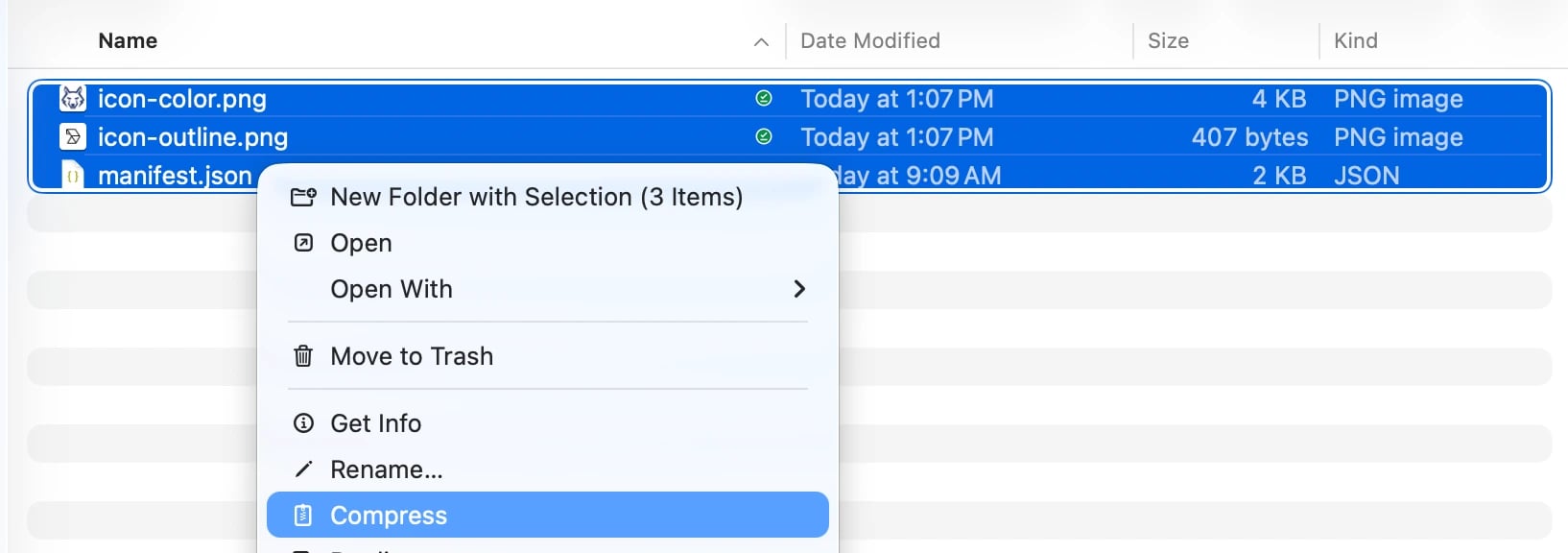
In your file explorer, select the modified
manifest.jsonfile along with the two original icon files. - Right-click the selected files and choose Compress (or your operating system’s equivalent) to create a new zip file.
-
- Upload this newly created zip file to your Teams environment for testing, or deploy it to your customer’s Teams environment for production use.