Context:
While there are many PSAs that allow 3rd-party vendors like MSP Process to embed a piece of our UI in theirs, there are quite a few PSAs that MSP Process support, but that don’t have a facility for us to embed our UI in their UI. No MSP wants to have to keep multiple UIs open just to get things done, so we’ve released a browser extension that can be used right from within your PSA - allowing you to leverage the best of what MSP Process has to offer, without needing to keep the MSP Process UI open in a separate browser tab.Supported PSAs:
- Kaseya BMS
- SuperOps
- Syncro
Supported Web Browsers:
- Google Chrome
- Microsoft Edge
Installing the MSP Process Browser Extension:
- In Google Chrome, open the Extensions Manager tool, or navigate directly to https://chromewebstore.google.com
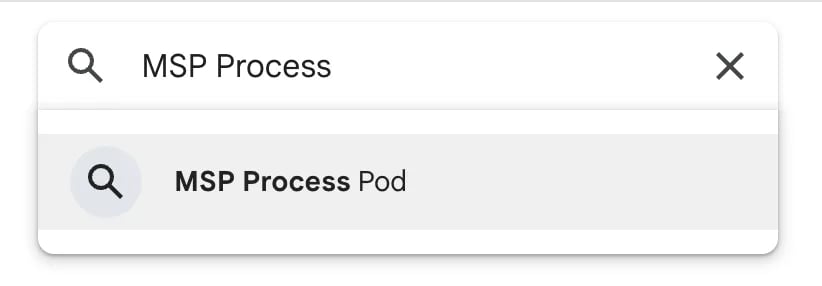
- In the search field at the top of the page, search for MSP Process Pod, and then click on it:
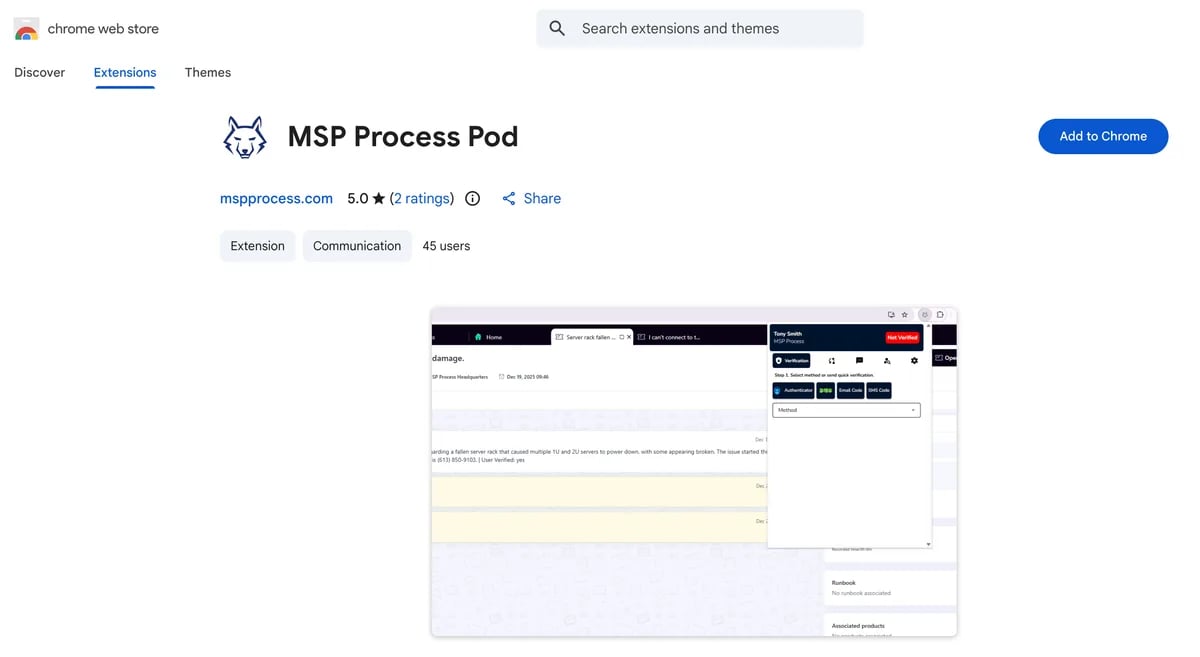
- Click on the Add to Chrome button:
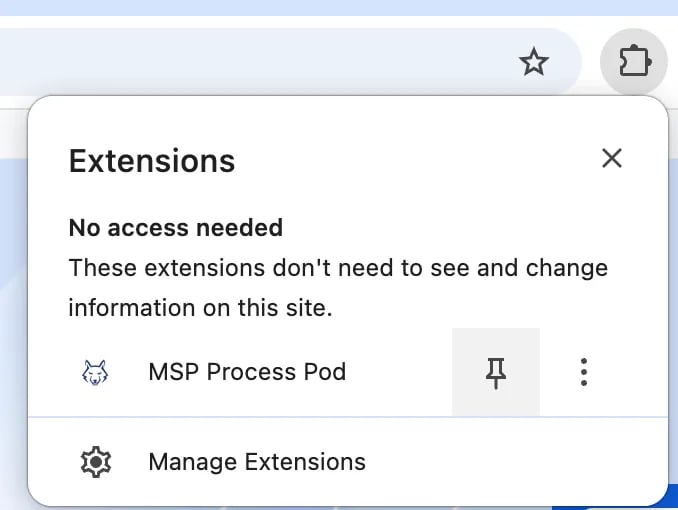
- In the Extensions menu, to the right of your browser’s URL/search bar, pin the MSP Process browser extension so that it’s always visible:
Using the MSP Process browser extension:
When you have opened your PSA in a browser tab, and you’re actively viewing a ticket, you may open the MSP Process browser extension. If you haven’t already logged in (something you need to do once every 24 hours), you’ll be presented with the following login screen: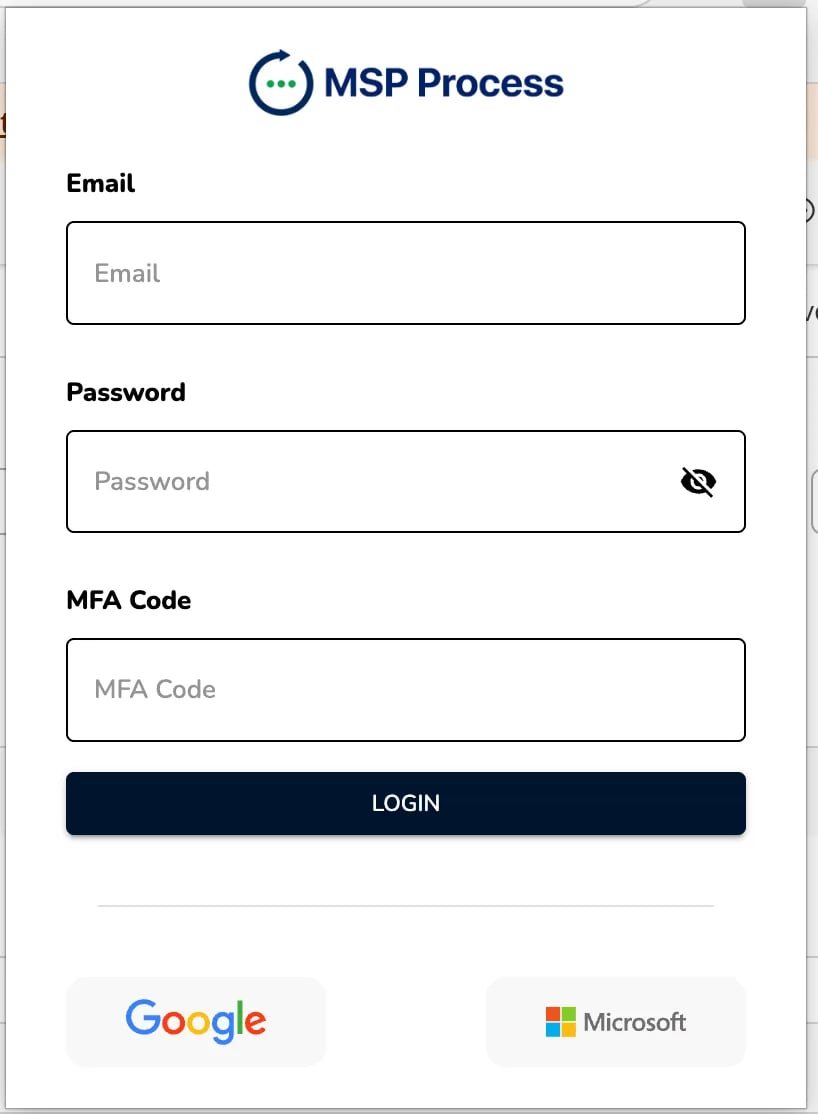
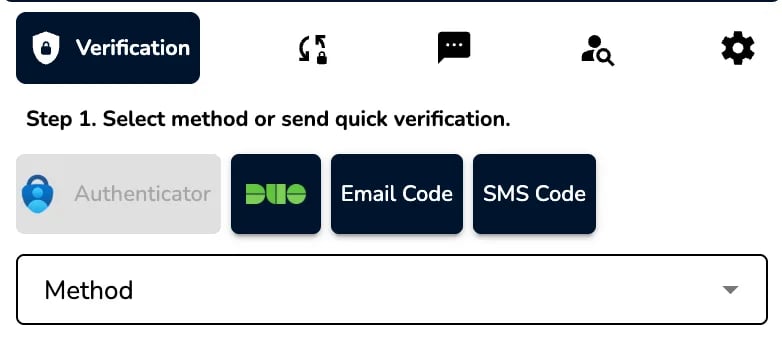
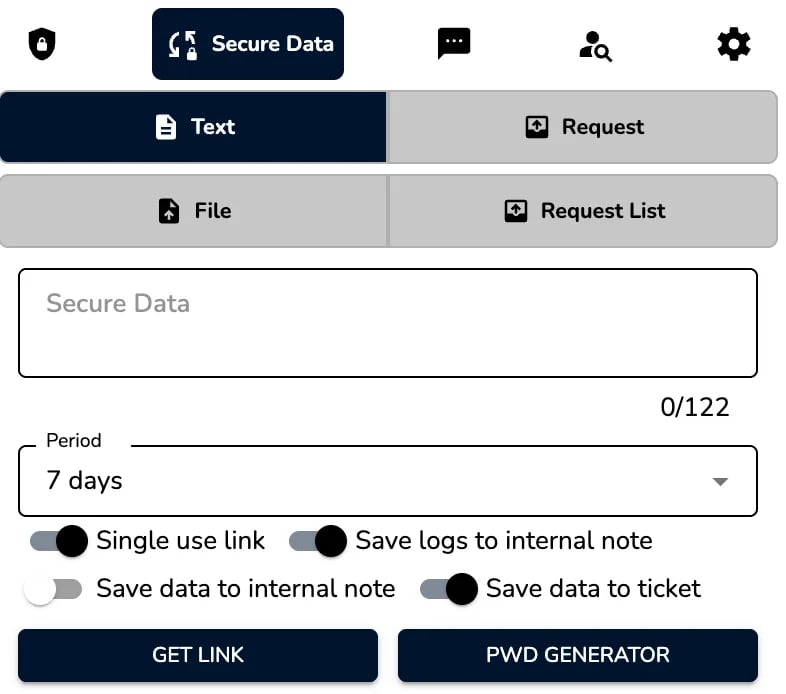
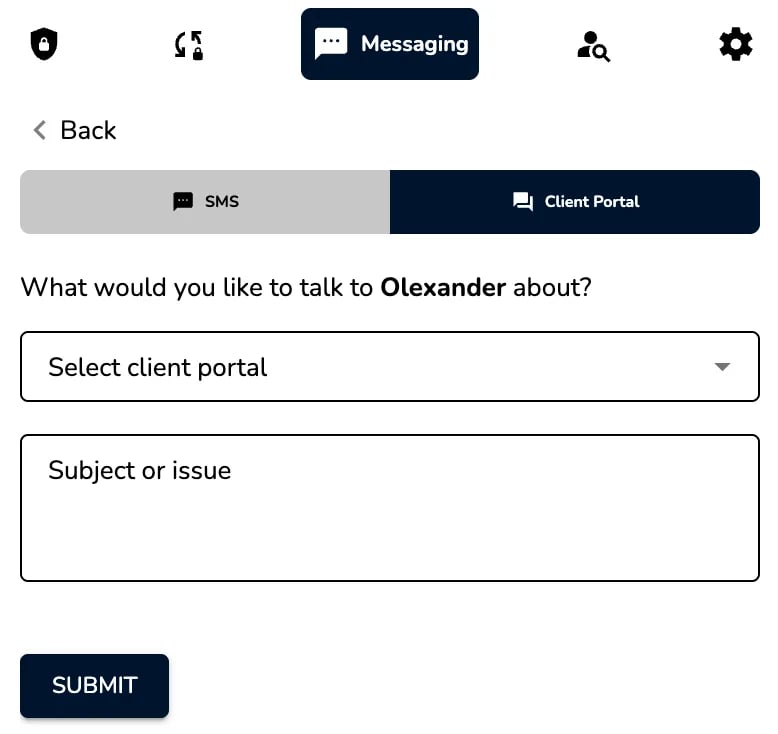
Behavior of the Browser Extension When You Aren’t on a Ticket:
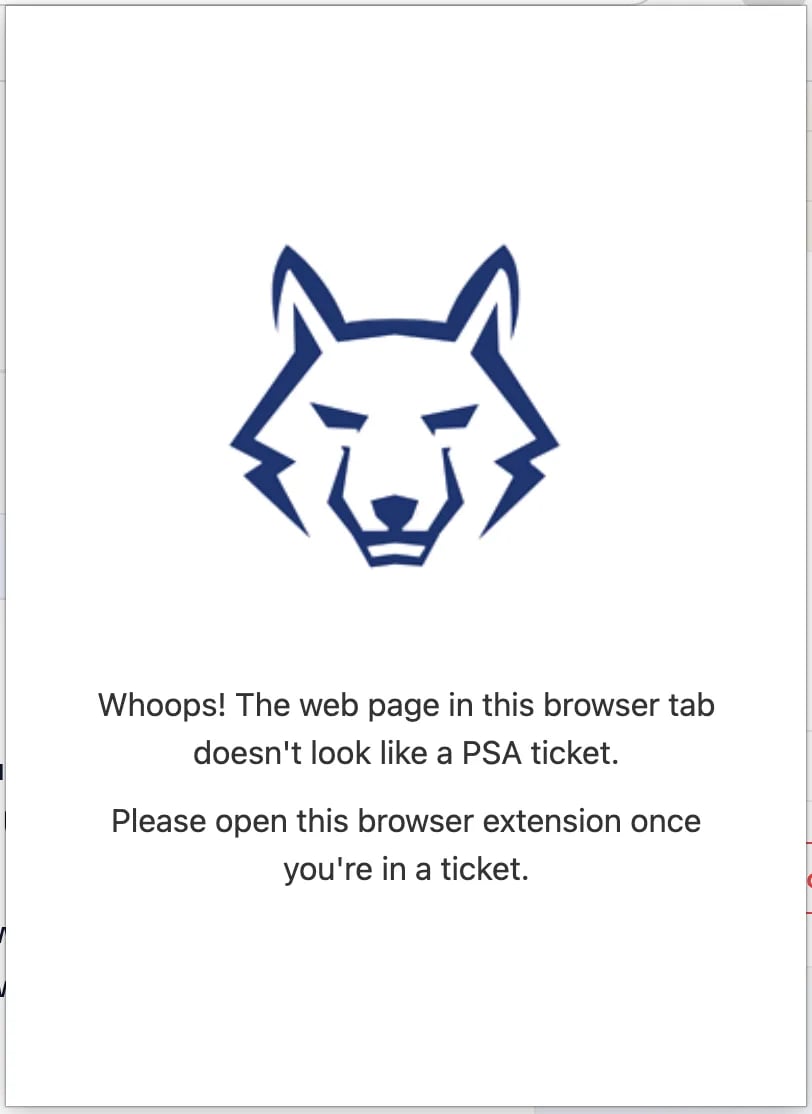
If you open the MSP Process browser extension, and you’re on <any web page that isn’t a ticket in your PSA>, you’ll see the following: