

Overview
MSP Process can automatically rotate sensitive client credentials, such as admin-level accounts, on a recurring schedule, and push each new password into your documentation vault. Rotation works whether a client’s users live in Microsoft Entra ID (Azure AD / M365) or in an on-premises Active Directory domain. You can also rotate passwords manually for a single user, or in bulk during a security incident. Rotation depends on two things being in place: a connection to the client’s identity source (an agent for on-prem AD, or the M365 identity app for Entra), and — optionally — a documentation integration if you want rotated passwords stored in IT Glue, Hudu, Lexful, or the built-in Local Vault. Setup for each of those is covered in its own article and linked below; the rest of this article focuses on configuring and using rotation itself.Note: Some password features may need to be enabled on your portal under System Administration > Tenant Modules. This is done by an MSP Process representative — contact your rep if you don’t see the options described here.
Prerequisites
Before setting up password rotation, confirm the following:- Your MSP Process account has access to Identity Management > Password Management.
- The relevant Tenant Modules are enabled for your portal (see note above).
- The client’s identity source is connected (Step 1 below).
Step 1 — Connect the client’s identity source
Rotation can only change a password where MSP Process can authenticate to the account. How you connect depends on where the client’s users live.On-premises Active Directory (domain controller)
- In your MSP Process portal, go to Identity Management>Password Management>Agents.
- Click Download Agent in the top right corner

- Select your PSA and the applicable client company.
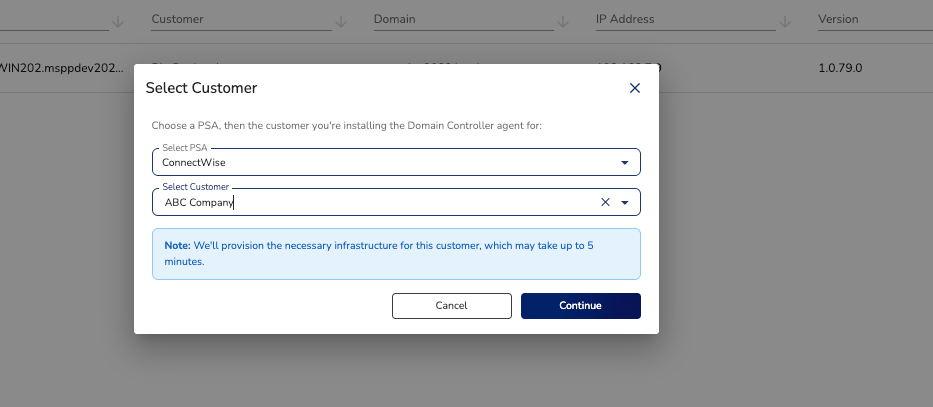
- Click Continue. It will take a moment while MSP Process provisions secure storage for that client and generates a unique installation key.
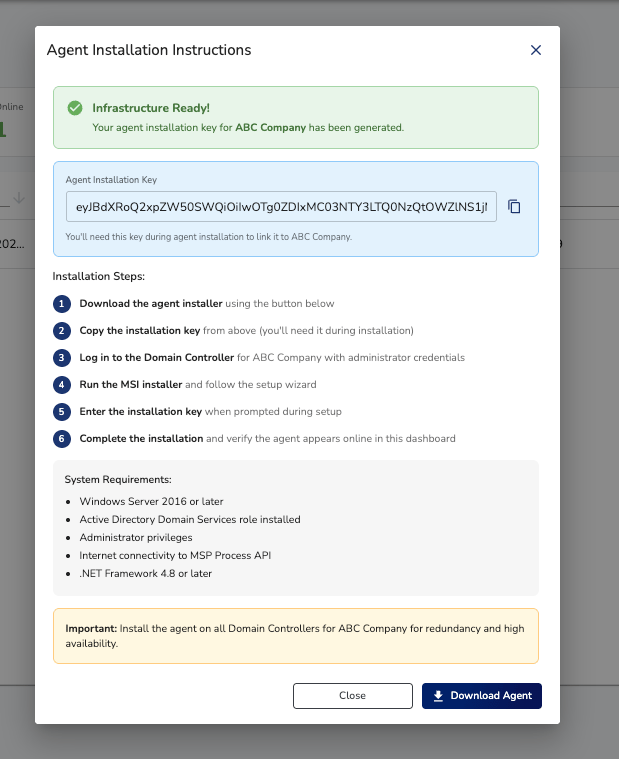
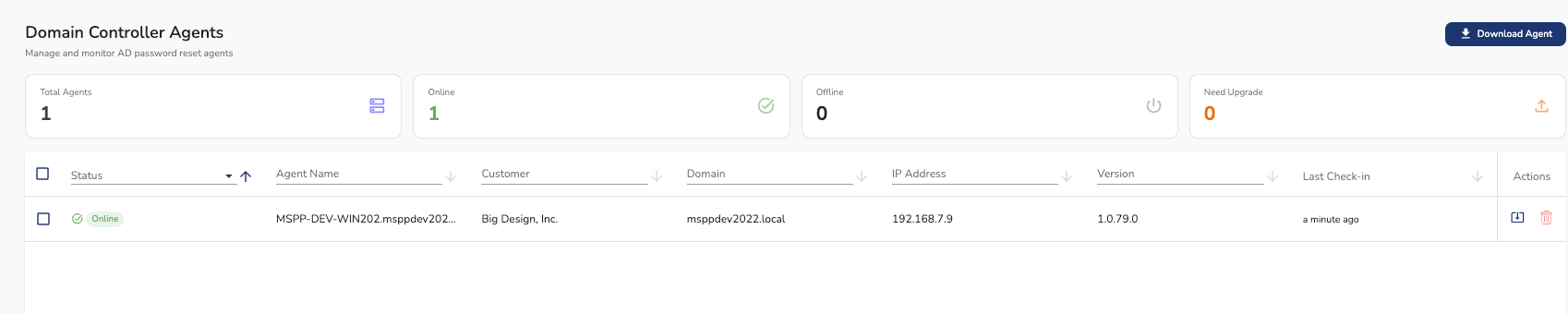
- Follow the on-screen instructions to install the agent and apply the installation key.
Microsoft 365 / Entra ID
There’s no domain controller to install on, so instead deploy the M365 identity management app under Settings > Integrations > Security Integrations. The same app handles password resets, account unlocks, and MFA resets in addition to scheduled rotation. See:- Auto-provisioning and de-provisioning users from M365
- Deploying the M365 Password Reset Module through the Microsoft Partner Center
- Deploying the M365 Password Reset Module to one M365 Tenant
Step 2 — (Optional) Connect a documentation vault
If you want rotated passwords written into your documentation platform, connect it first under Settings > Integrations > Security Integrations. You provide the platform’s API credentials, then map each MSP Process client to the matching organization in that platform so passwords land in the right place. Supported targets are the built-in Local Vault, IT Glue, Hudu, and Lexful. Most MSPs enable this for admin-level credentials. If you’re rotating ordinary (non-admin) user passwords and don’t want to be responsible for storing them, you can leave the vault push off for that policy. Setup per platform:- How to integrate IT Glue and MSP Process
- How to integrate Hudu and MSP Process
- Lexful Integration Admin Setup
Using the Password Rotation Feature
Password Rotation is found under Identity Management > Password Management > Rotations. This section has four tabs: Overview, Clients, Policies, and Users.Overview tab
A summary of what’s configured and what’s been happening: which clients have rotation policies, recent scheduled rotations, and any manual SuperAdmin resets. Good for an at-a-glance check on activity across your environment.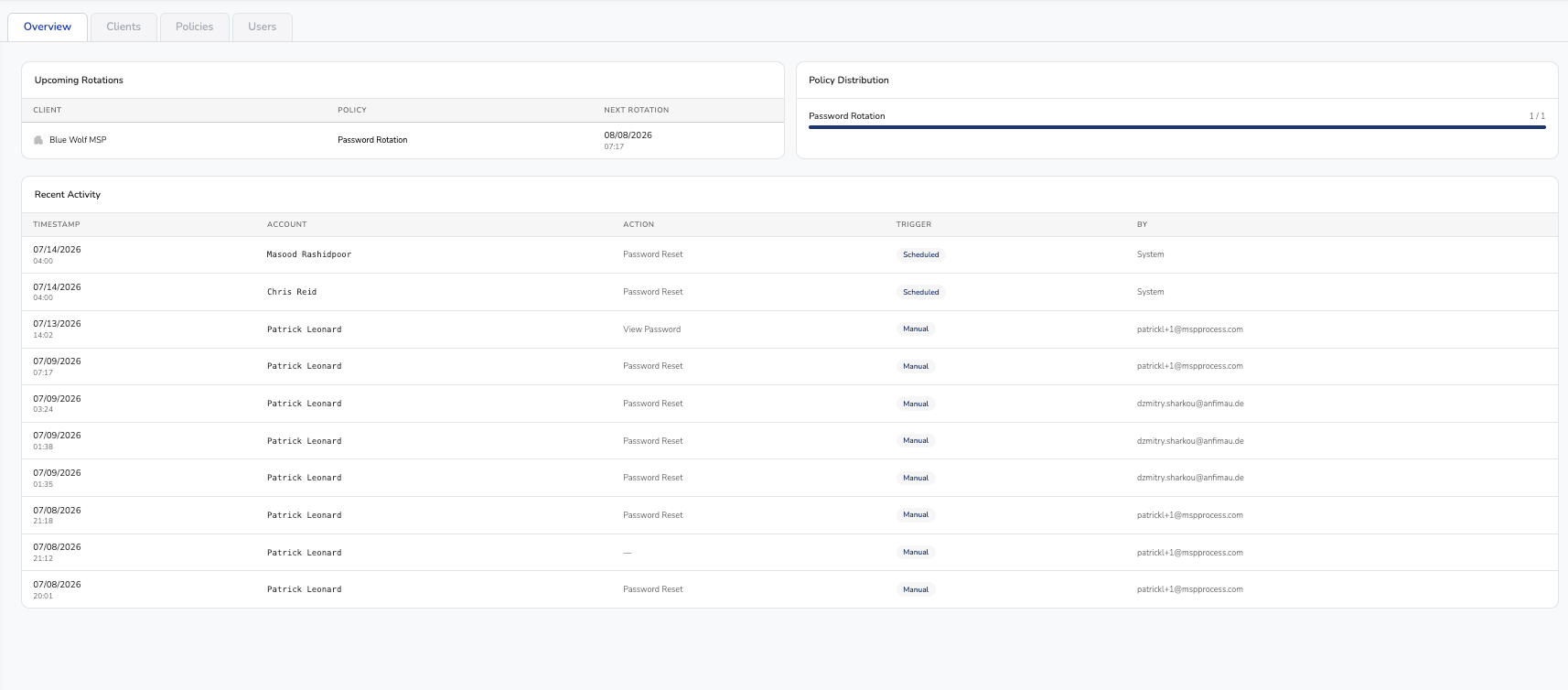
Clients Tab
Lists the clients you’ve connected (via agent or M365 app) and shows whether each has a policy assigned and how many accounts it affects. A client must be connected here before a policy can apply to it. Click the clipboard icon to the right of a client to link its rotated passwords to a documentation vault (Local Vault, IT Glue, Hudu, or Lexful). To use IT Glue, Hudu, or Lexful, connect it first under Security Integrations (Step 2).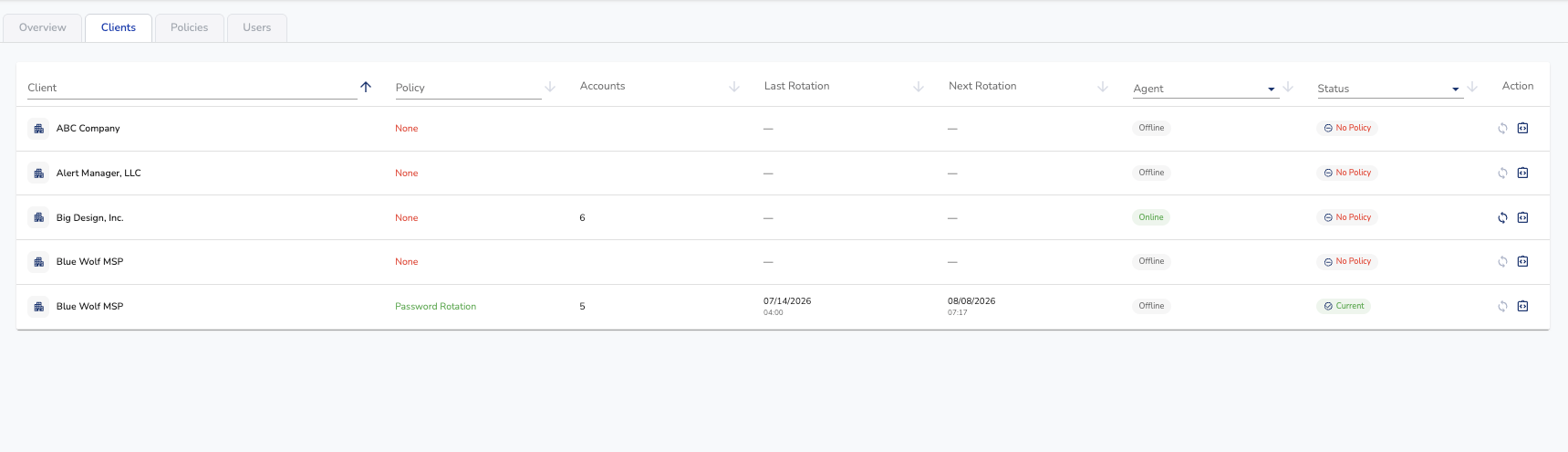
Policies Tab
View active password rotation policies, or create a new one: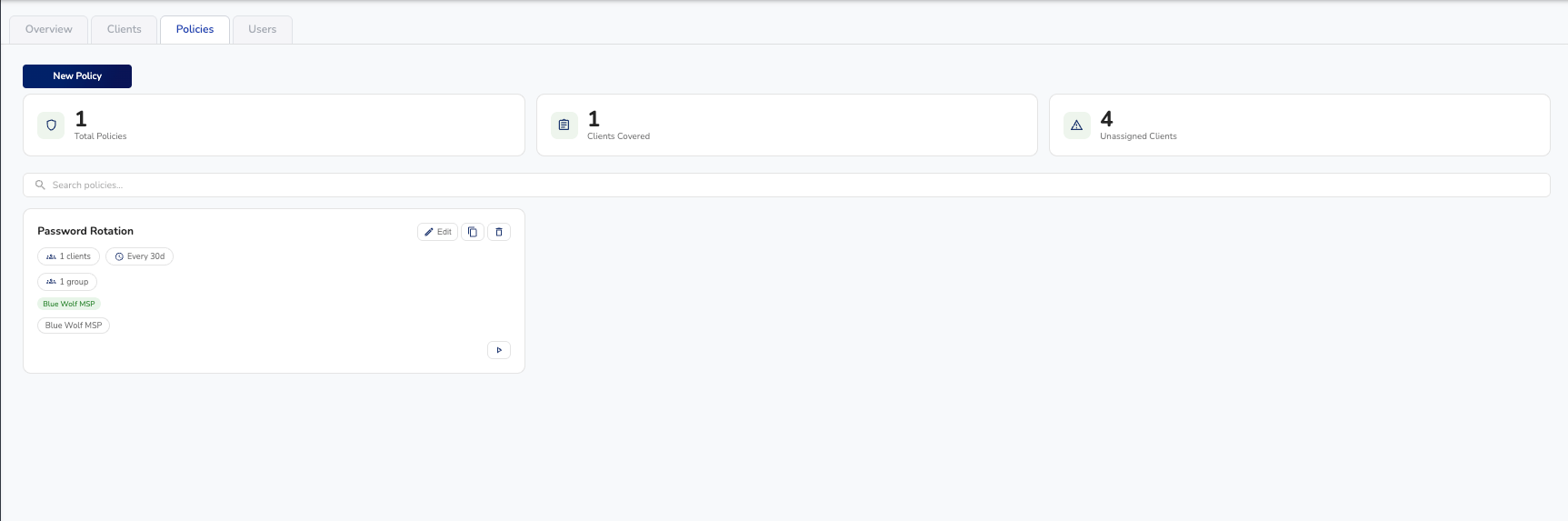
- click the New Policy button in the top left corner.
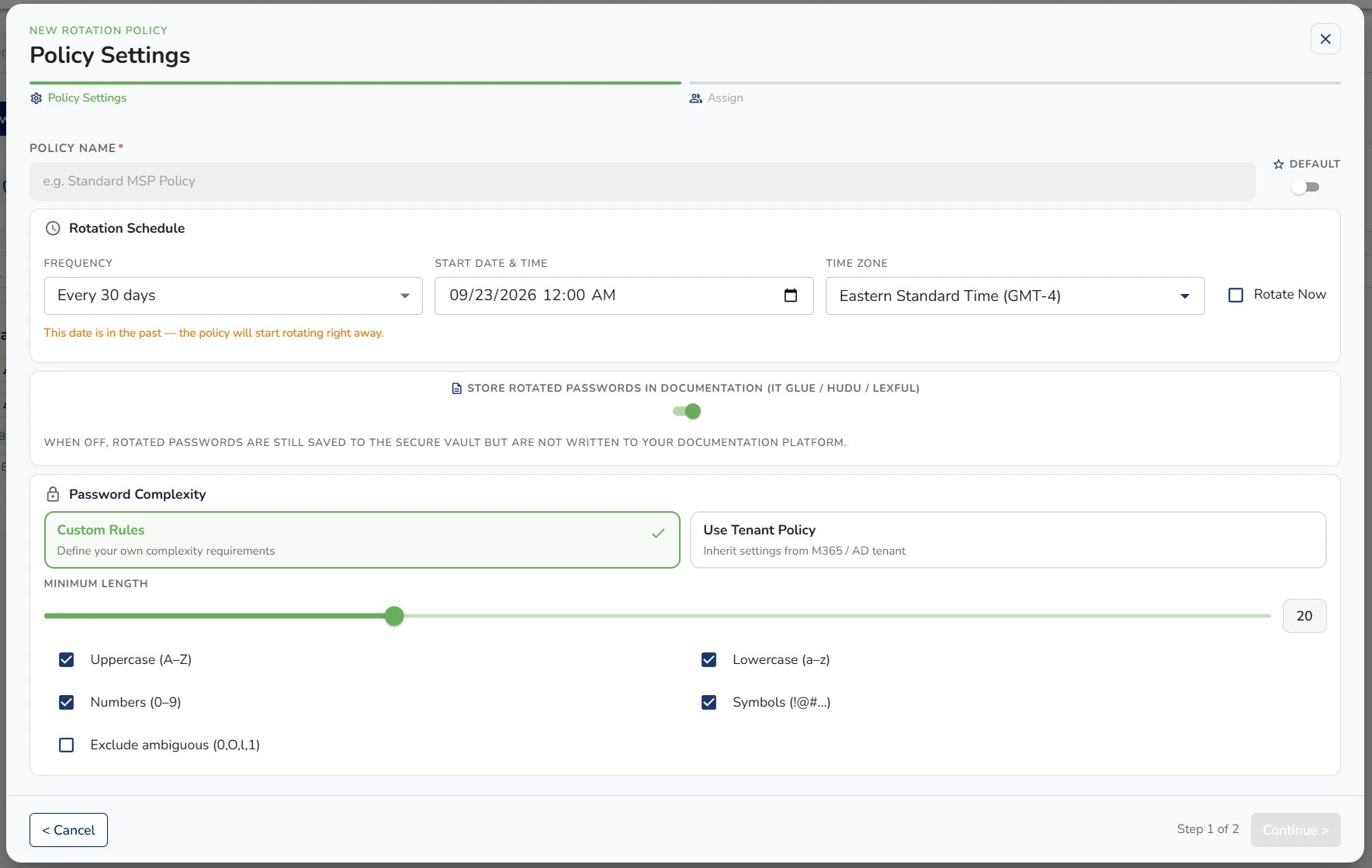
- Enter a name for the policy in the top field.
- Select the rotation frequency and a start date/time.
- Choose whether rotated passwords are pushed to the client’s linked documentation vault.
- Set password complexity rules (character requirements and minimum length), or check Use Tenant Policy to inherit password requirements directly from the client’s M365/AD tenant.5. Click Continue.
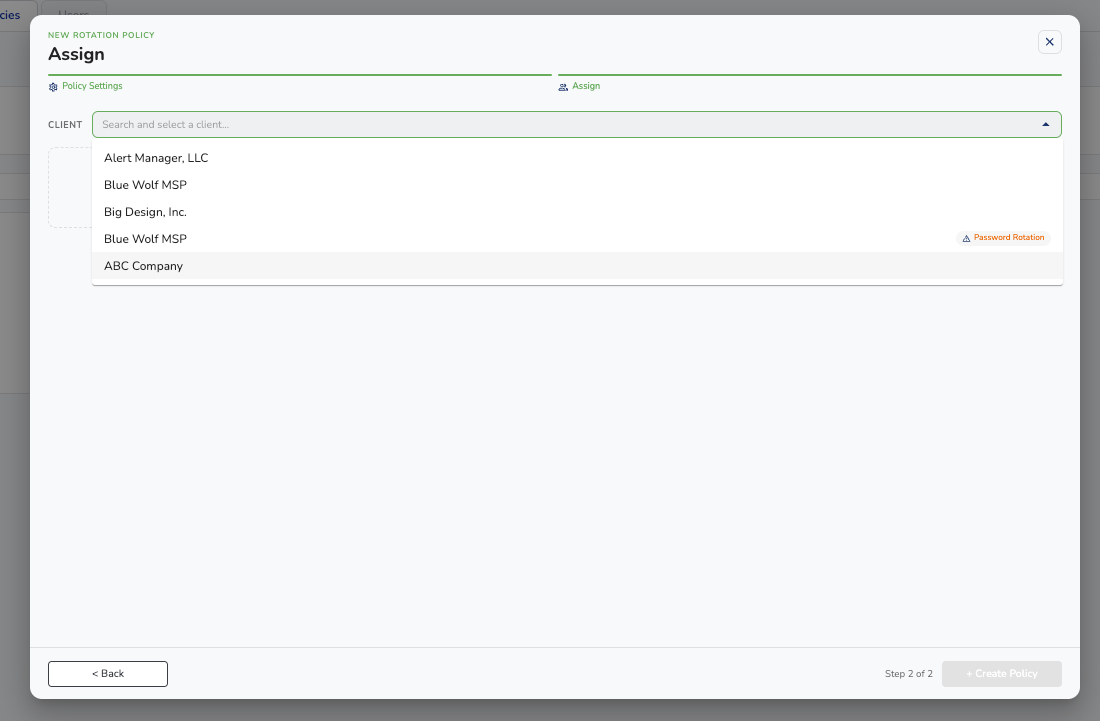
- Select the client and the groups or individual users the policy applies to. Groups are pulled from the client’s M365 or AD; selecting a group selects all its users.
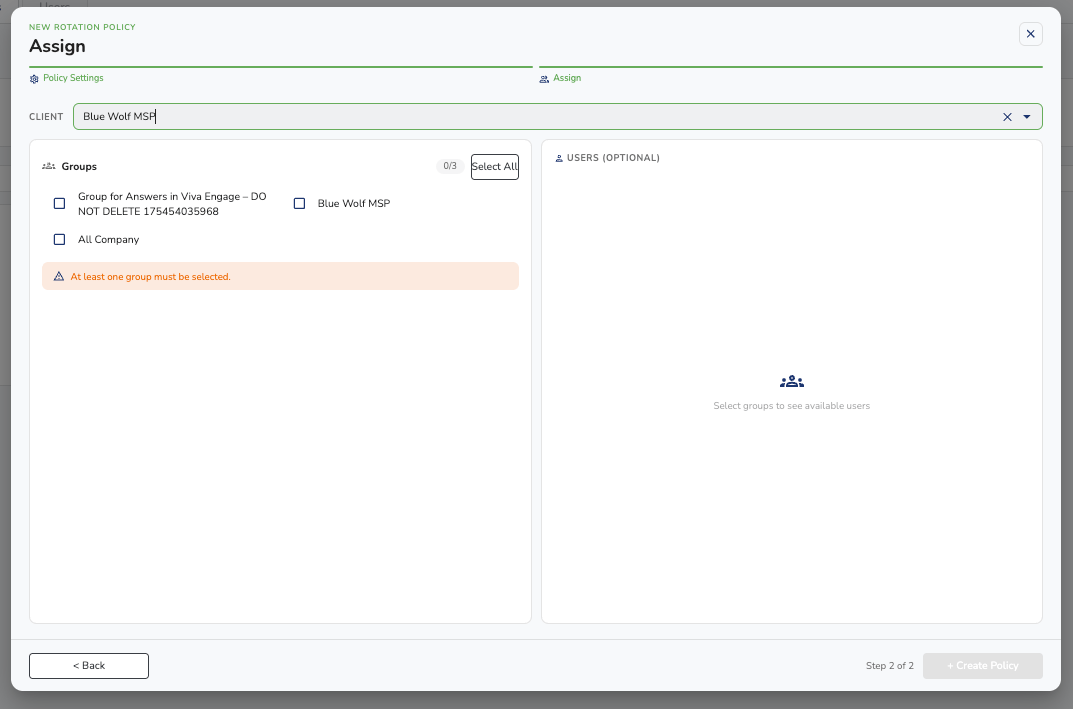
- Click Create Policy in the bottom-right corner to finish.
Users Tab
This tab lets you rotate an individual user’s password immediately — useful when a client’s employee (e.g., a technician) has left the company or been terminated. To rotate a password: 1. Check the box next to the applicable account(s). 2. Click Rotate Passwords. Use the icons to the far right of each user to view the most recent password and the full password history.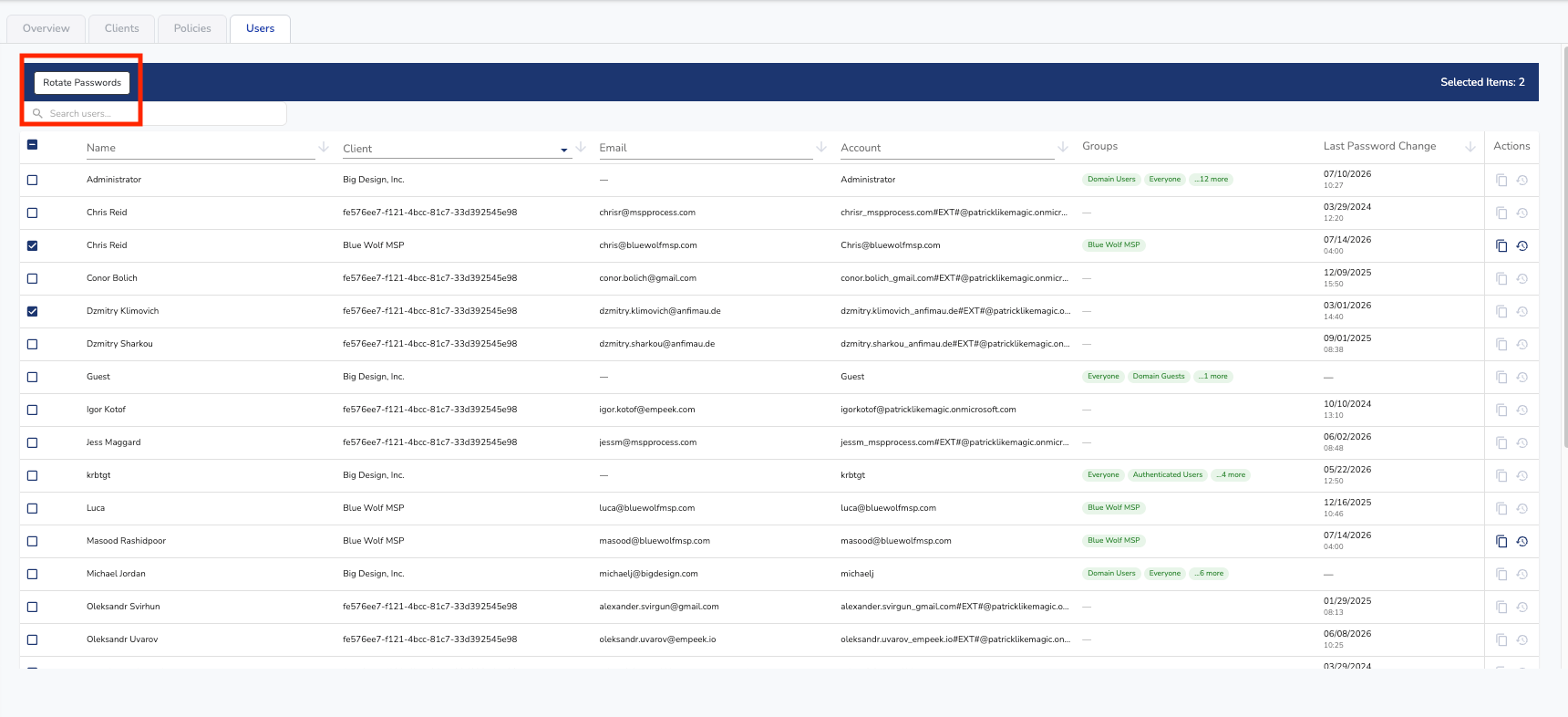
- Look up a password. Click a user to see an audit trail of when the password was last rotated and where it’s stored, view the most recent password, and copy it. A history icon shows the full password history.
- Rotate one user immediately. Check the user and click Rotate Passwords — useful when an employee (e.g., a technician) leaves or is terminated.
- Rotate in bulk. During a security incident (breach, ransomware, suspected compromise), filter by client, select the affected users, and rotate all of them at once (as reviewed in the steps above).