

Introduction:
Several features in the MSP Process platform can send messages to Microsoft Teams channels:- When a new text message is sent to an SMS number
- When a new Live Chat is created
- When a new Client Portal chat is created
- When a Workflow in MSP Process is triggered
Launching the Workflows app in Microsoft Teams:
In the Microsoft Teams app, launch the Workflows feature by clicking on the … menu item, and searching for “Workflows”: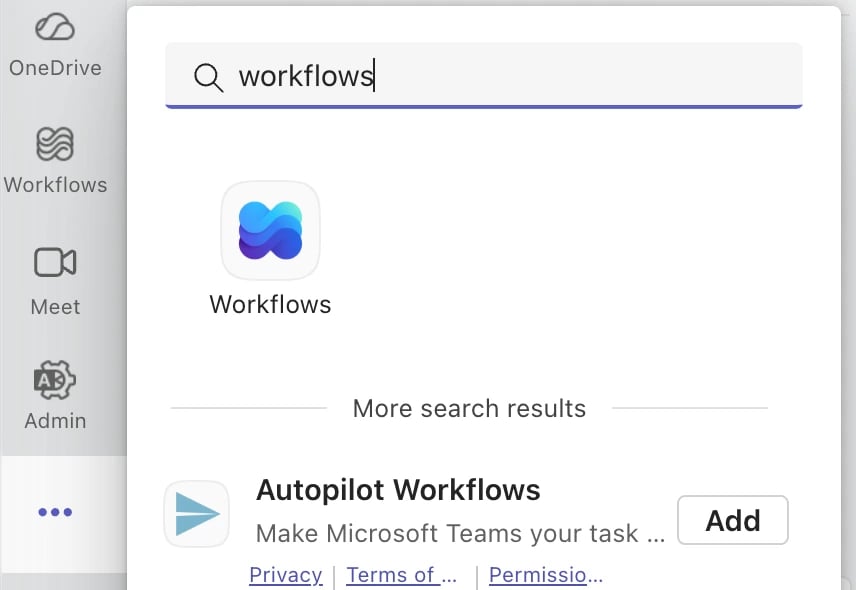
Creating a new Workflow:
- In the Workflows app, click the Build from Scratch button
-

- Open the select a trigger option, and choose the Build with Power Automate to see more triggers option:
-
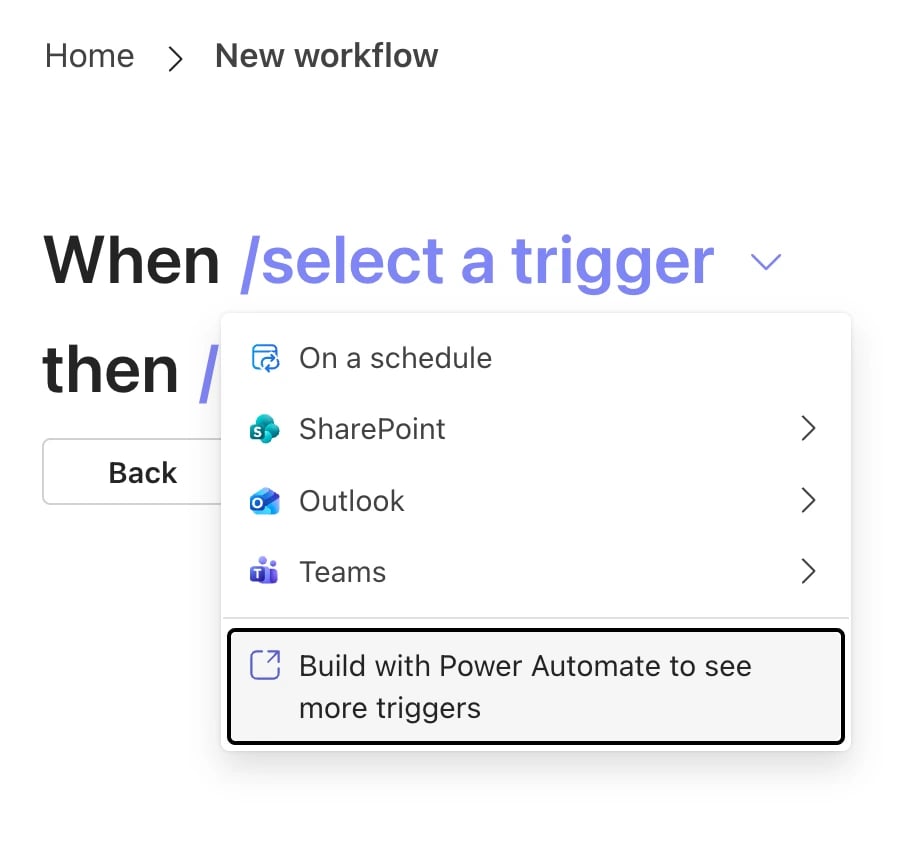
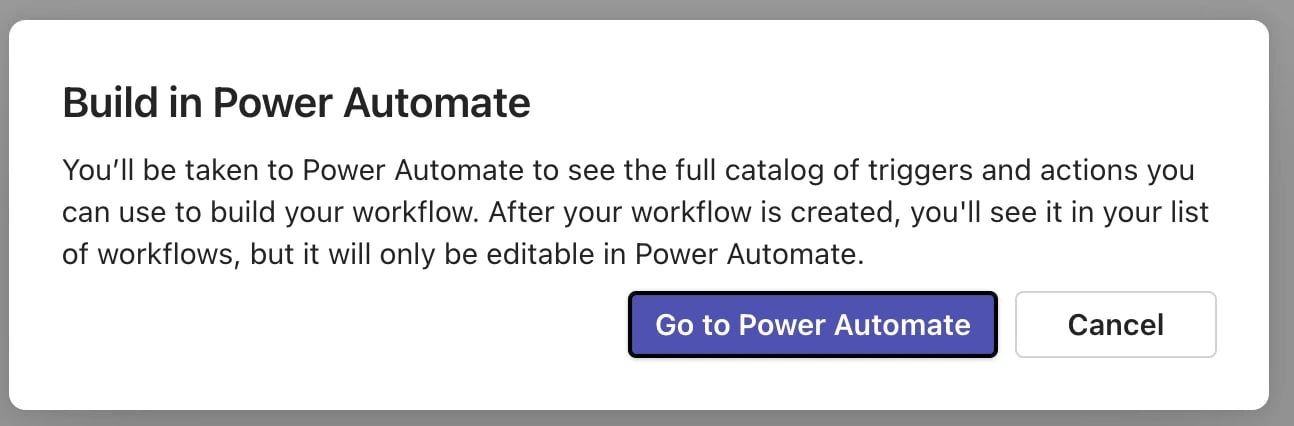
- In the pop-up window that appears, click the Go to Power Automate button
-
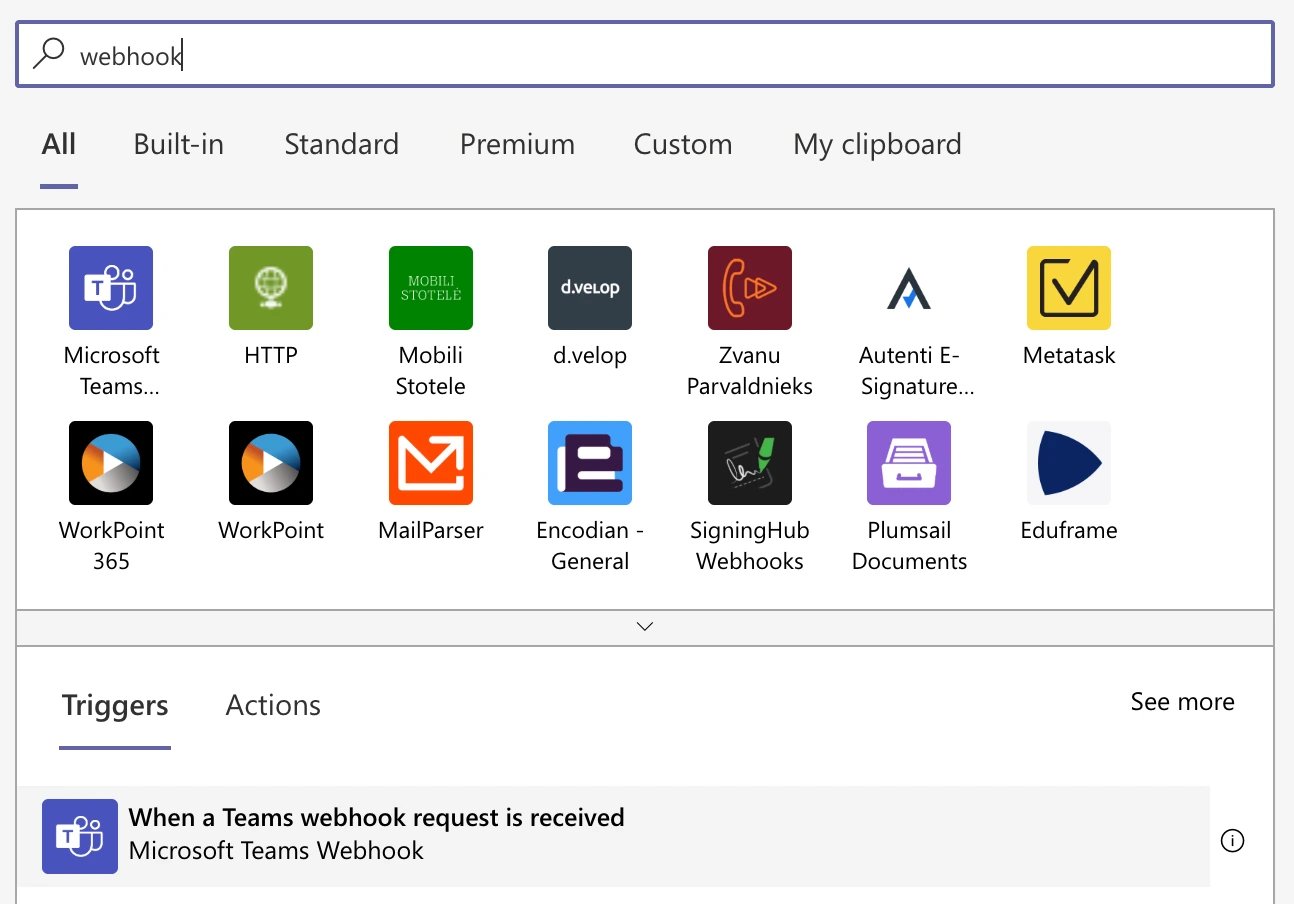
- Search for the “When a Teams webhook request is received” trigger, and click on it to add it to your workflow:
-
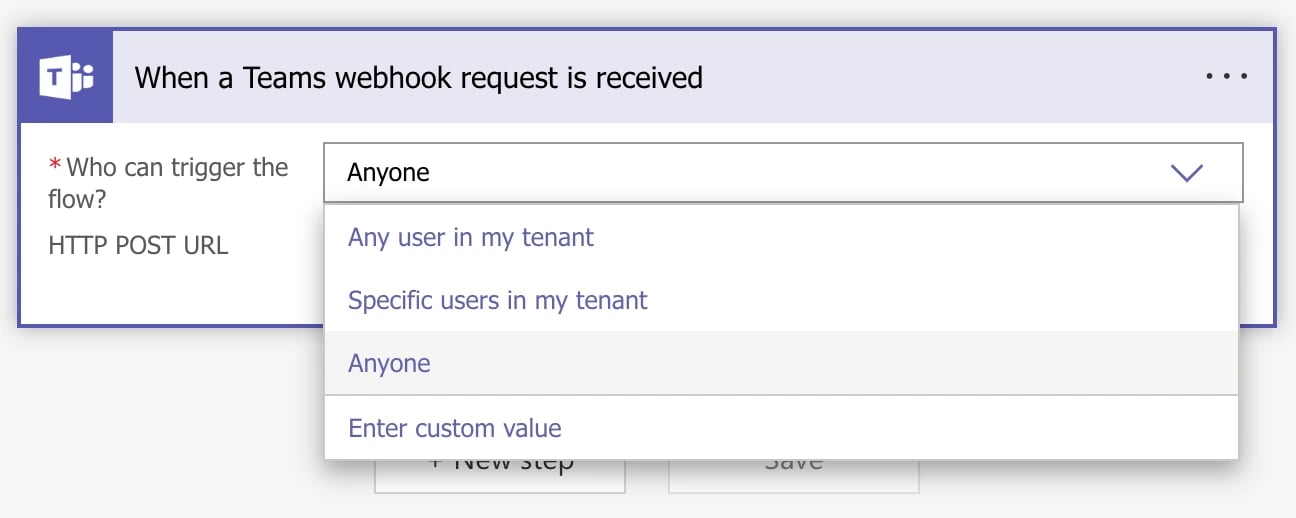
- Configure the When a Teams webhook request is received trigger so that anyone can trigger the flow:
-
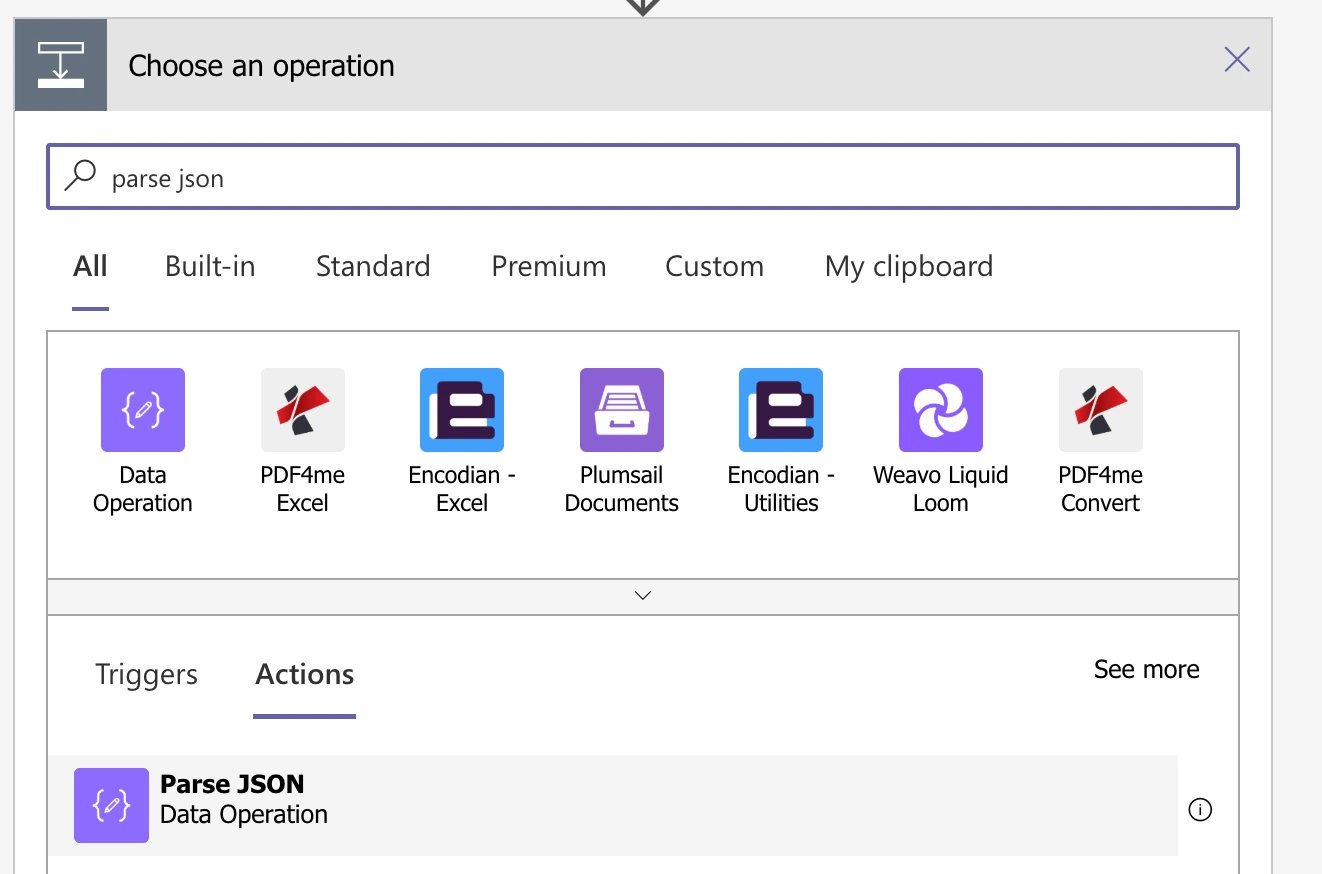
- Click the New Step button, search for the Parse JSON action, and click on it to add it to your workflow:
-
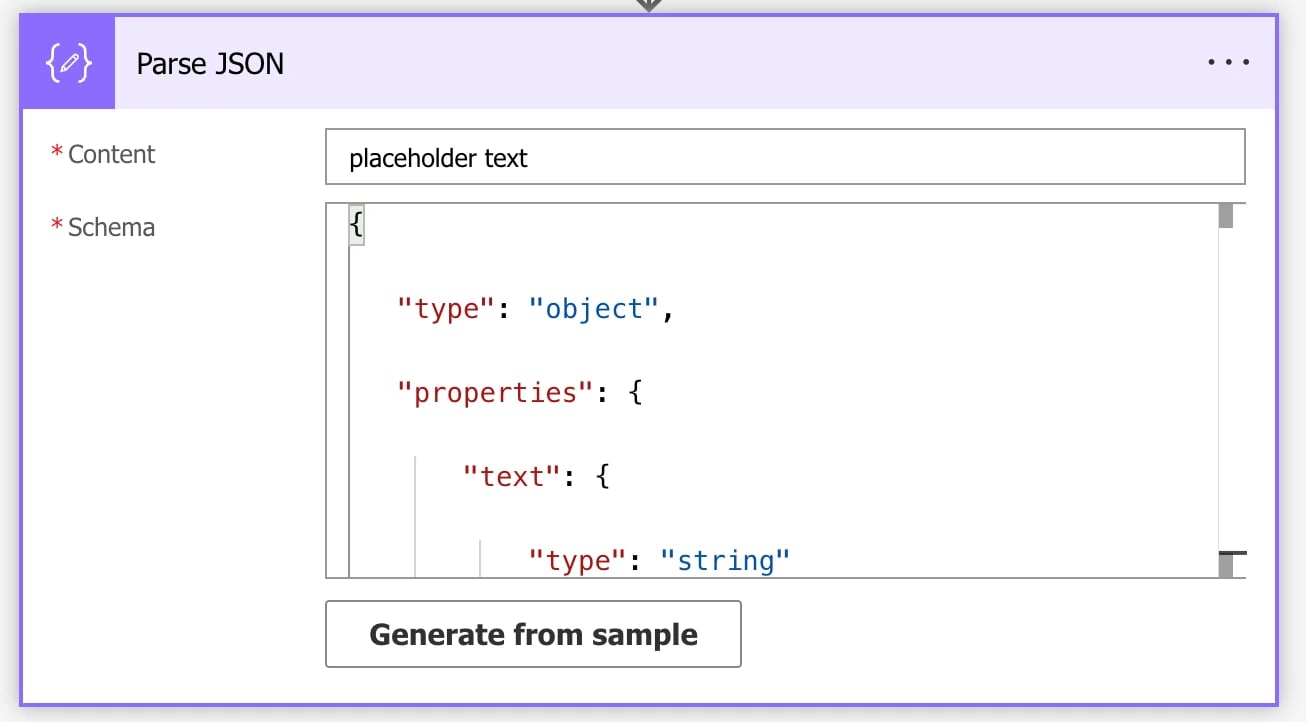
- Power Automate is weird; we cannot properly configure the Parse JSON action until we’ve saved and closed this workflow, and then reopened it - so for this second, let’s configure it like this:
- Content: type in “placeholder text”
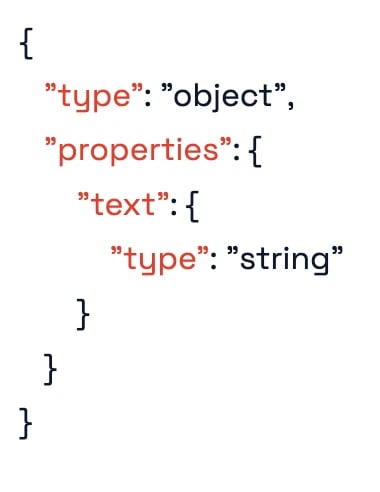
- Schema (what you see is a screenshot; to copy/paste it, head on down to the bottom of this KB article; the raw JSON is available there):
-
- Here’s what it’ll look like:
-
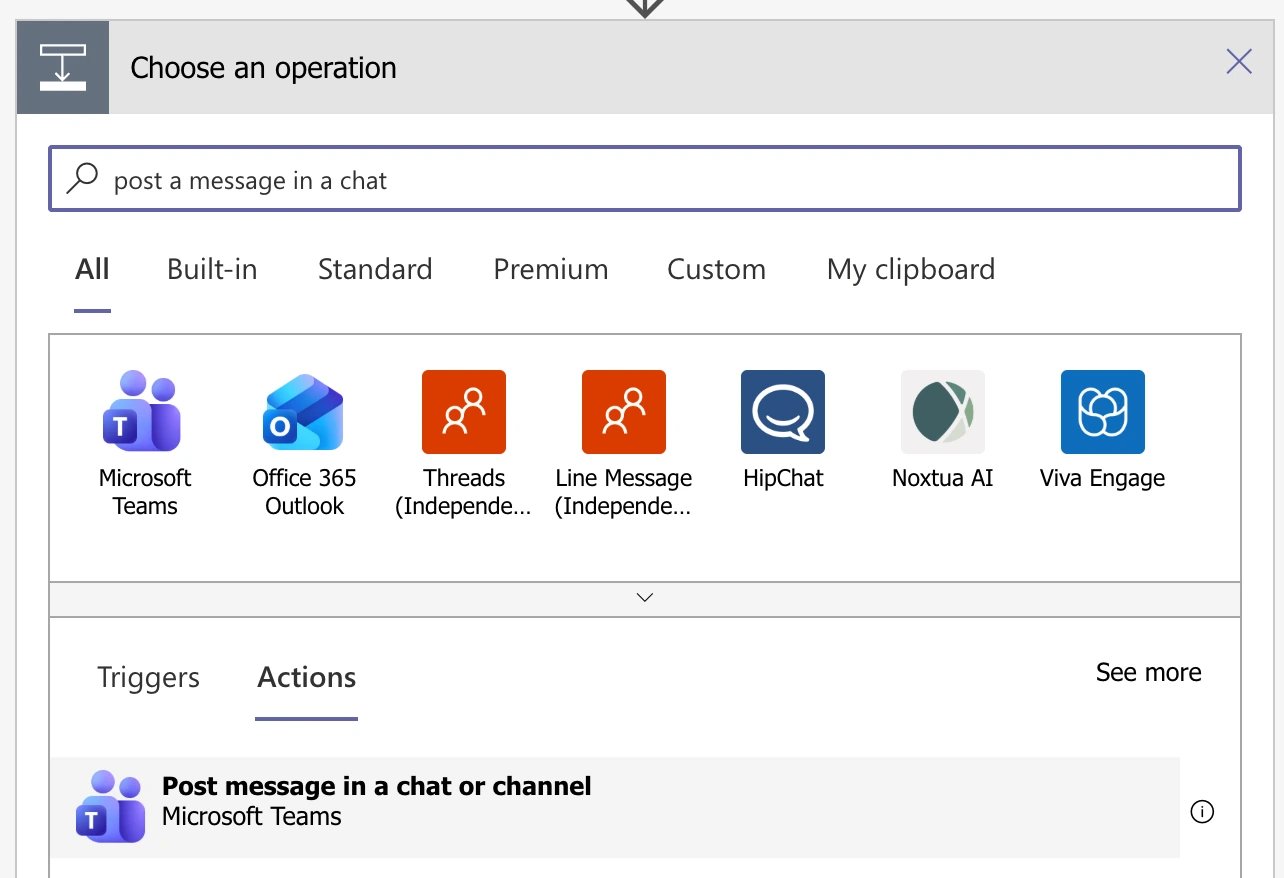
- Click the New Step button, search for “post message in a chat or channel”, and click on the Post message in a chat or channel action to add it to your workflow:
-
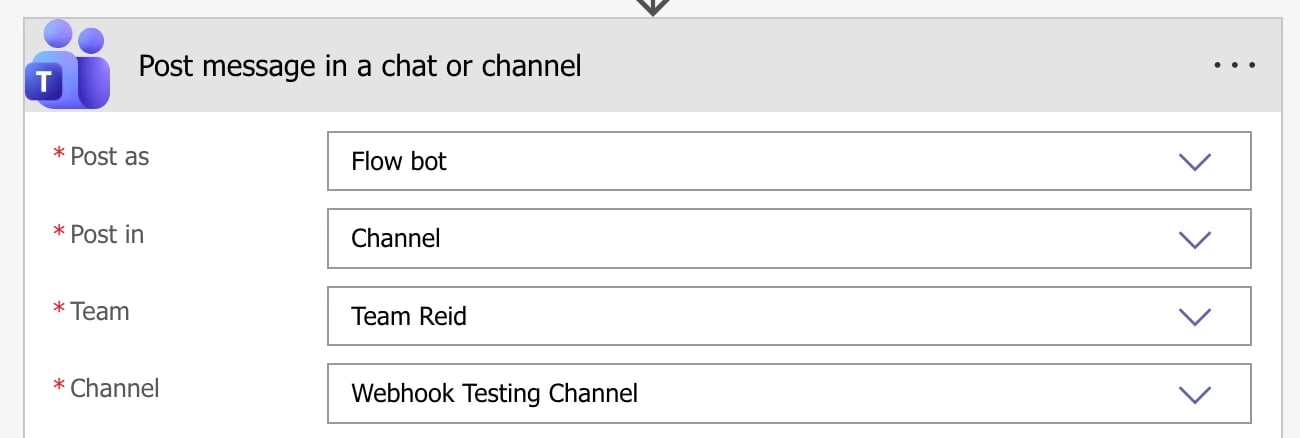
- You’re going to configure the Post message in a chat or channel action to post into the Team/Channel combination of your choosing:
-
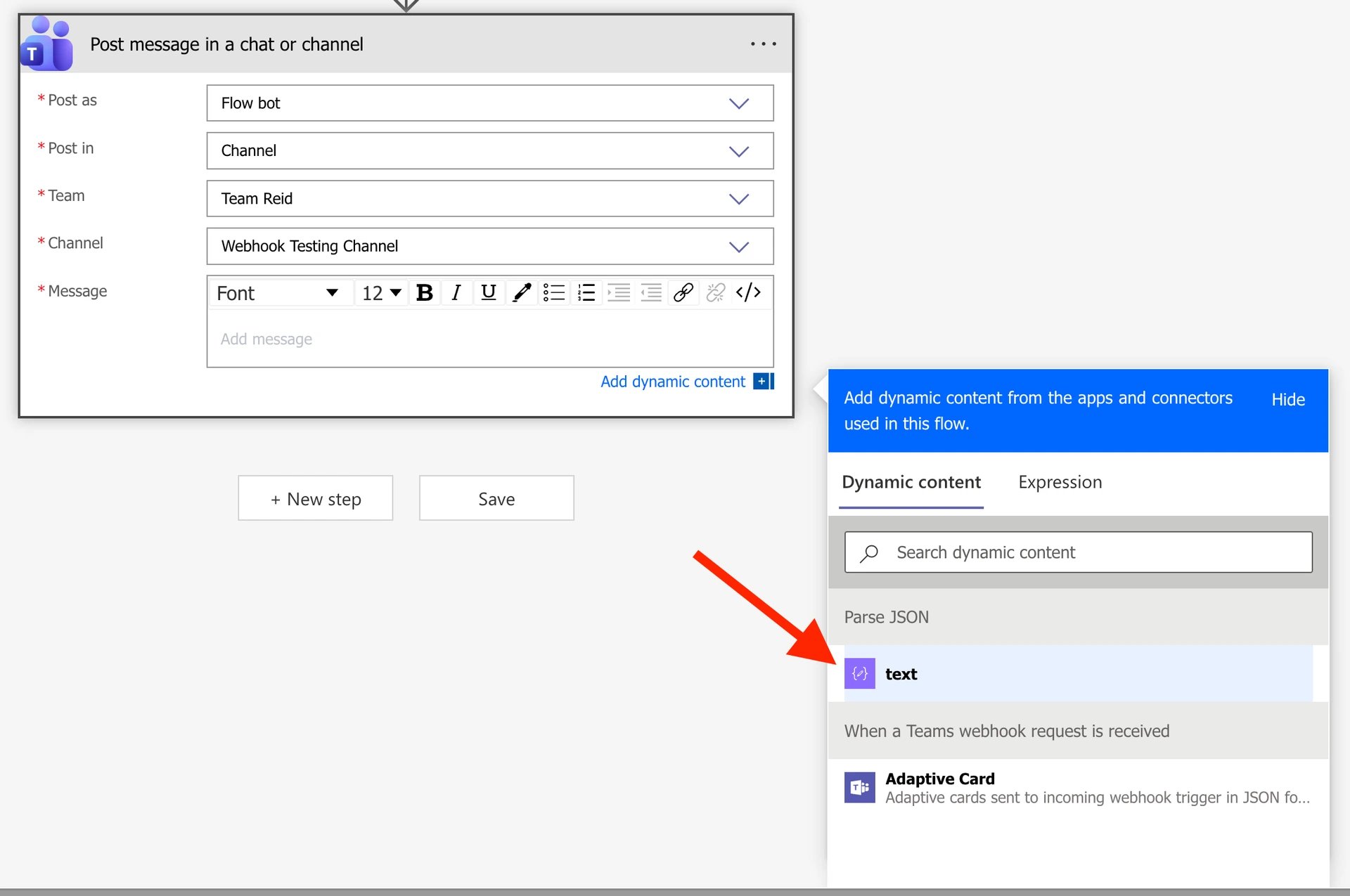
- You’re also going to configure the Post message in a chat or channel action to use the text value from the Parse JSON action as the body of the message:
-
- Click the Save button to save your workflow; it’ll take 15-20 seconds to finish the initial save
- Close the workflow by clicking the X button in the top right-hand corner
Reopening the Workflow and Completing Its Setup
- Within the Workflows app in Microsoft Teams, reopen the workflow you just created
- Open the Parse JSON action
- In the Content field, remove that “placeholder text” value that you typed in earlier
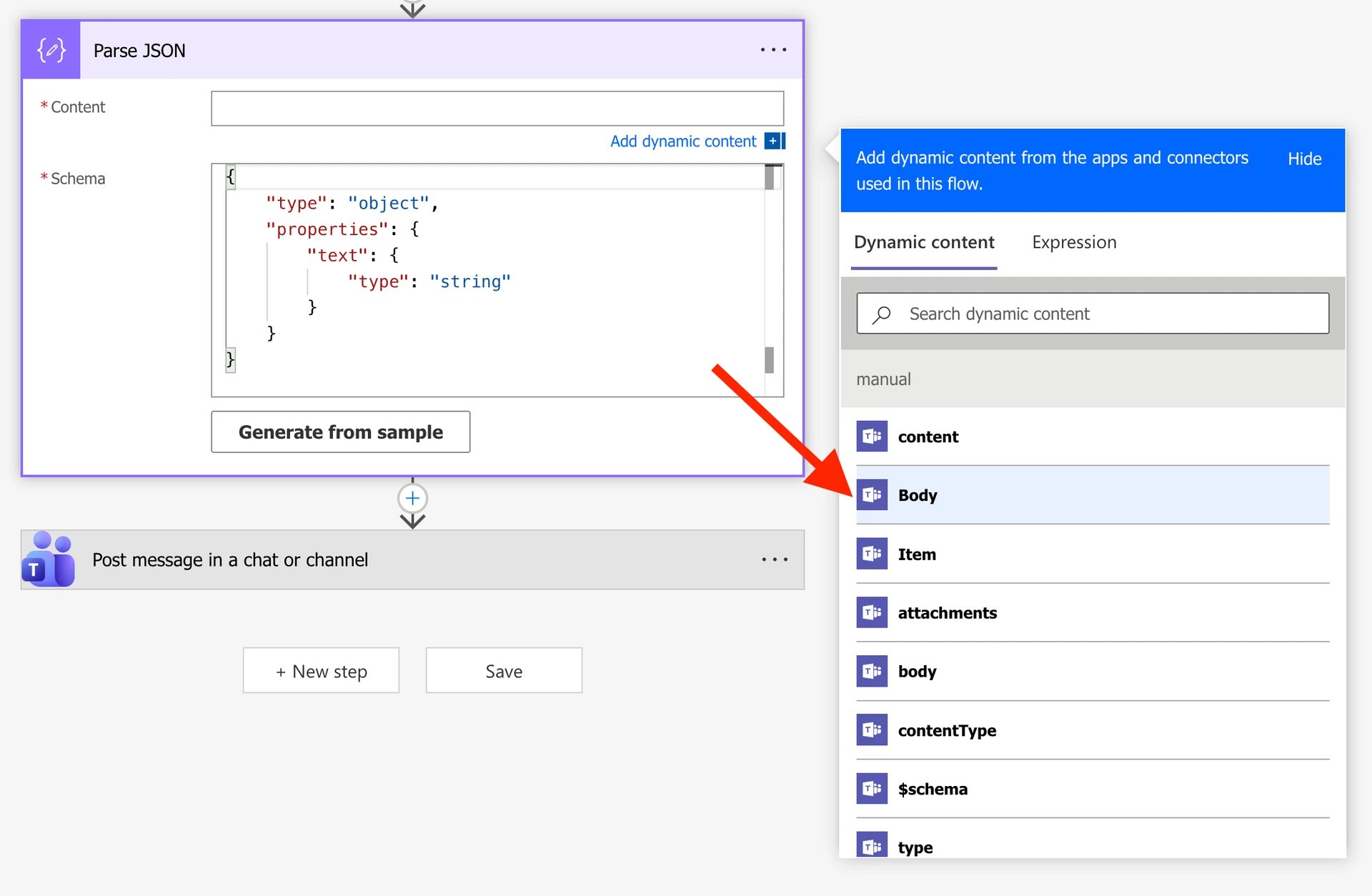
- Choose the Body variable from the When a Teams webhook request is received trigger as the input for the Content field:
-
- Click the Save button to save your workflow
Configuring a Microsoft Teams Connection in MSP Process:
- Login to the MSP Process UI (https://app.mspprocess.com) as an Admin-level user
- Navigate to the Settings -> Account Settings -> Teams Connections page
- Click the Add button:
- Fill in the two required fields:
- Give the connection a name
- In the URL field, paste the URL from the Microsoft Teams workflow - the URL can be found in the When a Teams webhook request is received action:
- Click the Test button to ensure that the connection to your Microsoft Teams workflow is correctly setup - you should see the message “Hello, World” in the Microsoft Teams channel you specified in the Workflow.
- Click the Submit button to save the connection