

Overview
Manager Approvals lets a technician request approval from a manager directly from a ticket. This article covers setup for admins and day-to-day steps for technicians.What is Manager Approvals?
Manager Approvals lets a technician request approval from a manager directly from a ticket. It works very much like Secure Data Sharing: the approver gets a branded link, and the outcome is recorded on the ticket.How do I configure Manager Approvals as an admin?
Go to Identity Management and open Manager Approvals. The settings are split into four tabs: General, Approvers, Branding & messages, and Templates. Everything has a sensible default, so you can turn it on and start using it right away.What can I set on the General tab?
The General tab controls how approval requests behave for your technicians and approvers. Settings that are on by default are marked below.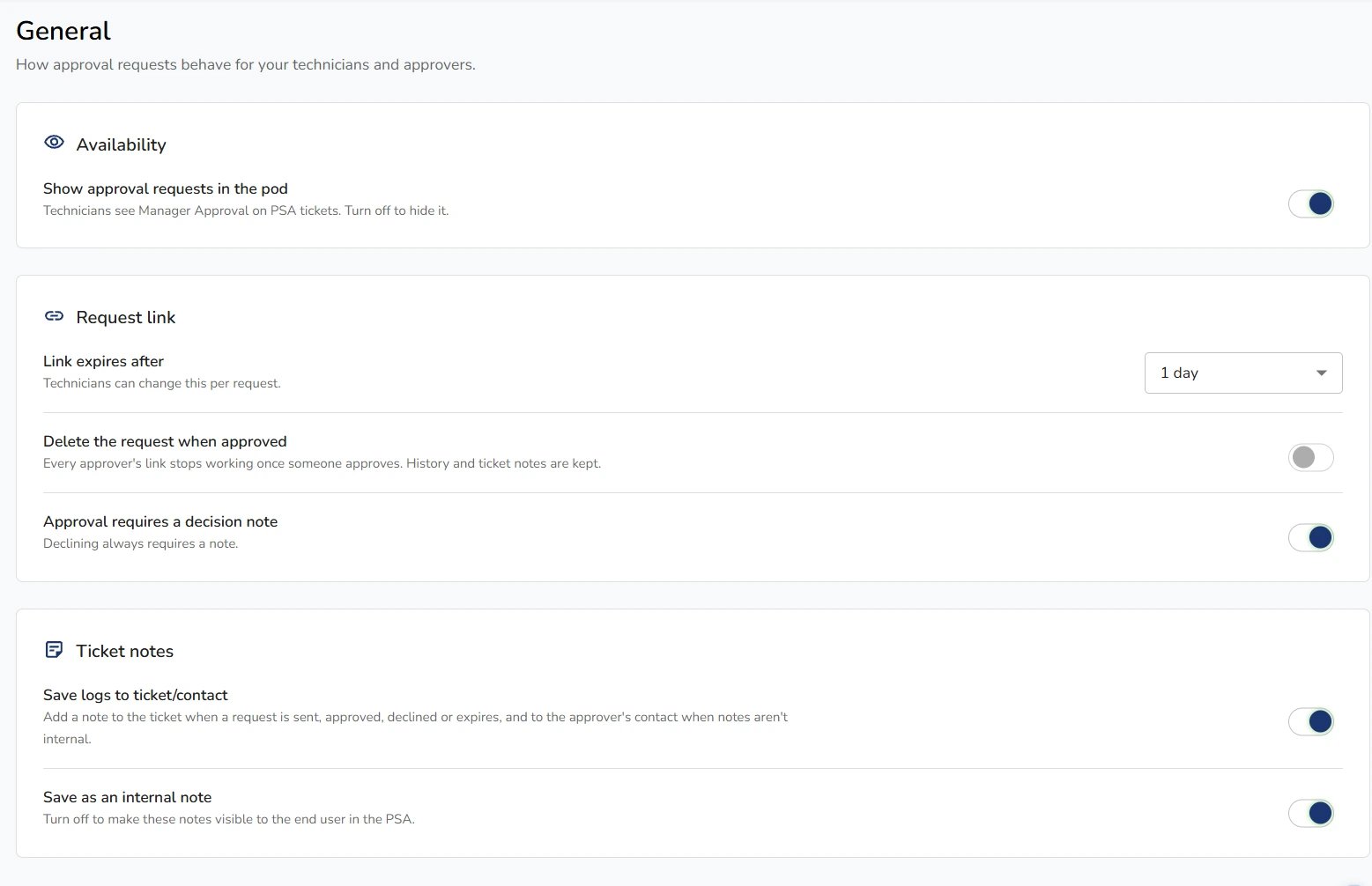
Who can be an approver?
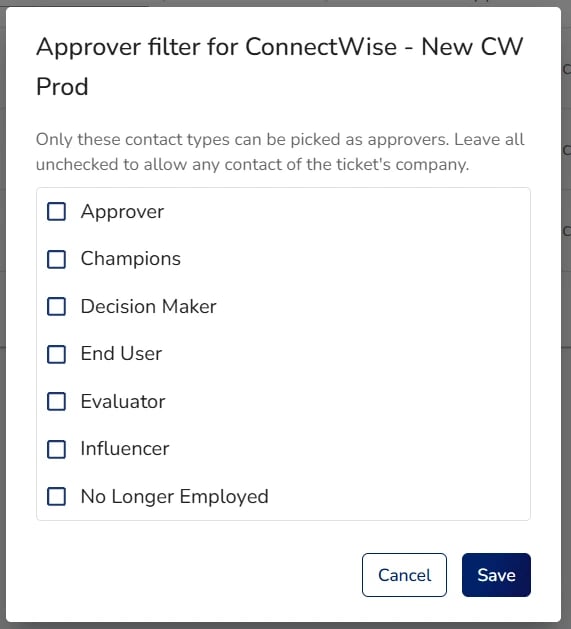
Use the Approvers tab to choose which PSA contacts technicians can pick as approvers. The filter depends on your PSA:- Autotask filters by contact group.
- ConnectWise filters by contact type.
- For other PSAs, any contact of the ticket’s company can approve.
How do I brand the approval page and messages?
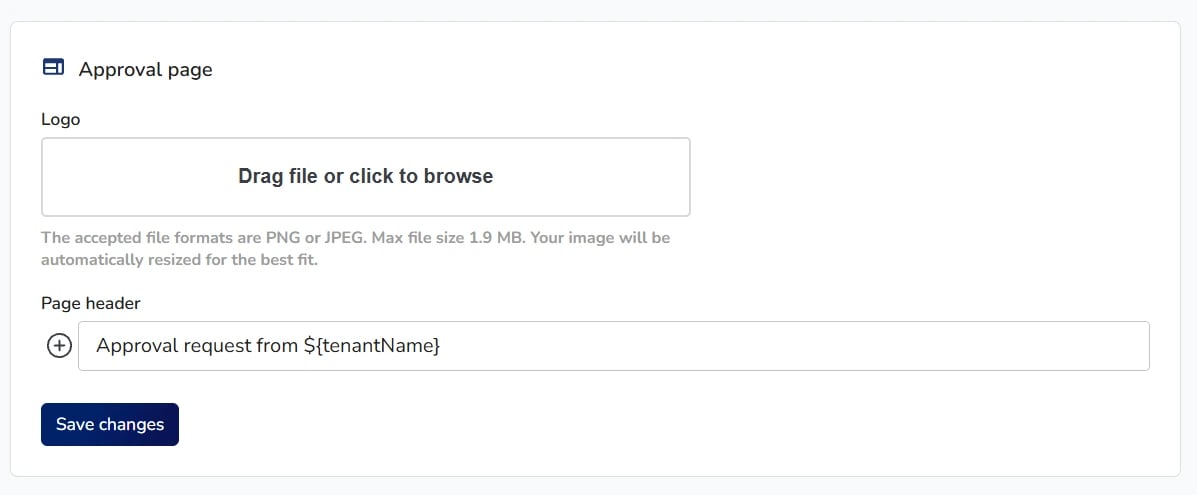
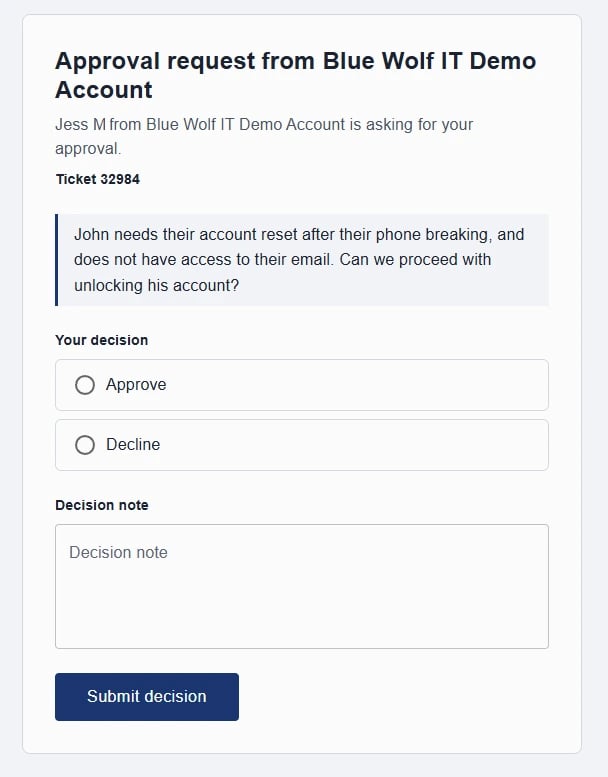
The Branding & Messages tab sets what approvers see on the approval page and in the SMS or email they receive. Each section has its own Save changes button, so save after each change.- Approval page: upload a logo (PNG or JPEG, up to 1.9 MB, resized automatically) and edit the page header. The default header is “Approval request from ${tenantName}”.
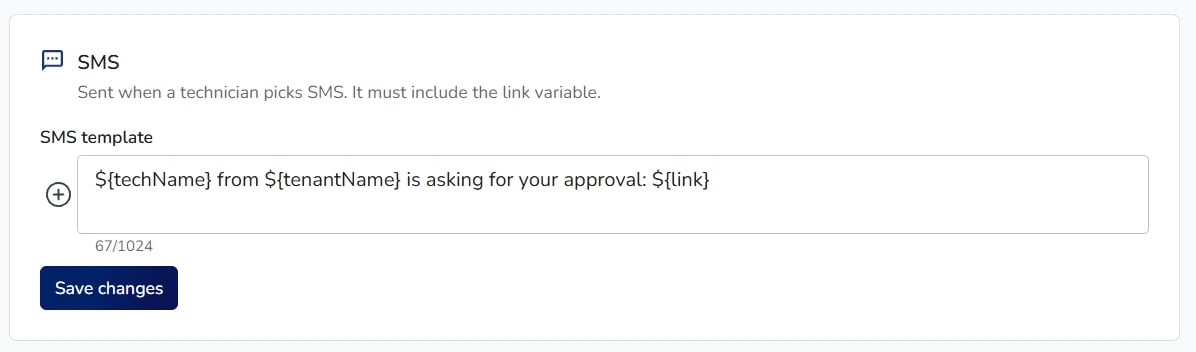
- SMS: edit the SMS template, which is sent when a technician picks SMS. It must include the ${link} variable.
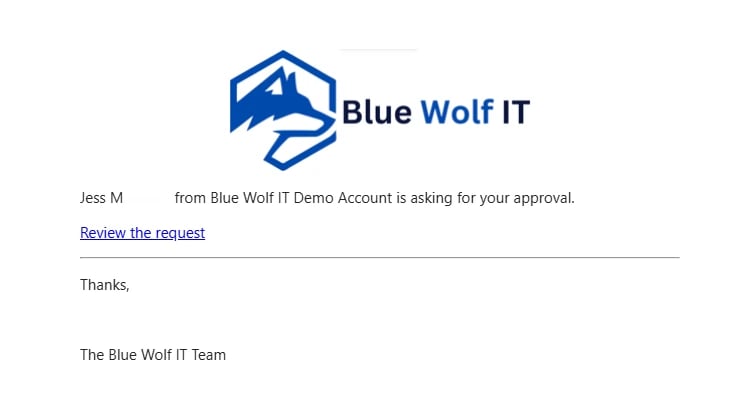
- Email: edit the subject (default “Approval needed: ${tenantName}”) and the email template, which is sent when a technician picks email. The body must include the link, and the default includes a “Review the request” link.
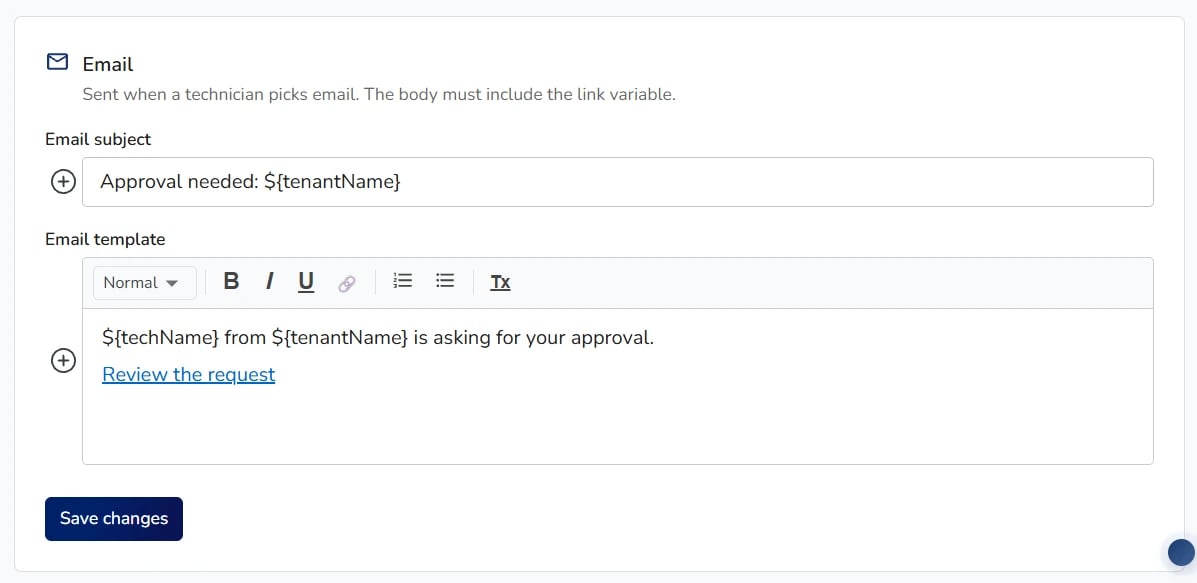
- ${techName}
- ${tenantName}
- ${contactName}
- ${link}
How do I create reusable request messages?
You can locate the option to create templates in the Templates Tab. Templates are reusable request messages that technicians can pick in the pod. There are no default templates, so any common manager approvals used, it is recommended to create a template. Select Add template, enter a Name and the Text, then select Save. Once you have templates, technicians can fill in a request in one click.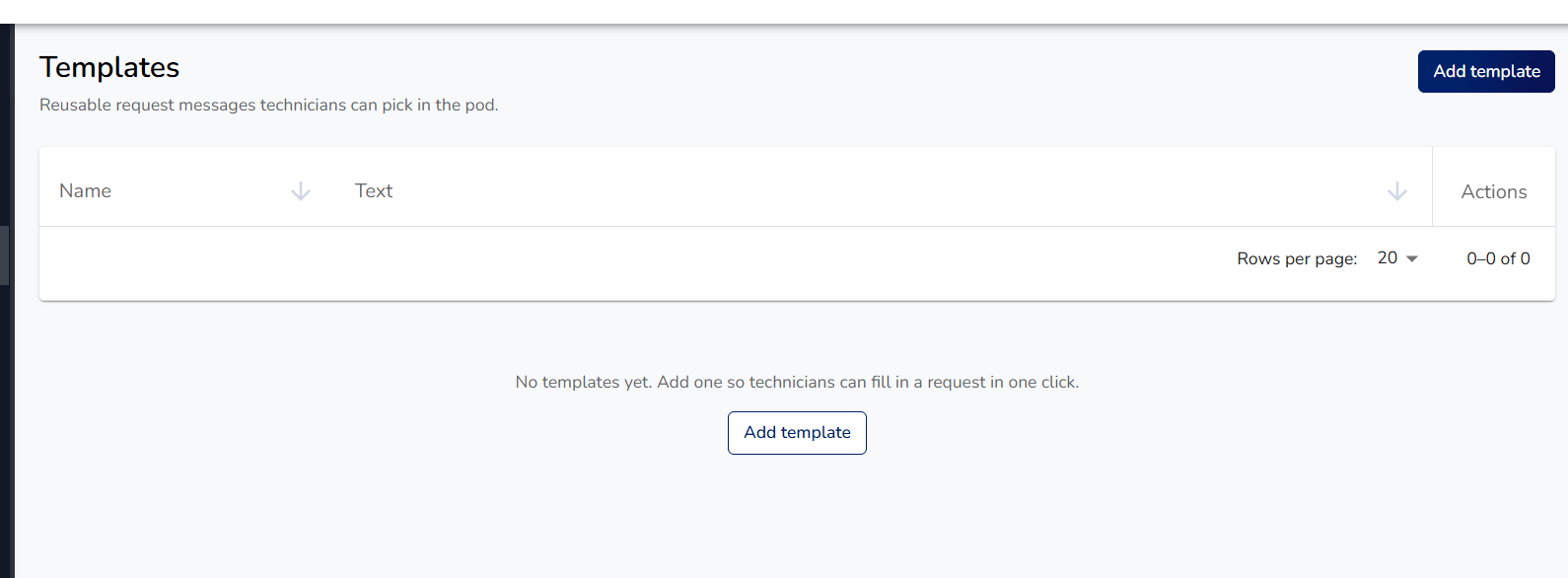 | 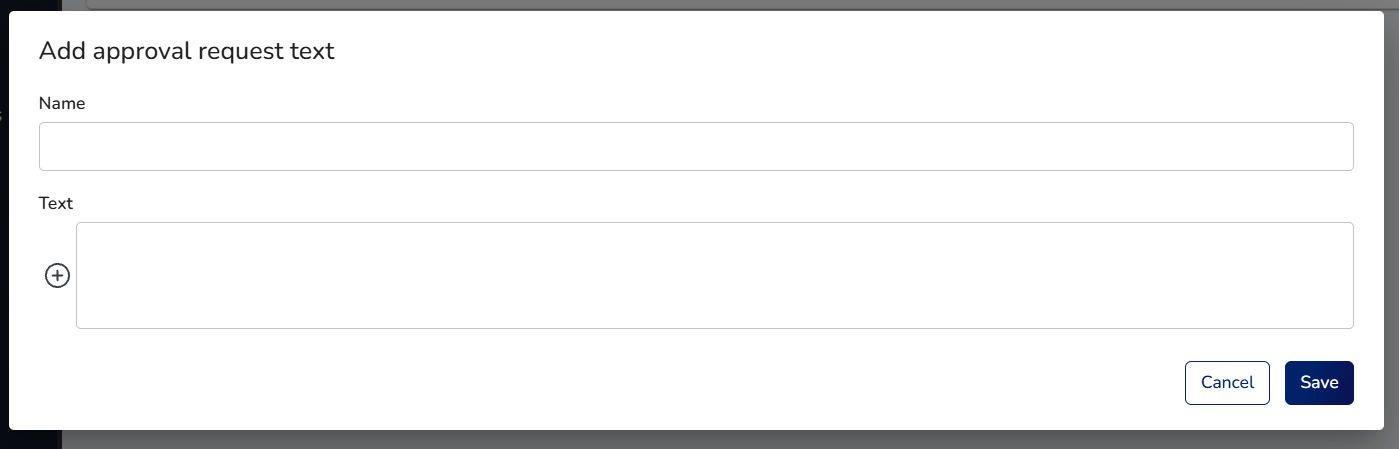 |
|---|
How do I request an approval from a ticket as a technician?
- Open the ticket in your PSA and choose Manager Approval in the pod, then Send Request.
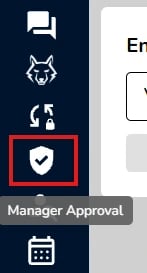
- Pick the approver from the list. Only the contacts allowed on the Approvers tab appear.

- Choose a template, if your admin set one up, or write your own message.
- Enter the message for the admin to review and approve or deny.
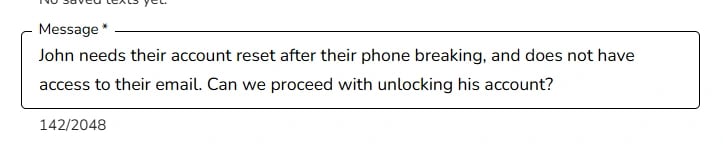
- If needed, change how long the link stays valid. The default is 1 day.

- Choose how to send the request, SMS, email or copy the link.
- Copying the link allows you to copy a link to share yourself.

- Send the request.
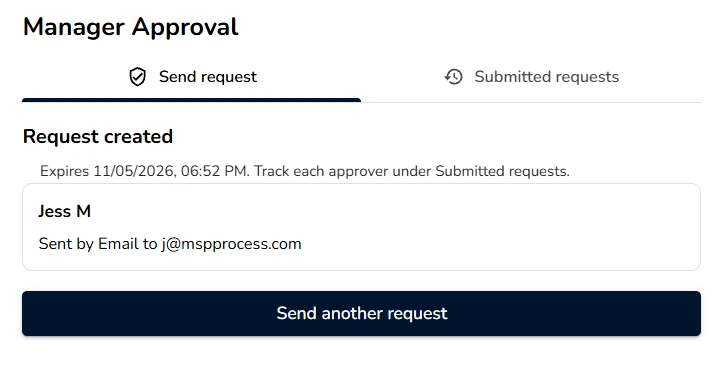
- The approver opens the link and sees a branded approval page, as with Secure Data Sharing.
- The approver approves or declines. Declining always requires a note, and your admin may require a note for approvals too.
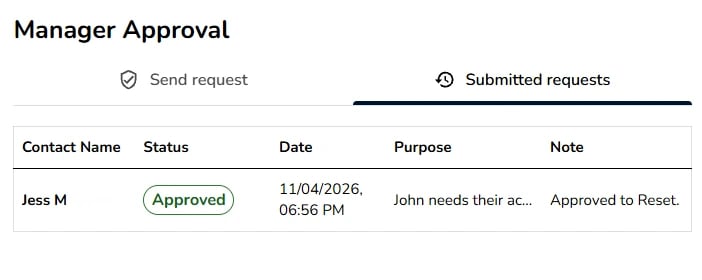
- Refresh the ticket. It shows the decision and the approver’s note.
FAQs
Why can’t I find Manager Approvals in Identity Management?
- The Manager Approvals menu is an admin setting. Confirm you are signed in with admin access, then look under Identity Management.
Why don’t technicians see Manager Approval on tickets?
- On the General tab, make sure Show approval requests in the pod is turned on. When it’s off, Manager Approval is hidden from technicians on PSA tickets.
Why is the approver I need missing from the list?
- Approvers are set per PSA connection on the Approvers tab. Autotask filters by contact group and ConnectWise by contact type. For other PSAs, any contact of the ticket’s company can approve. Select the pencil icon on the connection and check that the person’s contact group or type is allowed, and that they are a contact of the ticket’s company.
Why does the approval page or message not match our branding or wording?
- The logo, page header, and default SMS and email wording are set on the Branding & messages tab. Make your change and select Save changes in that section. For reusable wording technicians can pick per request, add a template on the Templates tab. SMS and email templates must keep the link variable, or the approver won’t get a working link.
Why doesn’t the ticket show the approval?
- Refresh the ticket after the approver responds. Once refreshed, the ticket shows the decision along with the approver’s note. If no note appears, check that Save logs to ticket/contact is turned on in the General tab.
Why can’t the end user see the approval notes?
- By default, approval notes are saved as internal notes. To make them visible to the end user in the PSA, turn off Save as an internal note on the General tab.
Why did the approver’s link stop working?
- Links expire after the time set on the General tab (1 day by default), and a technician can change that per request. If Delete the request when approved is on, every approver’s link also stops working once someone approves. Send a new request if you need another decision.