

Introduction
Configuring the IT Glue integration in MSP Process allows you to seamlessly push rotated passwords directly into your IT Glue account. Follow the steps below to generate an API key and set up the integration.IP Whitelisting in IT Glue
If you are leveraging IP whitelisting in IT Glue, you’ll need to allow inbound queries from two sources:- 172.168.0.0/15 (note: this is a temporary IP range; it will only be required until the end of September 2026)
- 64.236.54.139 (this is our permanent, public IP, and all future queries to IT Glue will be routed through it)
Generating an API Key in IT Glue
- Log into IT Glue, click the settings gear icon in the top right corner, and select Admin.
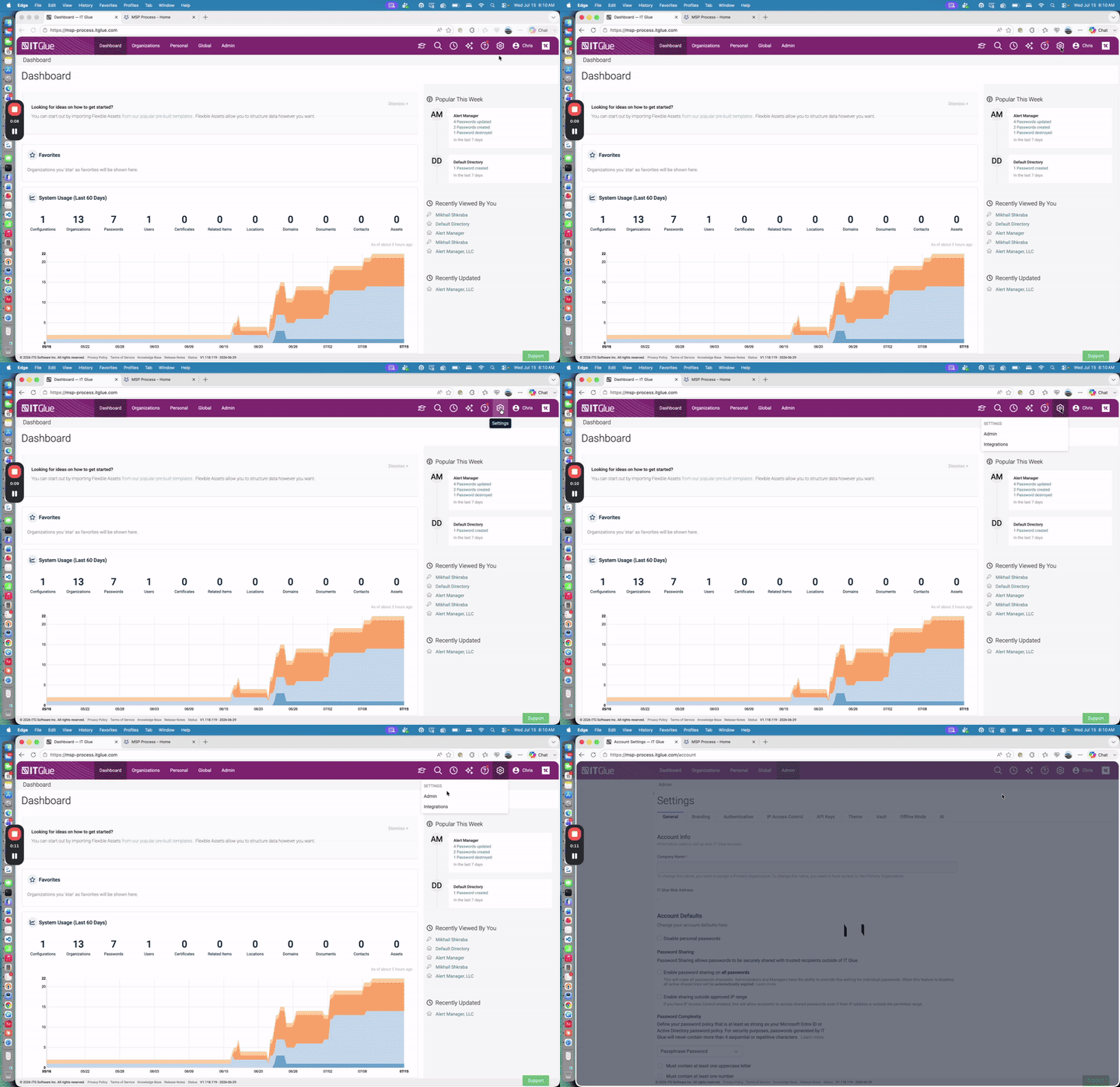
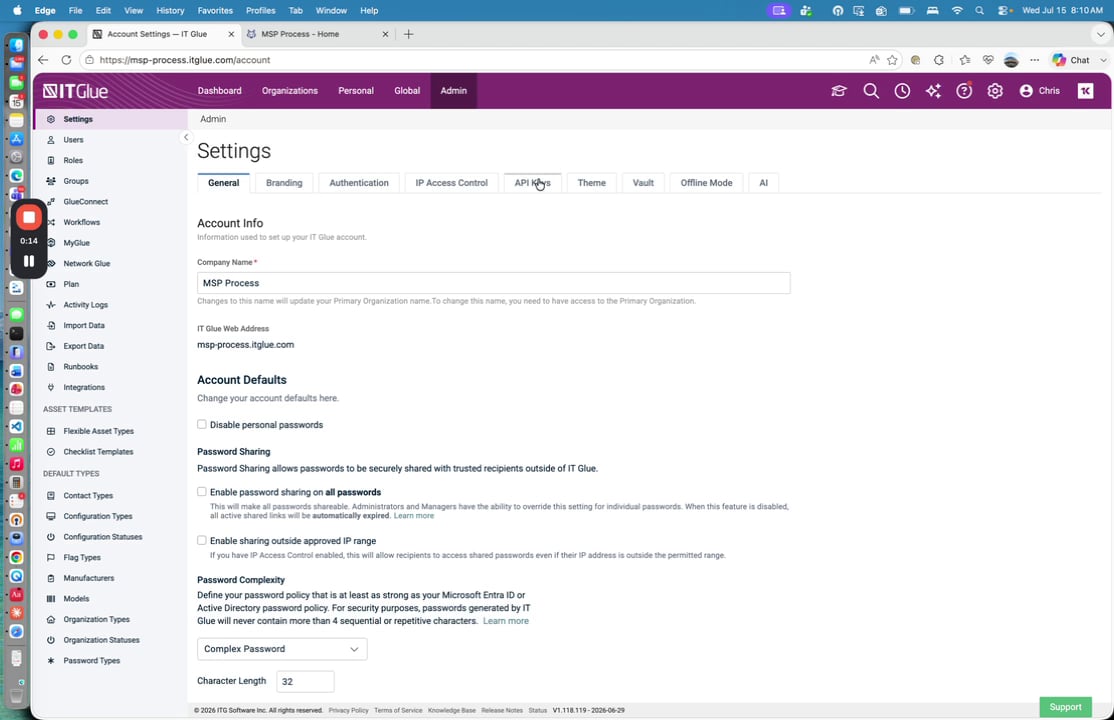
- Navigate to the API Keys tab.
- Create a new API key and ensure you check the Password Access box. This must be enabled for MSP Process to push new passwords that have been rotated into IT Glue.
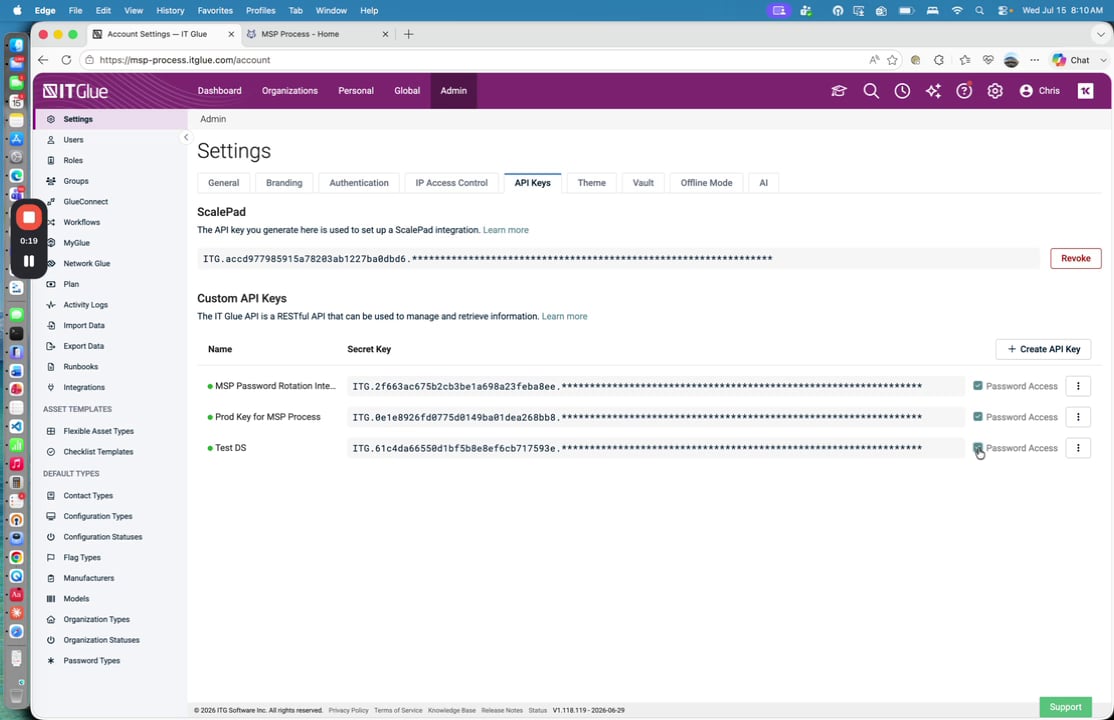
- Copy the generated API key to your clipboard.
Adding the Integration in MSP Process
- Log into MSP Process as an admin-level user.
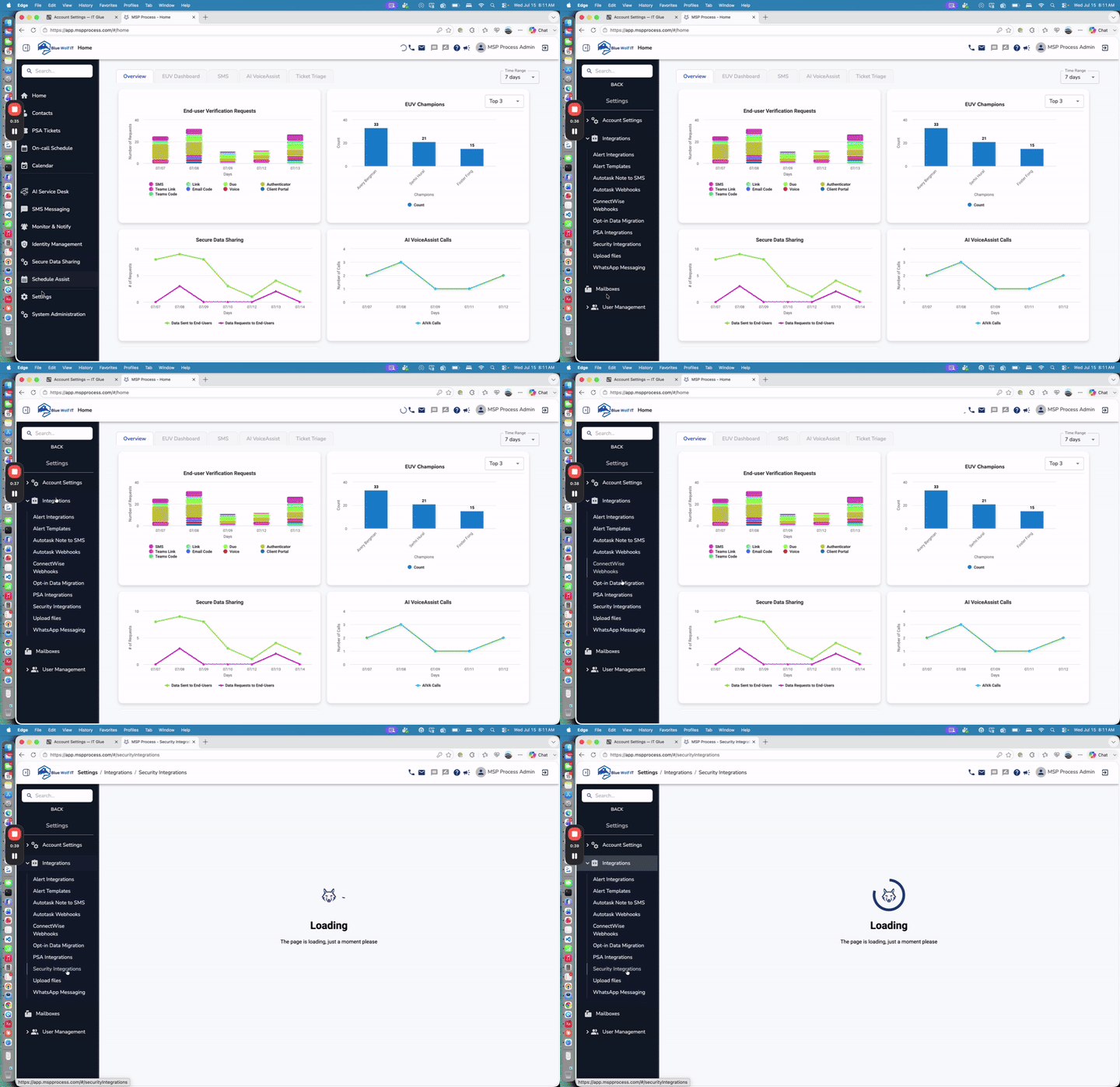
- Navigate to Settings > Integrations > Security Integrations from the left-hand menu.
- Click the Add new integration button (the plus icon) and select IT Glue.
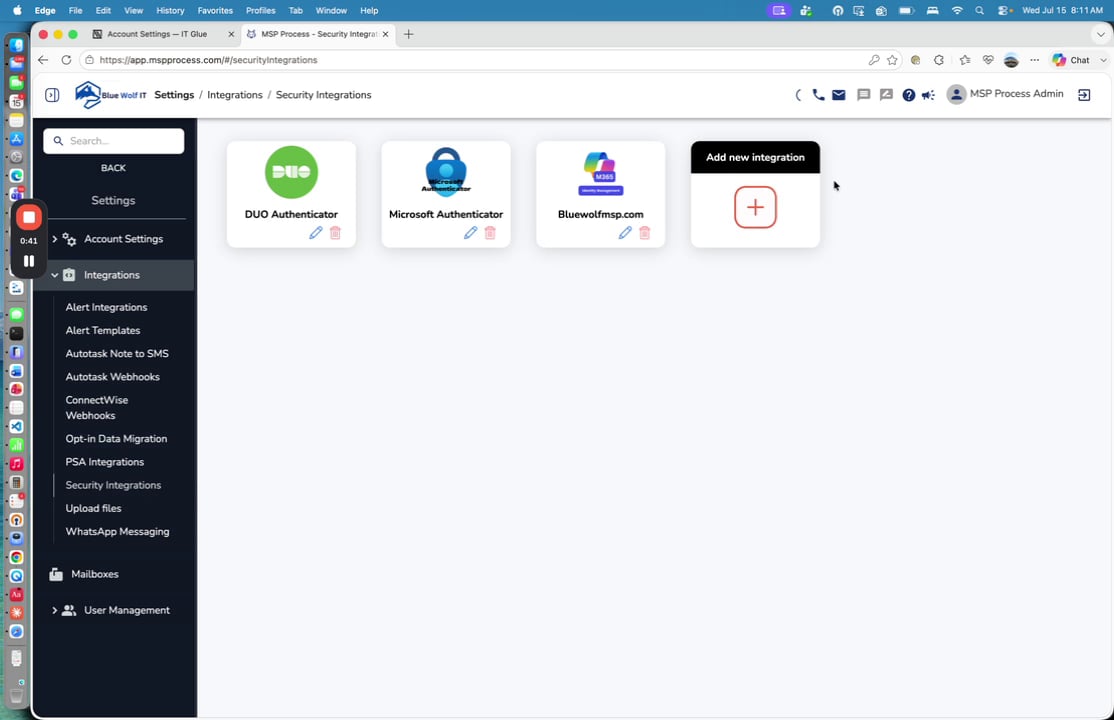
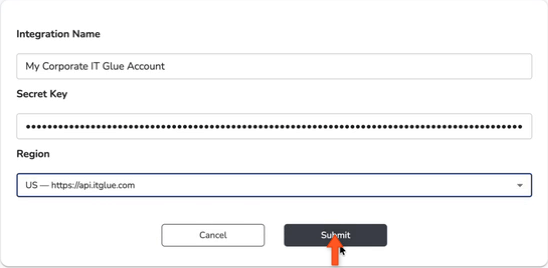
- Provide an Integration Name, such as “My Corporate IT Glue Account”.
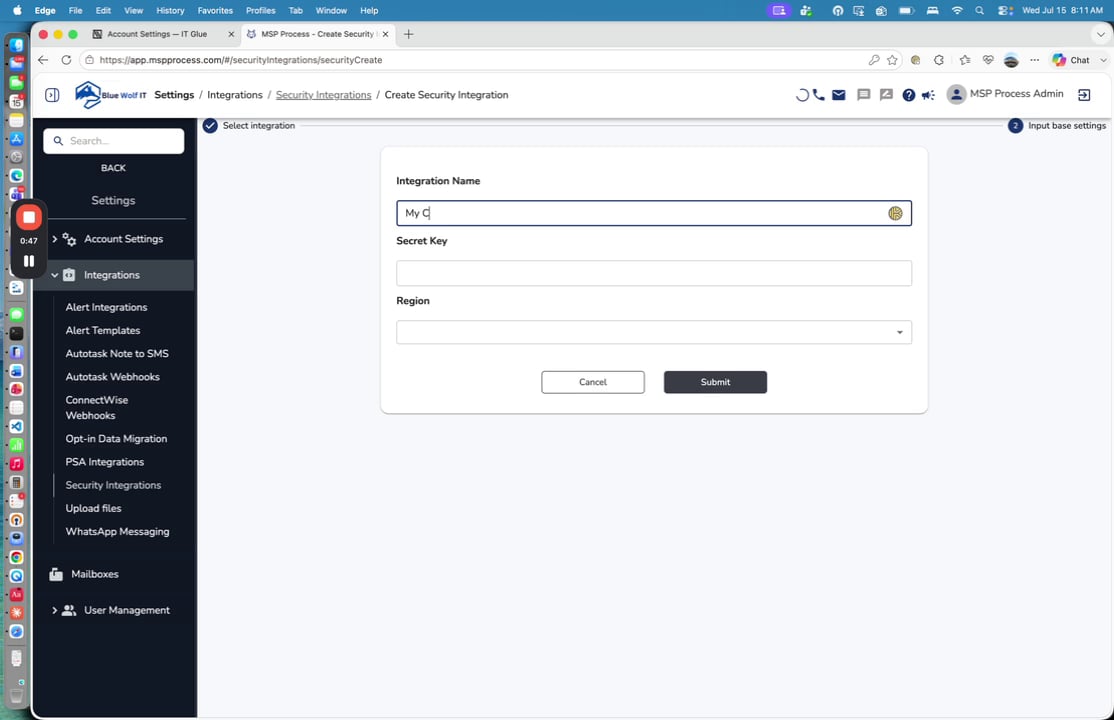
- Paste the API key you copied earlier into the Secret Key field.
- Select the appropriate Region for your IT Glue account (e.g., US, EU or Australia).
- Click Submit to save the integration.
Managing Client Mappings
Once saved, MSP Process will automatically map clients set up for password rotation to the corresponding organization in IT Glue if their names match. You can manually adjust these mappings as needed.- On the Security Integrations page, click the edit (pencil) icon next to your IT Glue integration to view the client mappings.
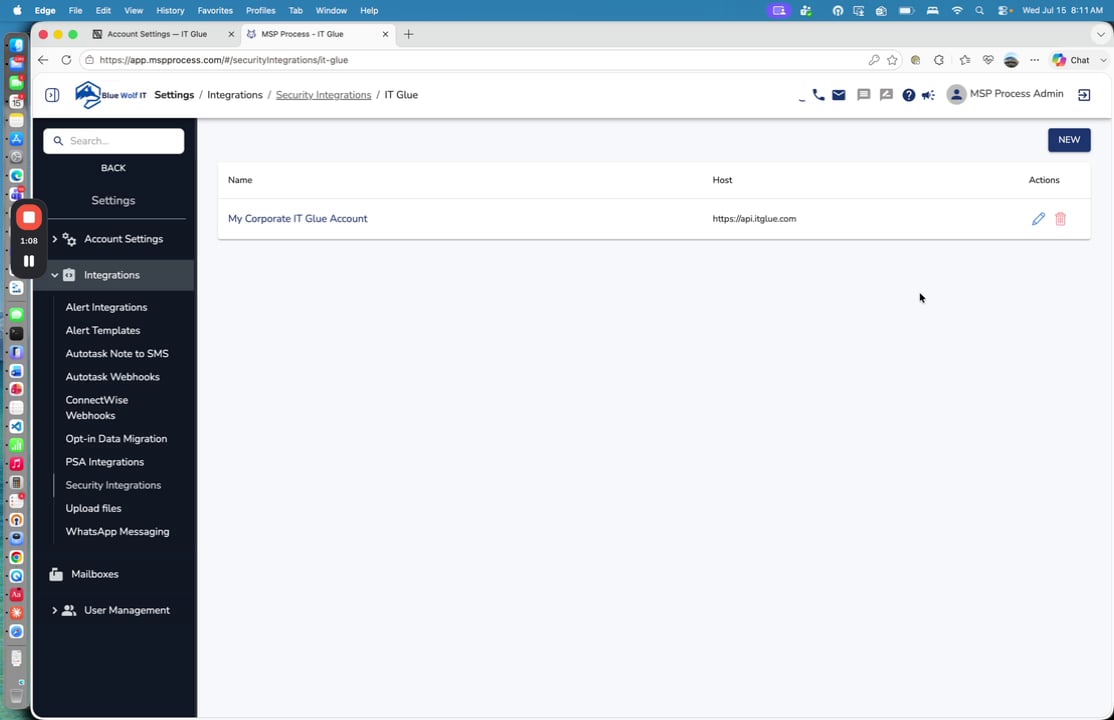
- If you have recently added new organizations in IT Glue, click the Sync button at the top to refresh the list.
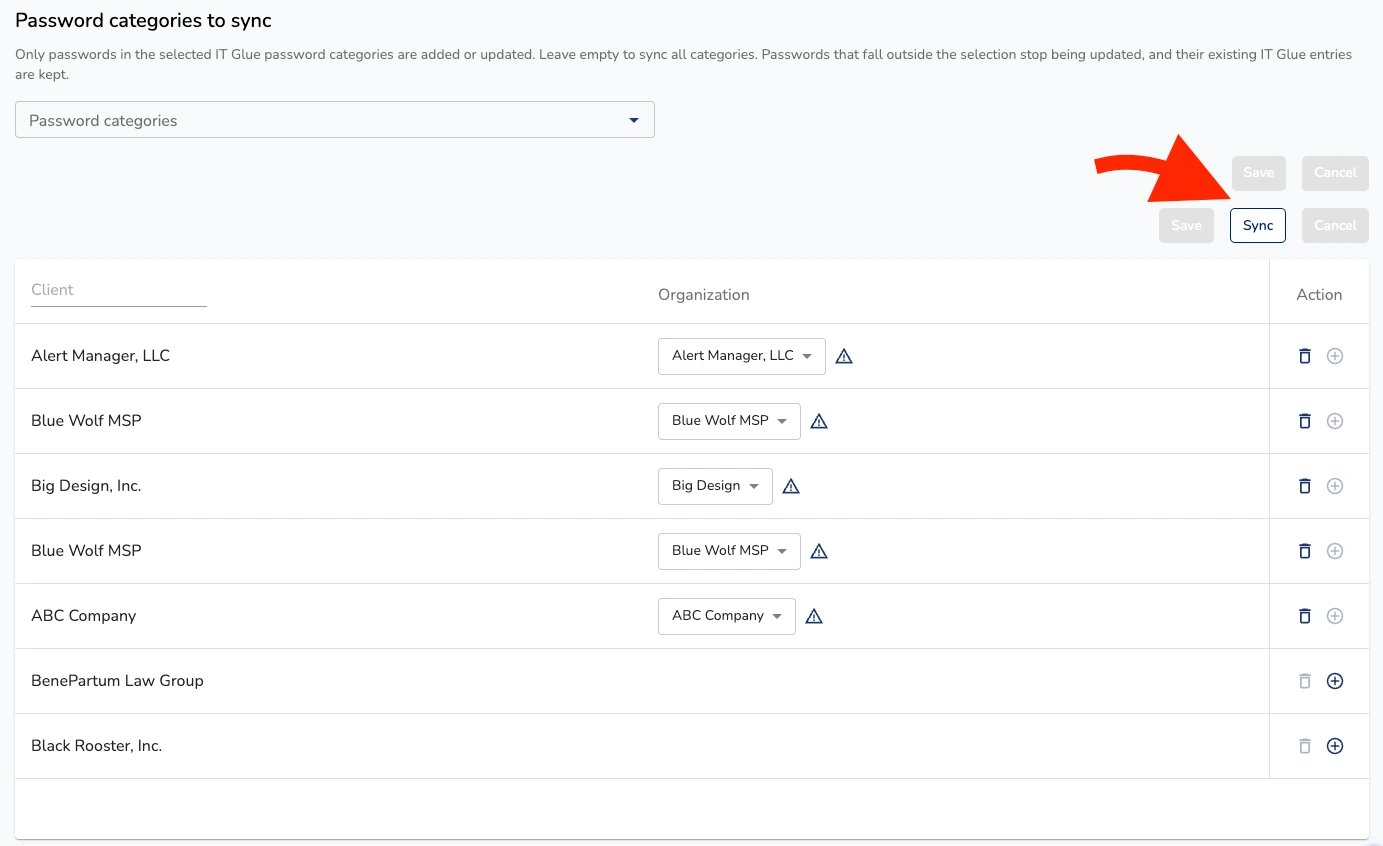
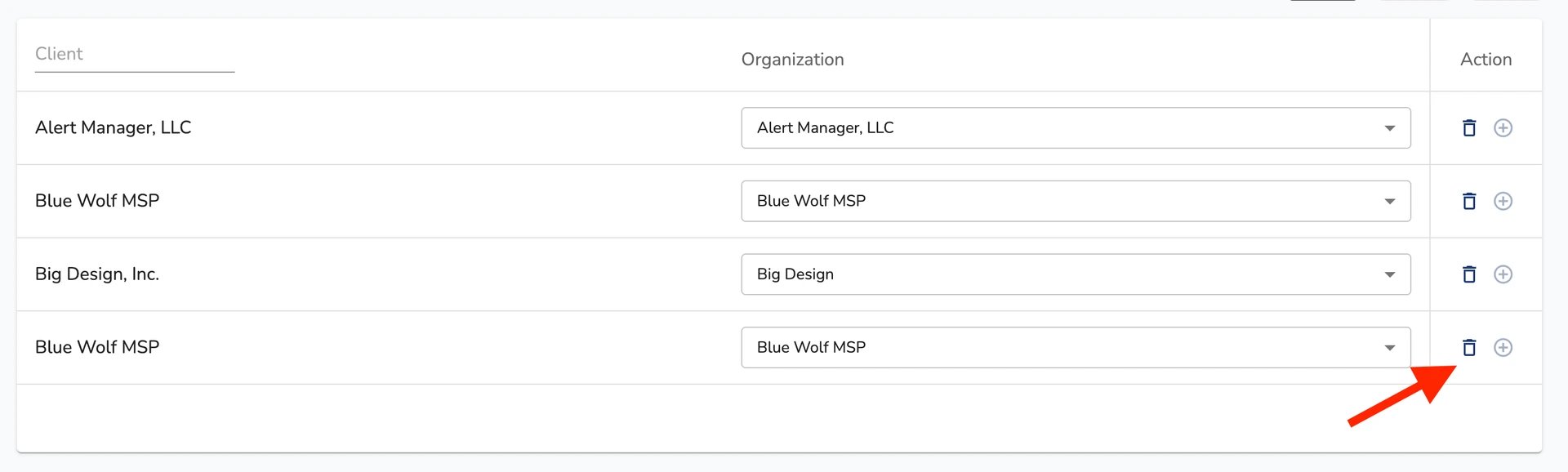
- To prevent passwords from being pushed for a specific client, click the trash can icon to delete that mapping.
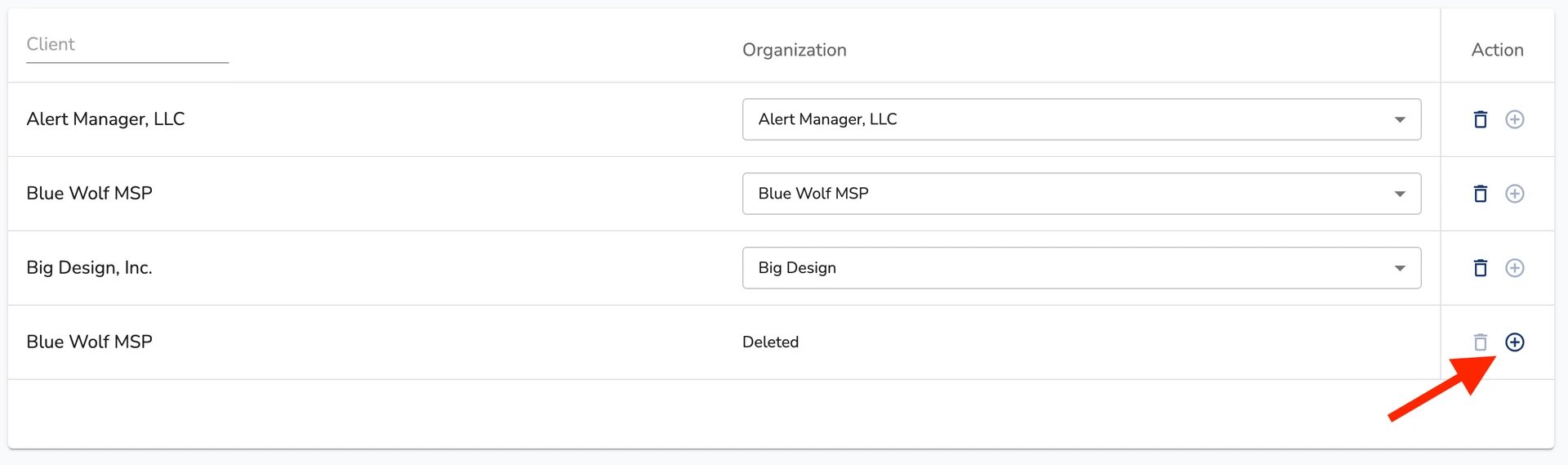
- To manually add or recreate a mapping, click the + (plus) icon next to a client and select the correct IT Glue organization from the dropdown menu.
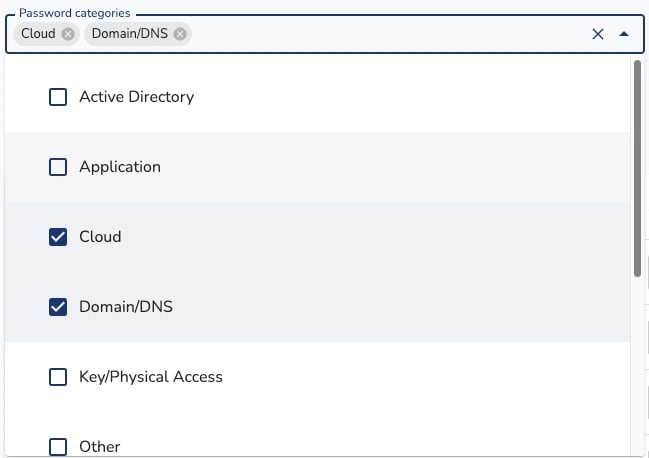
- To limit MSP Process so that it only changes passwords that are in one or more specific Password Categories in IT Glue, choose those Password Categories from the drop-down menu. Click Save when you’re done.
-
Deleting the Integration
If you ever need to remove or recreate the IT Glue integration entirely, you can easily delete it.- Return to the Security Integrations page.
- Click the trash can icon next to the IT Glue integration and confirm the deletion.
