Overview
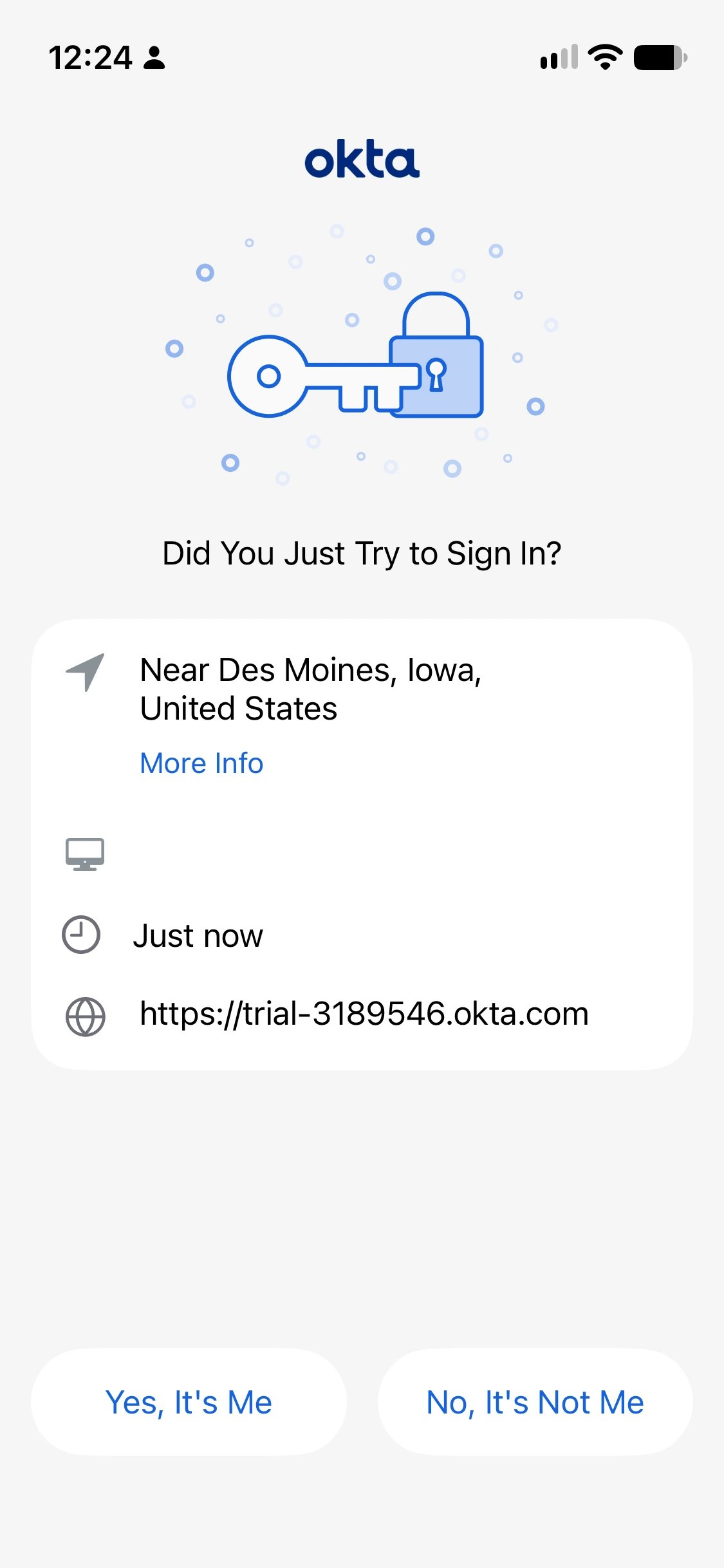
Okta is a very popular identity management platform, and MSP Process integrates with it, so that you can verify the identity of someone calling your helpdesk using the Okta Verify mobile app. This KB article will walk you through how to setup the integration between MSP Process and Okta.Prerequisites
- You have access to an Admin-level account in MSP Process
- You have access to the Admin console of your Okta tenant
Ensuring Push Notifications are Enabled in Okta
- Login to the Admin console of your Okta tenant
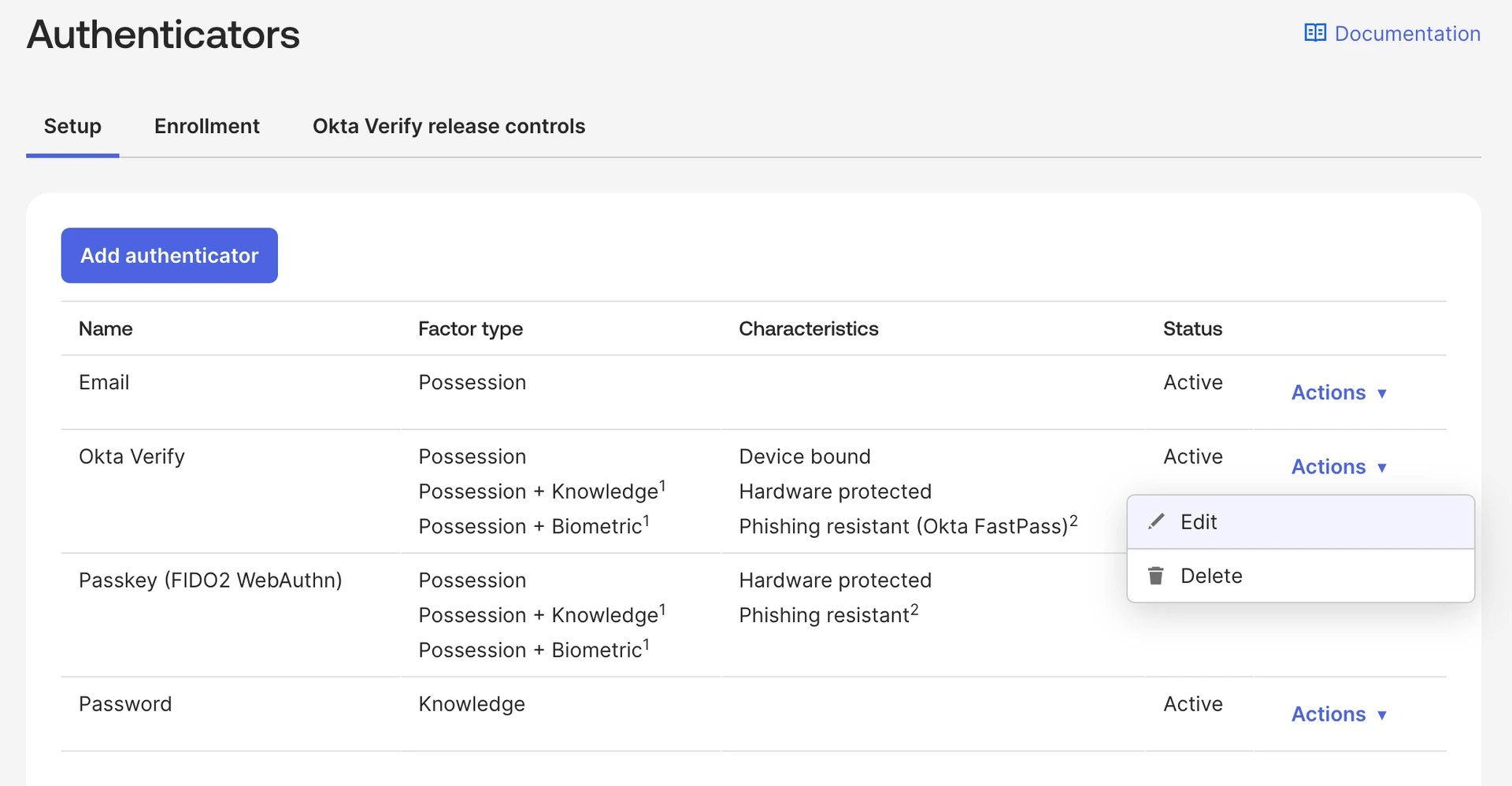
- Navigate to the Security -> Authenticators page
- Edit the Okta Verify authenticator
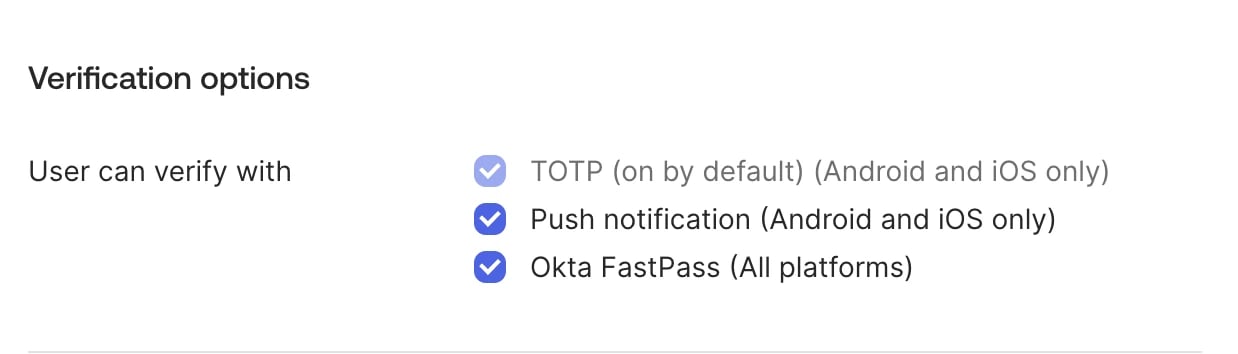
- In the Verification options section, ensure that the Push notification (Android and iOS only) option is enabled
- At the bottom of pop-up window, click the Save button
Creating an API token in Okta
- Login to the Admin console of your Okta tenant
- Navigate to the Security -> API page
- Go to the Tokens tab
- Click the Create Token button
- Fill in the two required fields - a friendly name for the token, and what IP address or ranges the requests will come from. For information on MSP Process IP ranges, check out this KB article.
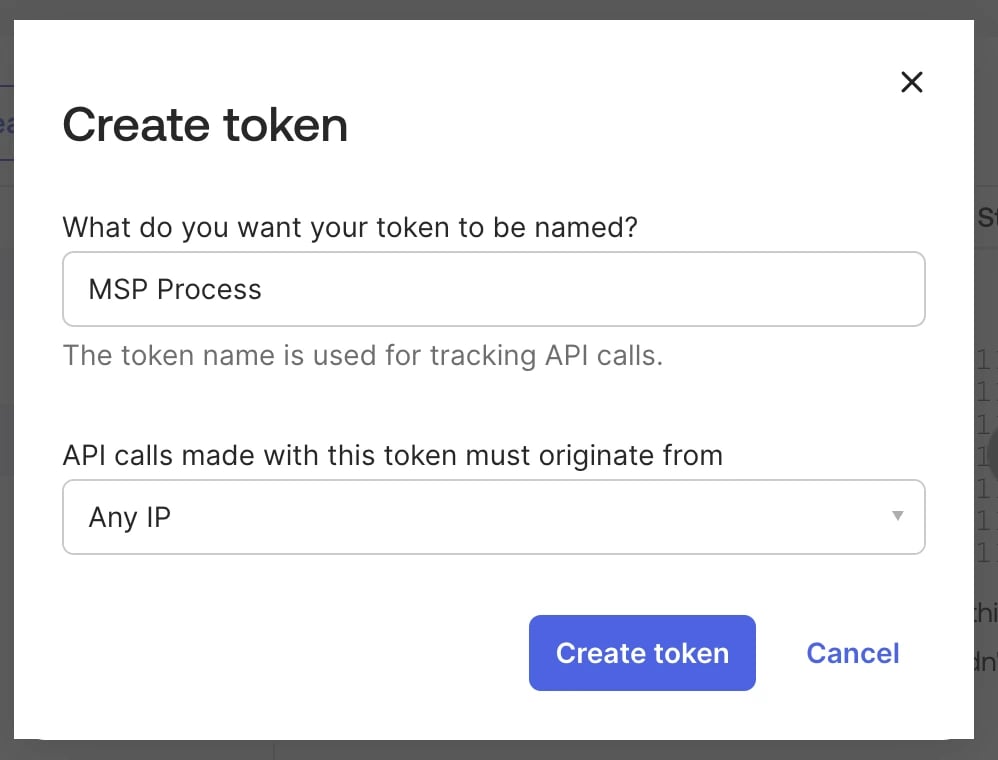
- Click the Create token button to finish creating the token
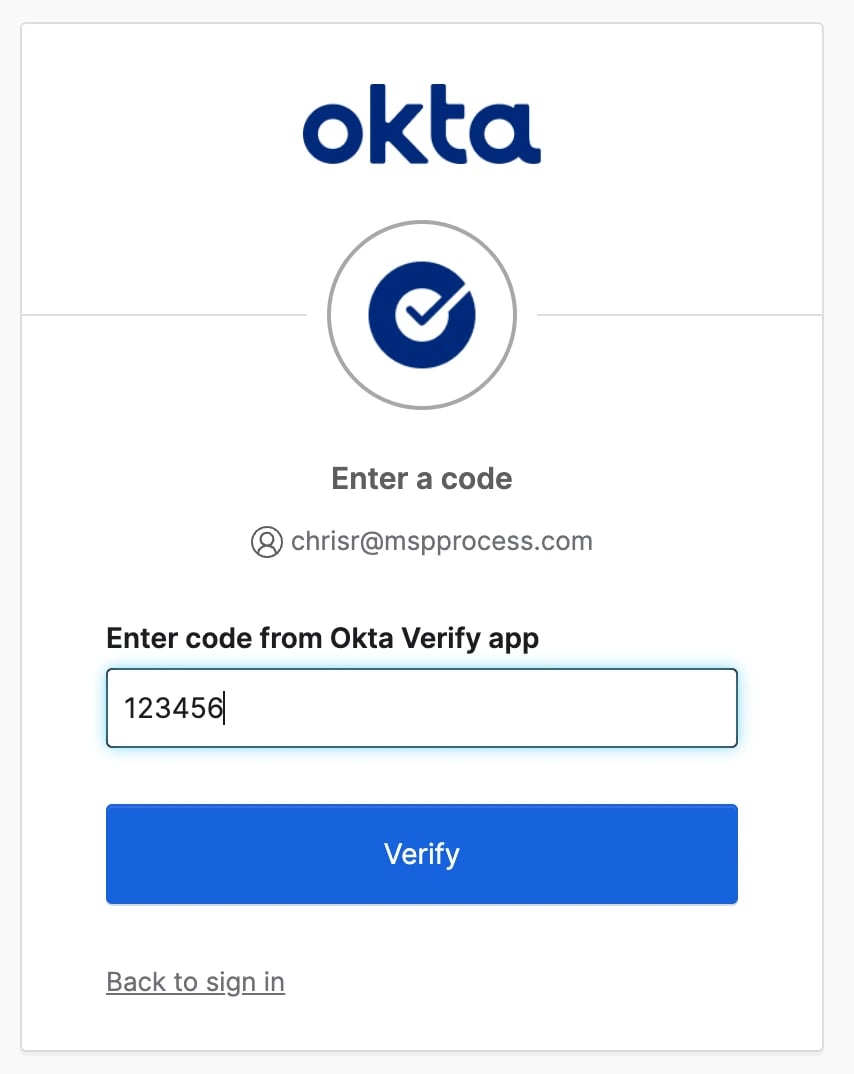
- When prompted, enter the code from your Okta Verify app
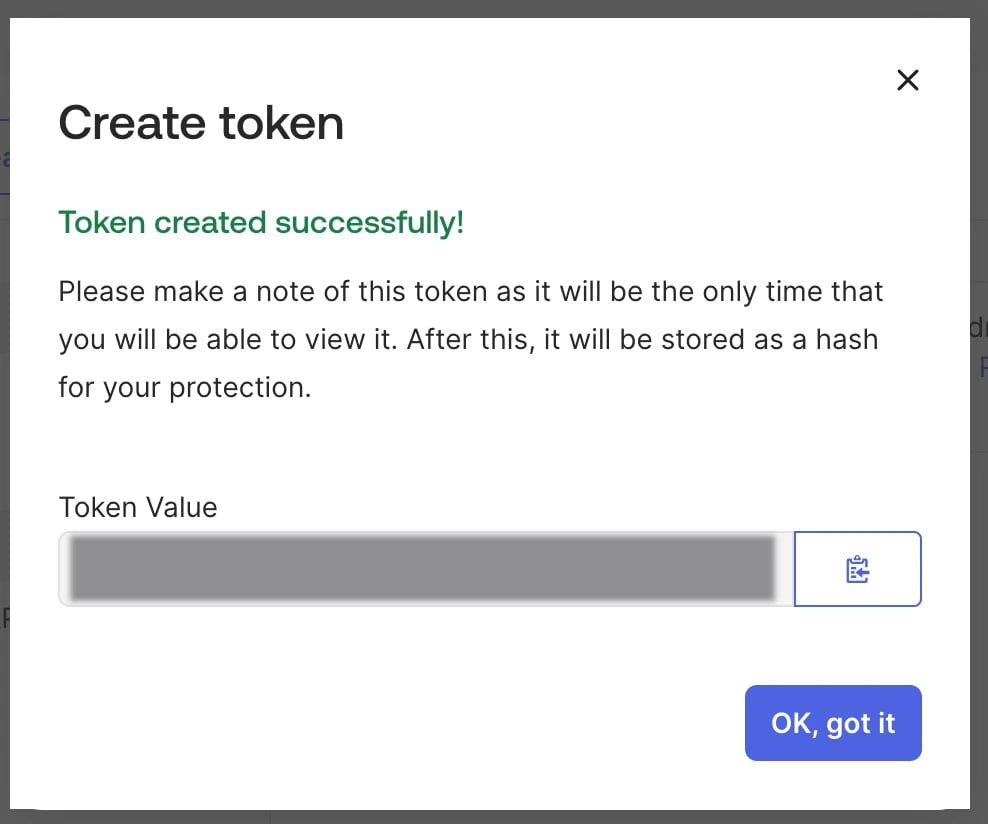
- Copy the Token Value - you’ll need it for the next step
Configuring the Okta module within MSP Process
- Login to MSP Process (https://app.mspprocess.com) as an Admin-level user
- Navigate to the Settings -> Integrations -> Security Integrations page
- Click the Add new Integration button
- Click on the Okta integration
- Fill in the required fields - a name for this integration, the Domain of your Okta tenant, and the API key
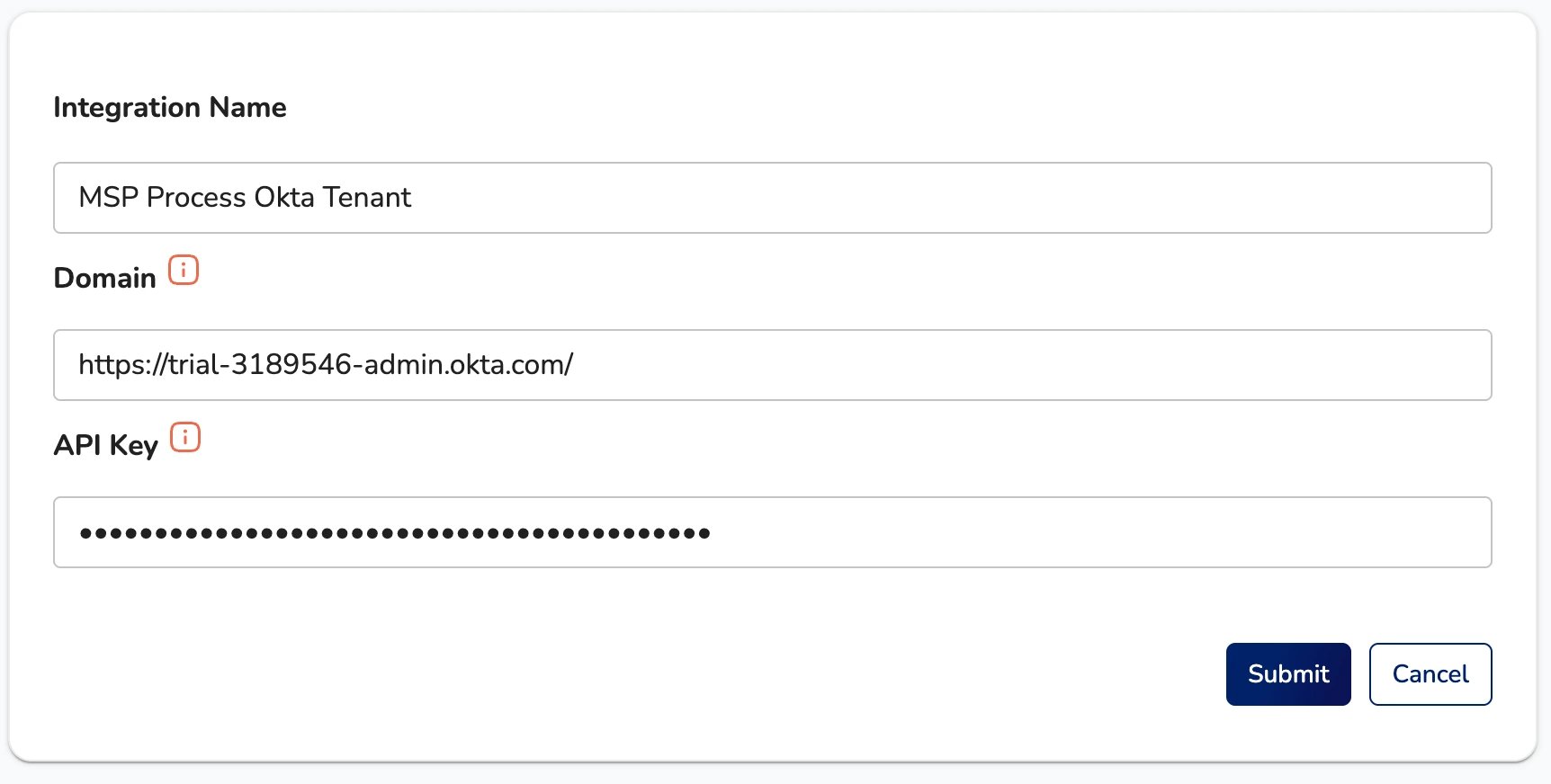
- Click the Submit button
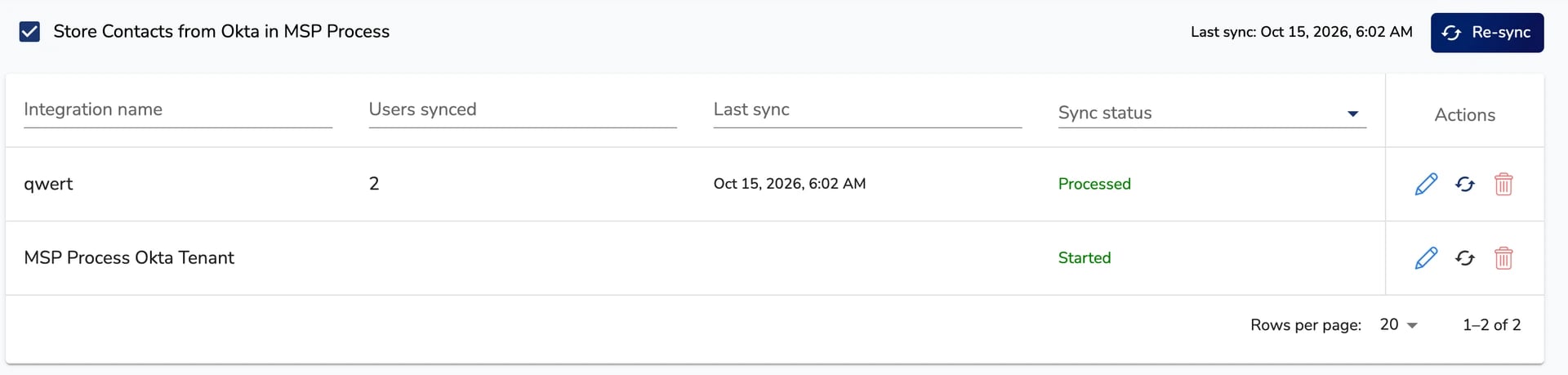
- You’ll be brought to a page that lets you see the Okta integrations you’ve setup, and also lets you configure whether or not to store contacts from Okta in MSP Process. We strongly recommend that you store contacts from Okta in MSP Process, so that we can enable or disable the Okta EUV button on a per-user basis.
Using Okta to Verify End-Users
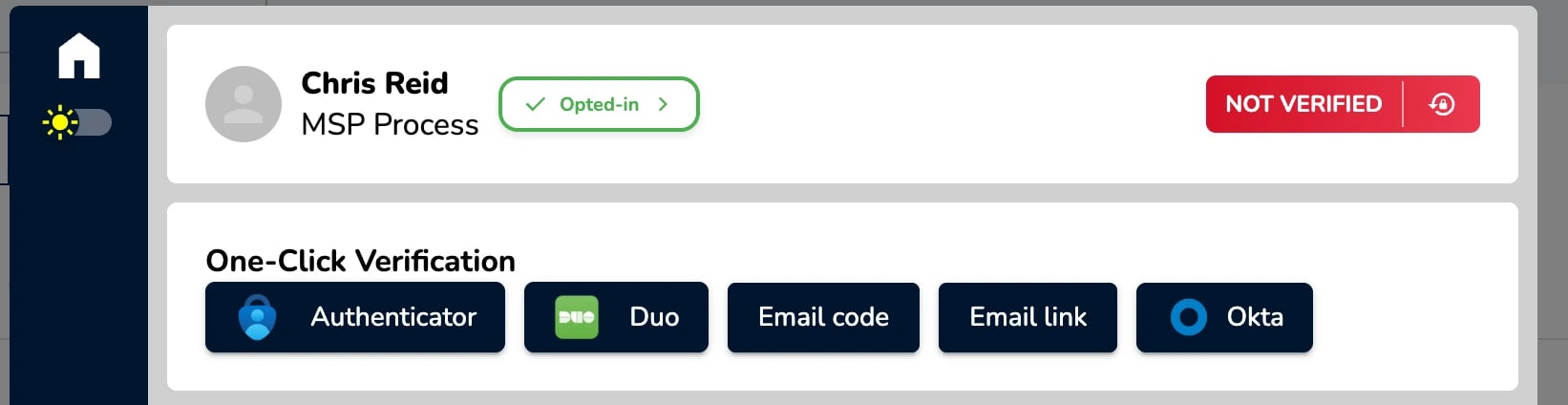
Now that your Okta integration has been setup, you’ll see that its available as a One-Click Verification option within the MSP Process Pod: