

Introduction
The End-User Verification module in MSP Process offers various methods to verify the identity of a caller reaching out to your help desk. Available methods include Microsoft Authenticator, Duo, email codes, Teams links, SMS, and WhatsApp. However, there may be cases where you want to restrict your team’s access to specific verification methods based on current security policies, the type of caller, or specific contractual agreements. Disabling these methods is a straightforward process that takes effect immediately across your PSA integrations.Step-by-Step Guide
-
Log in to the MSP Process UI (
app.mspprocess.com) as an admin-level user. - In the left-hand navigation menu, click on Identity Management.
-
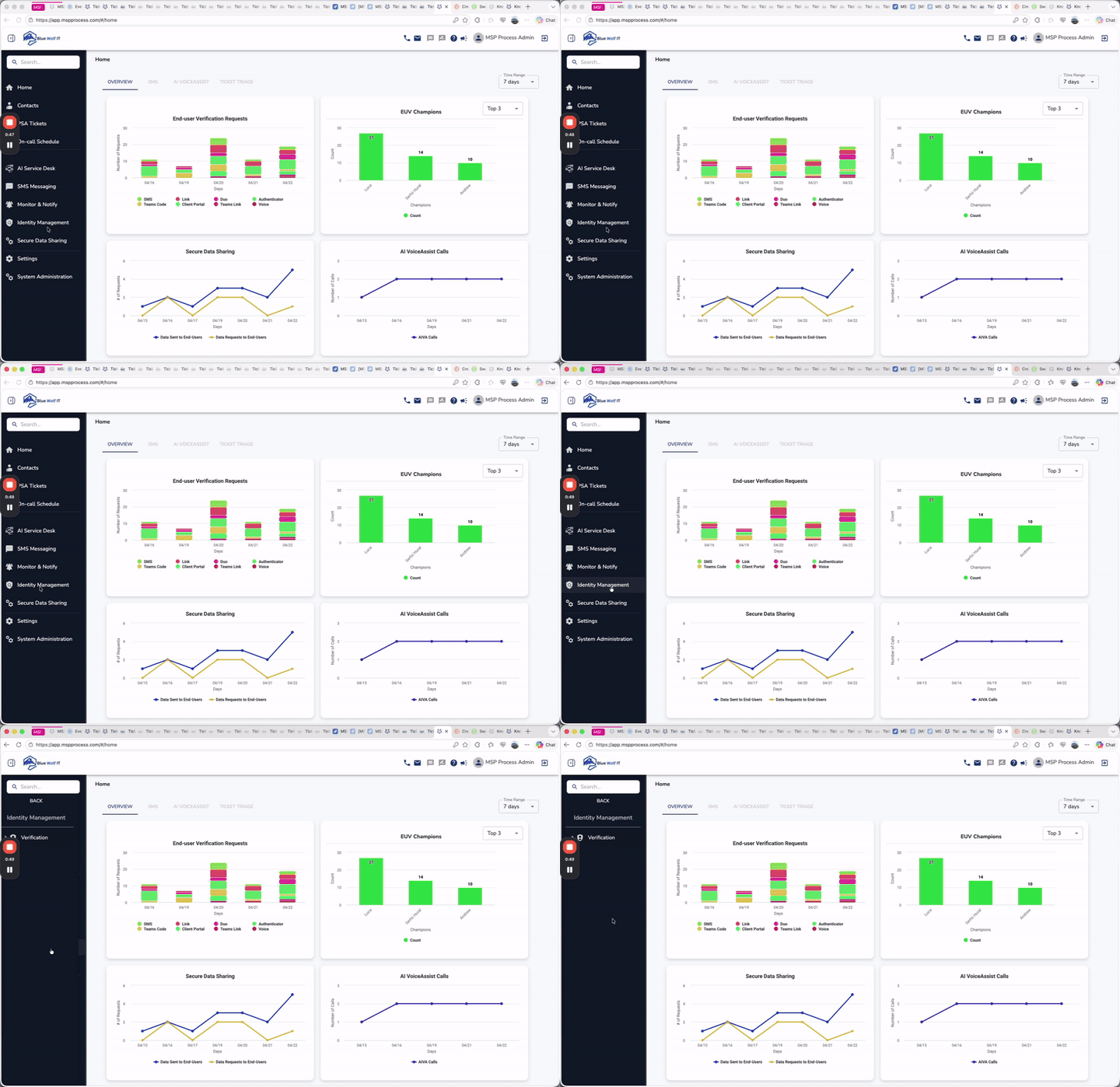
- Click on Verification to expand the sub-menu.
-
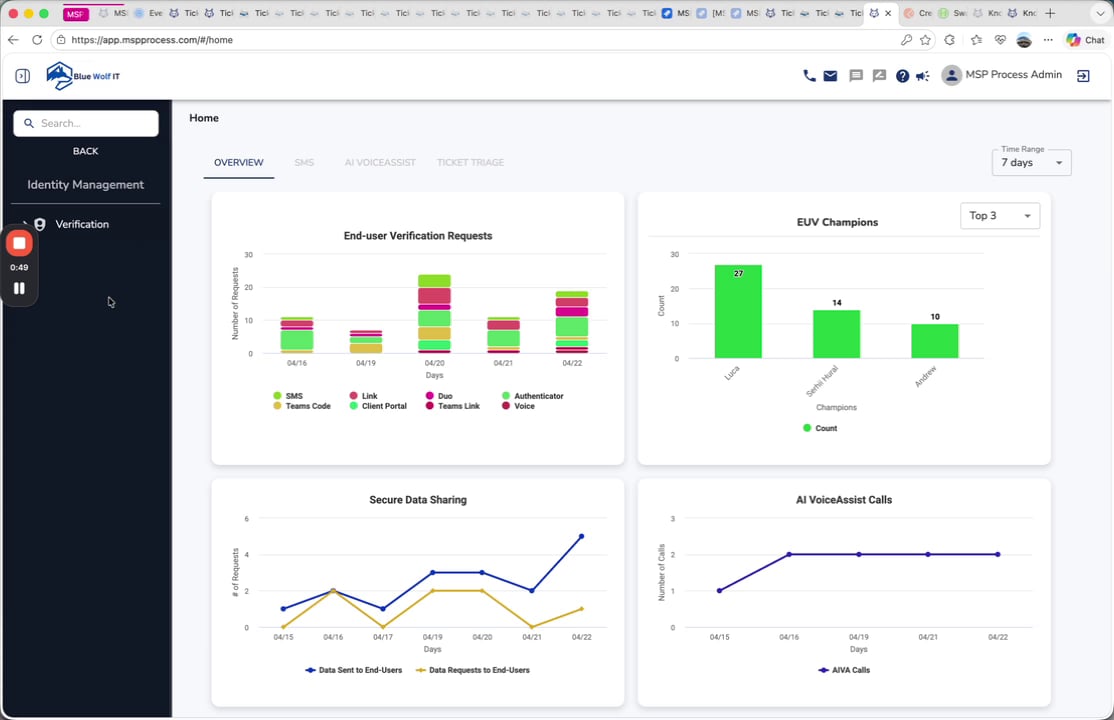
- Select Verification Settings.
-
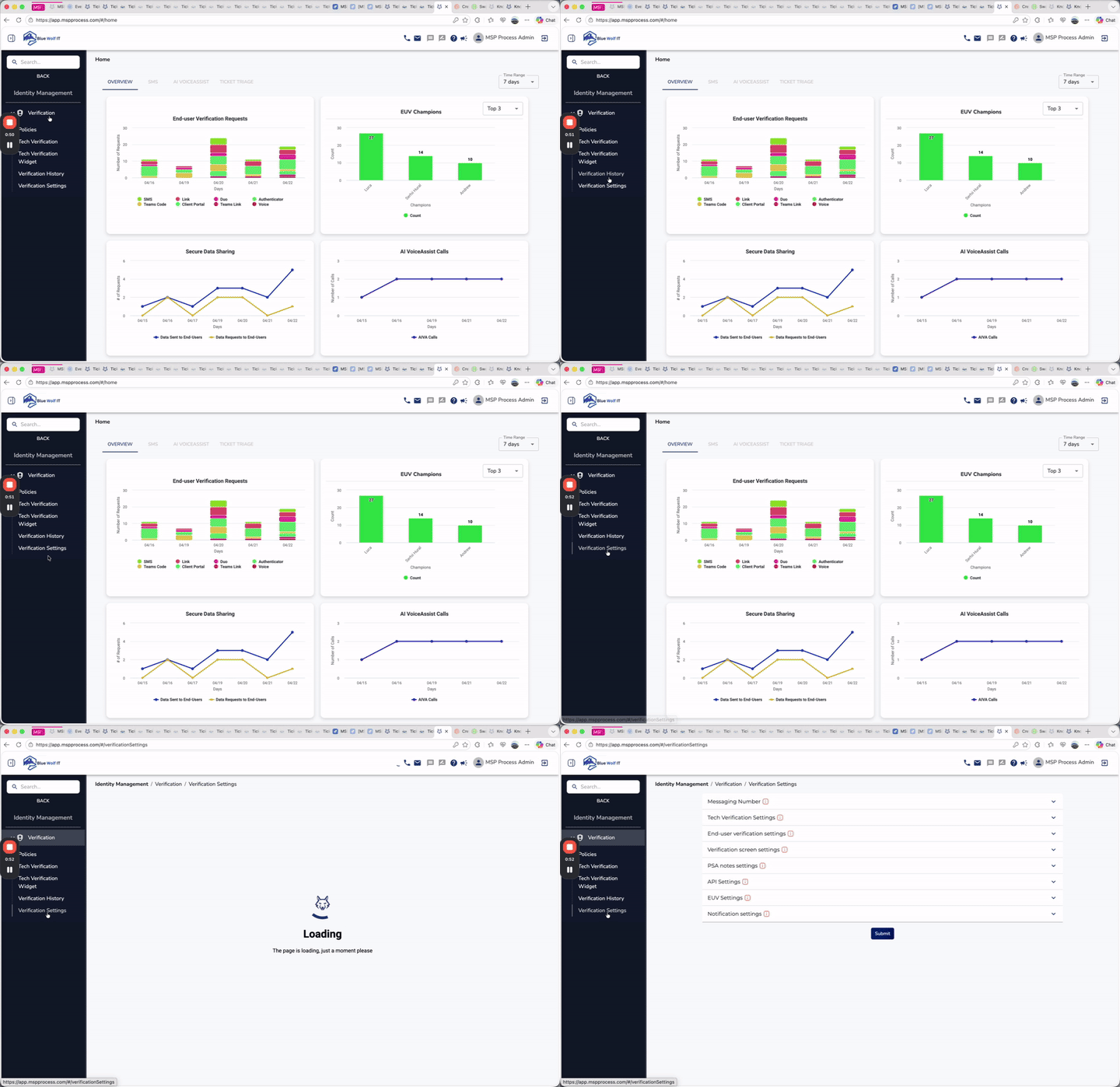
- Click on the EUV Settings section to expand it. By default, all verification options are enabled.
-
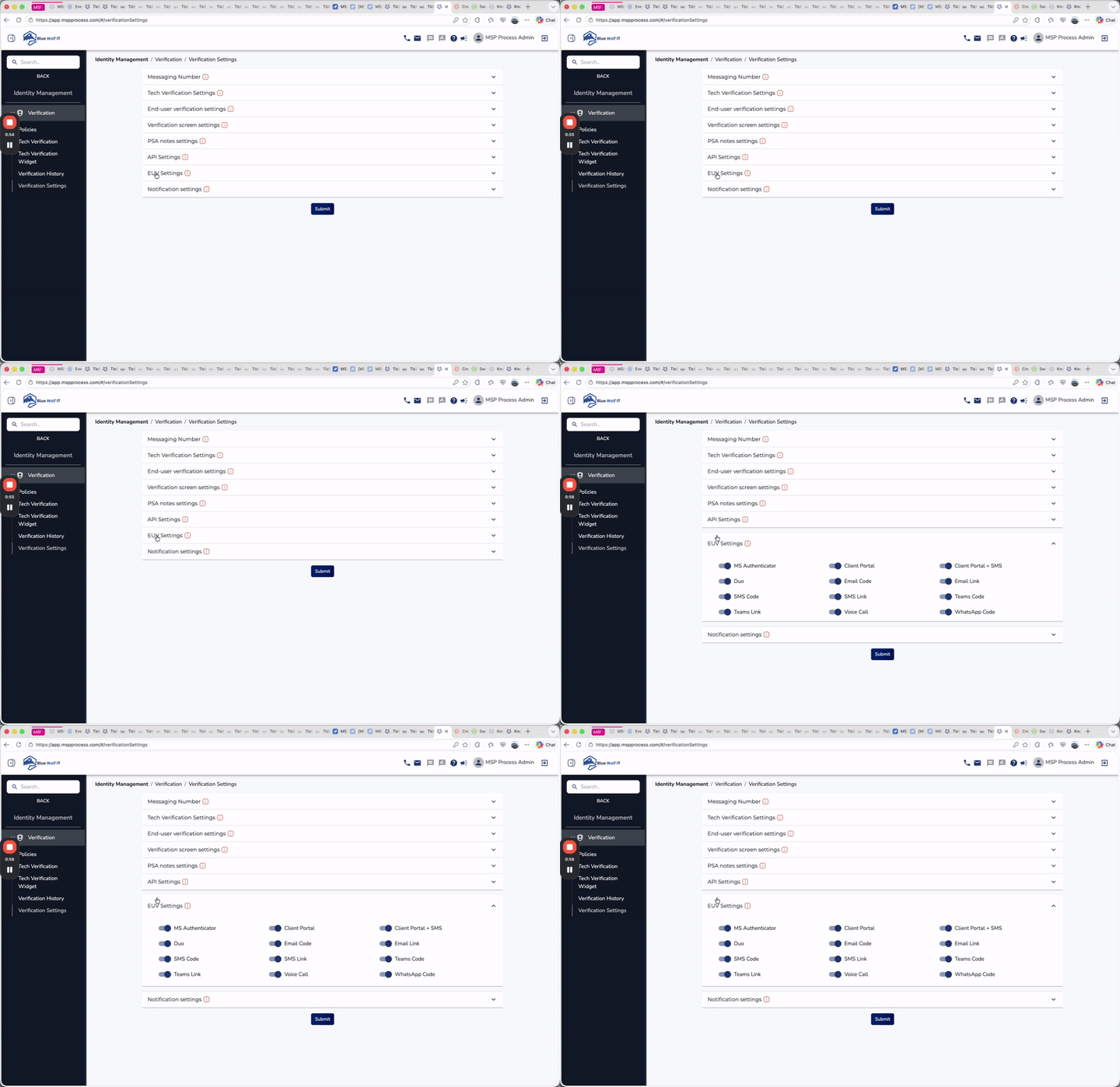
- Click the toggle switch next to any verification method you wish to disable to turn it off.
- For example, you can disable MS Authenticator, Duo, SMS Code, or Teams Link.
-
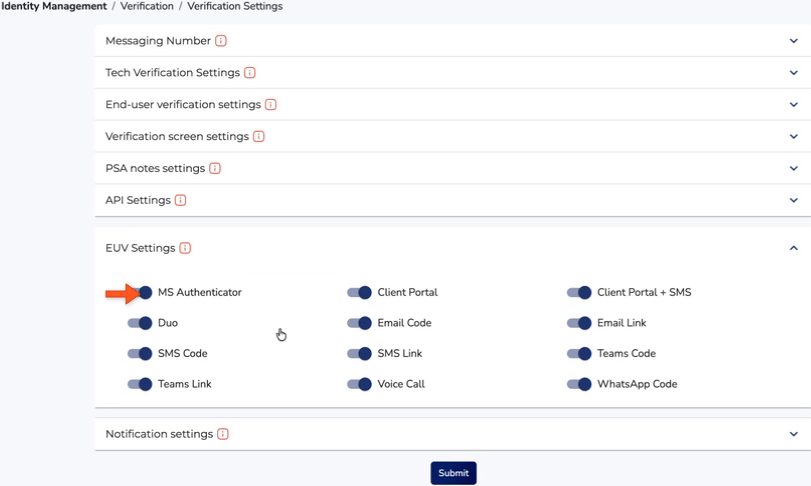
- Once you have disabled the desired methods, click the Submit button to save your changes.
Note: Once submitted, these options will immediately become unavailable for your team to use within your PSA pod (e.g., ConnectWise, HaloPSA, Autotask). You can return to this page at any time to re-enable or adjust these settings as needed.