Overview
What is Tech Verification?
Tech Verification lets you confirm that the person contacting you is a real technician from your IT provider before you share information or give them access. Attackers often pose as IT staff to steal passwords or remote access, and this check stops that. You start the check yourself, so a caller cannot fake it. You request a 6-digit code, and the technician must read that code back to you. If they cannot, do not continue and report the contact to your IT provider.When to verify a technician
Verify every time a technician contacts you and asks to connect to your computer, reset a password, or share or request sensitive information. Do it even if the name or phone number looks familiar, because caller ID and email addresses can be faked. Your IT provider will tell you which option they have turned on. You only need one:Verify by text message
- From your mobile phone, text #verify to the verification number your IT provider gave you. Save the number in your contacts so your phone does not flag it as spam.
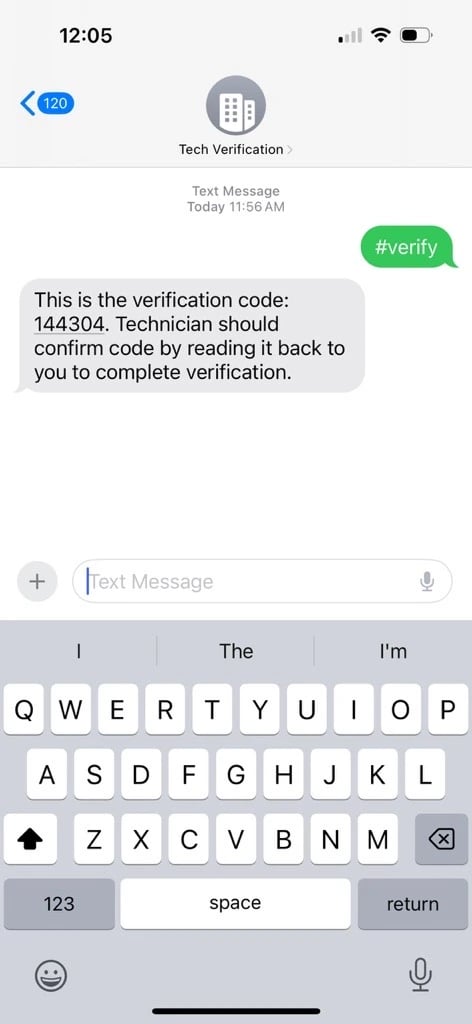
- Wait for a reply with a 6-digit code.
- Ask the technician to read the code to you.
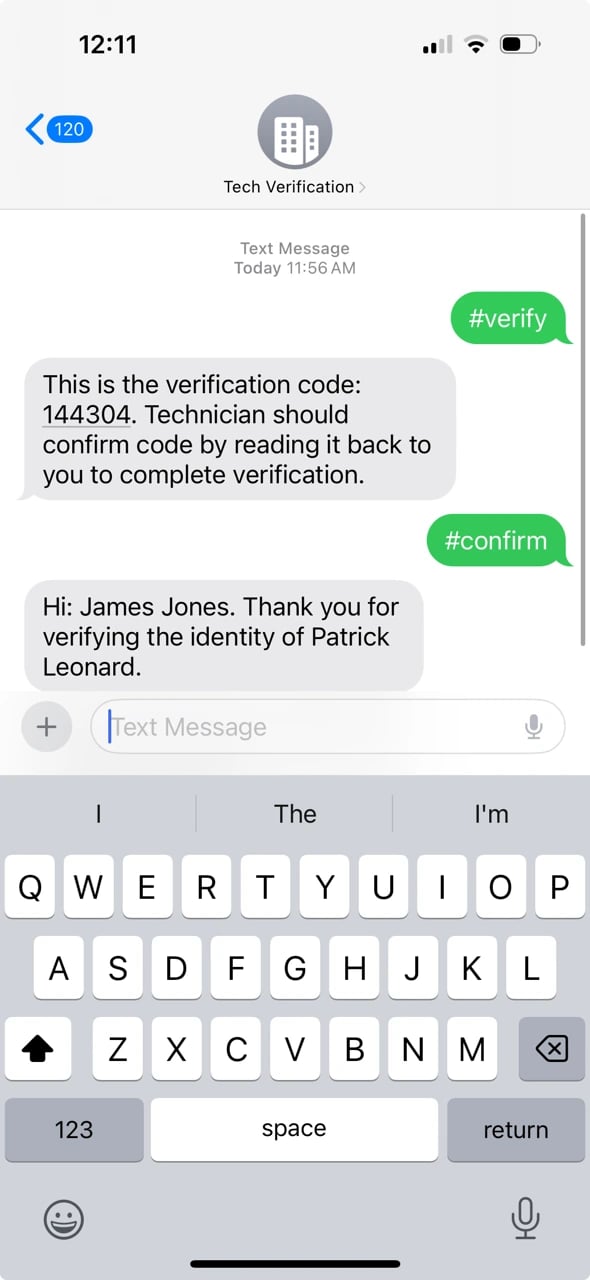
- Compare it with the code on your phone. If they match, the technician is verified and you wills end #confirm.
Verify with the website widget
- Open your IT provider’s verification page, usually named “Verify My Tech”.
- Enter your name in the widget.
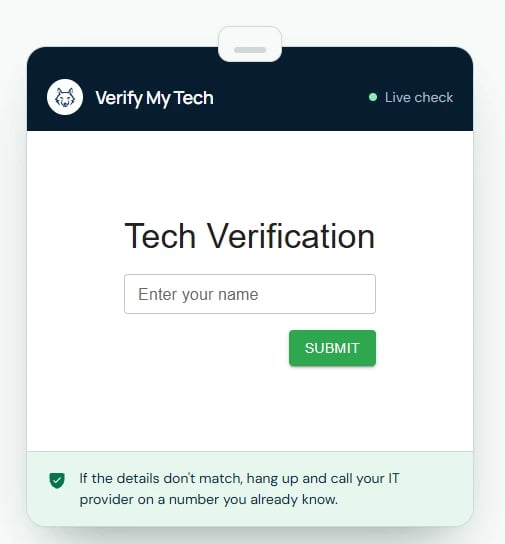
- Note the 6-digit code it shows you.
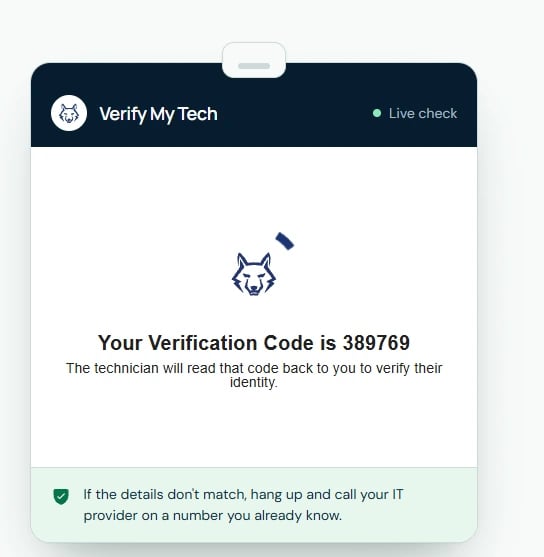
- Ask the technician to read the code to you. It must match the one on your screen.
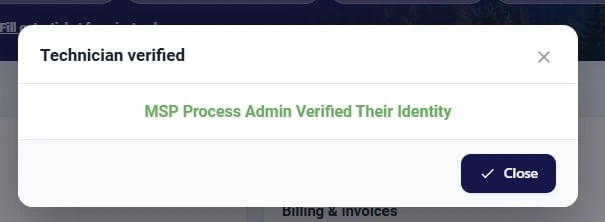
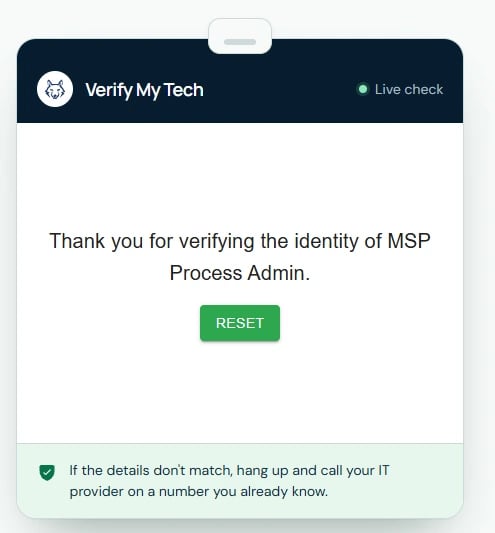
- Once Verified, you will see the following:
Verify in the client portal
- Open your company’s client portal in Teams or your web browser.
- Select the small shield in the top-right corner to Verify Technician.
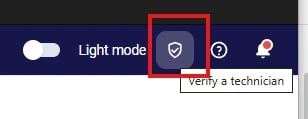
- Ask the technician to read the code to you, and check that it matches the one in the portal.
- Continue only once the code matches or the portal shows a success message.