

Overview
The Ticket Triage module in MSP Process leverages AI to automatically categorize, prioritize, and update incoming tickets in your PSA. This overview covers the value it provides, supported PSAs, and how to configure triage rules to save your team valuable time. Supported PSAs Currently, the Ticket Triage module supports Autotask, ConnectWise and HaloPSA. Ensure your PSA is connected before creating triage rules.Prerequisites
AutoTask PSA: Please ensure that you have enabled the ability to create webhooks for your MSP Process API User. You can toggle this on by following the steps below:- Log in to AutoTask
- Navigate to Admin
- In Account Settings & Users > Resources/Users (HR) > Security and click Security Levels
- Locate and Edit the Security Level assigned to your MSP Process API User (Please note that the License Type needs to be API User for this setting to be available).
- Locate the Other dropdown menu and expand it.
- Checkmark the box “Can Create Webhooks” and make the Maximum number of Webhooks = 10.
- Then Save & Close
Creating the PSA Webhook
- Log in to MSP Process (https://app.mspprocess.com) as an Admin-level user
- Navigate to Settings > Account Settings > PSA Webhooks
- Click Add and select your PSA Integration
- Click Confirm
Creating a Ticket Triage Rule
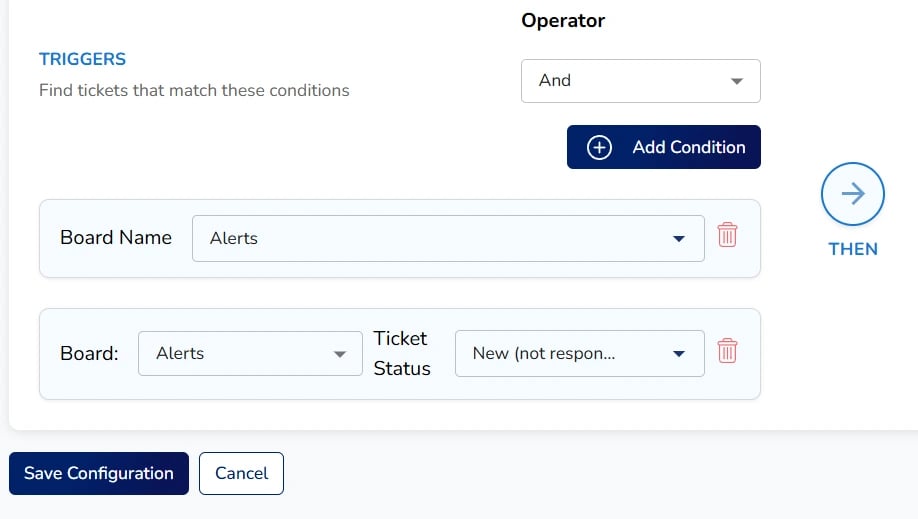
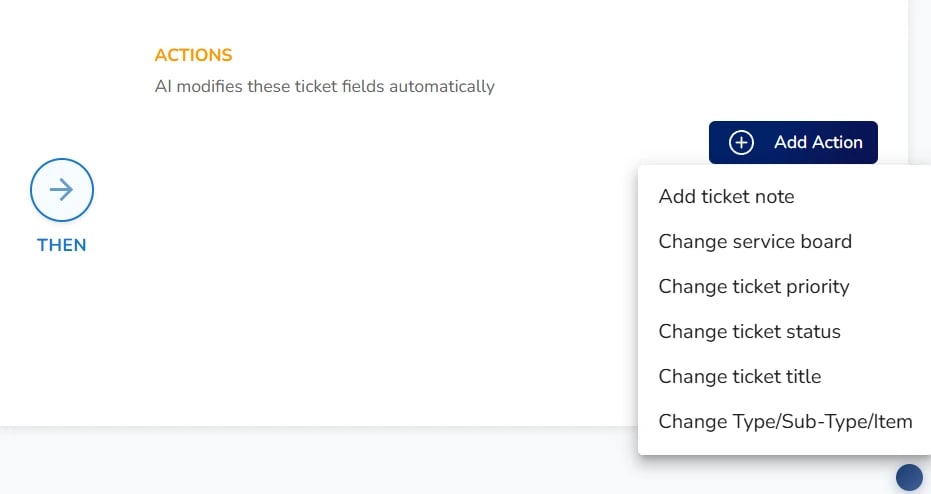
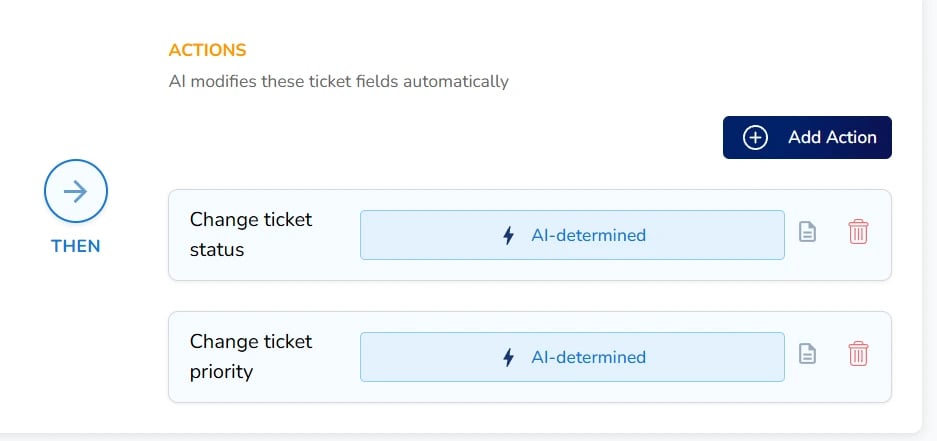
A triage rule tells MSP Process what to look for in new tickets and what actions to take when a ticket matches your criteria. Navigate to AI Service Desk in the left sidebar, expand the Ticketing menu, and select Ticket Triage. Click the Create Ticket Triage button. Enter a descriptive Rule Name for your new triage rule.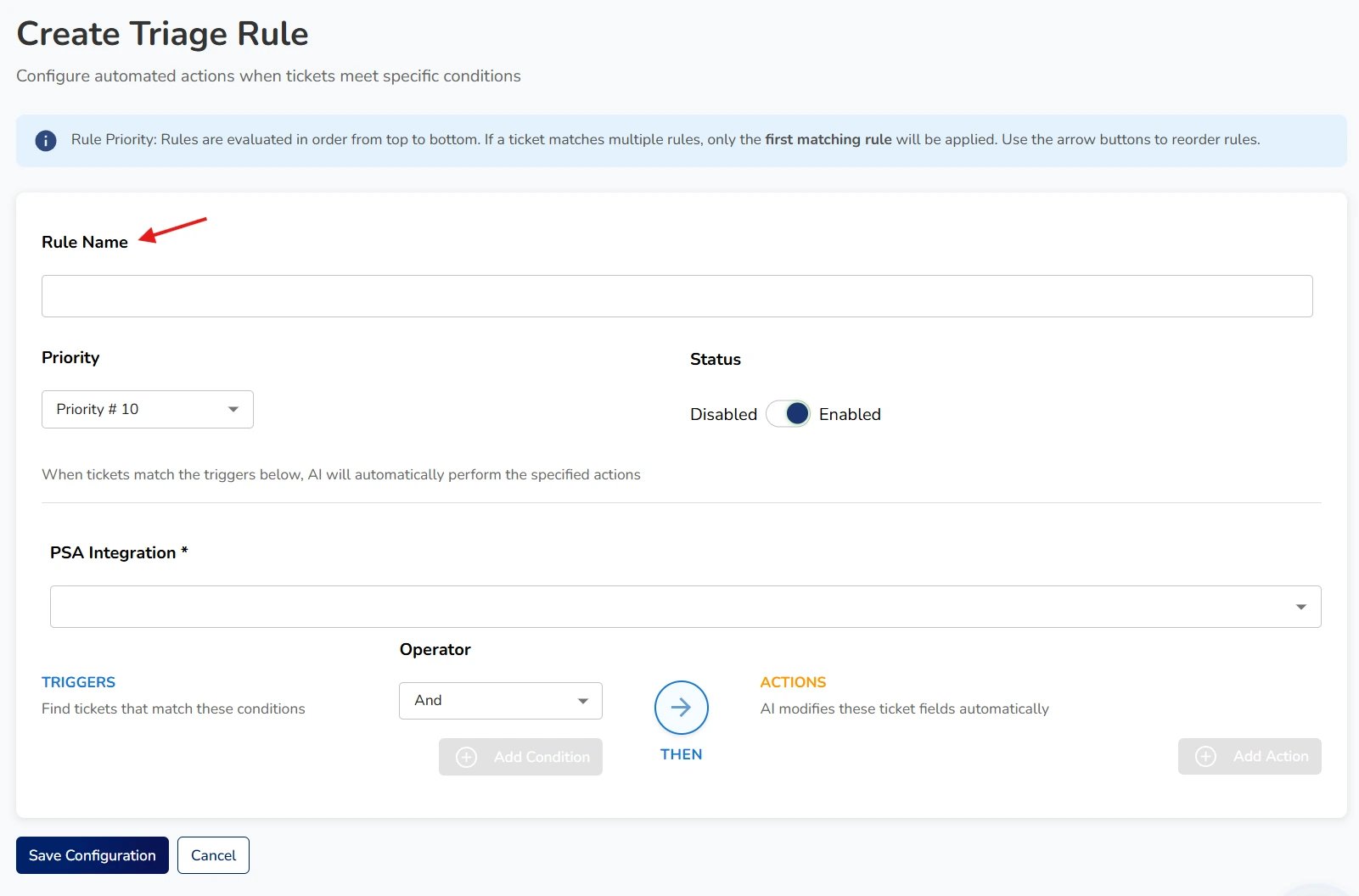
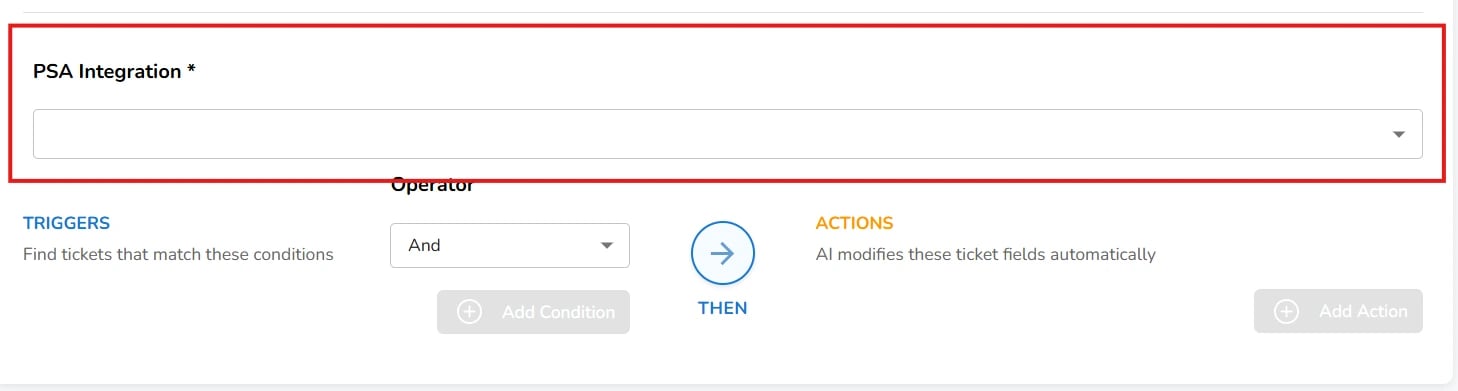

- For example, you can set the Board Name to “Alerts”.
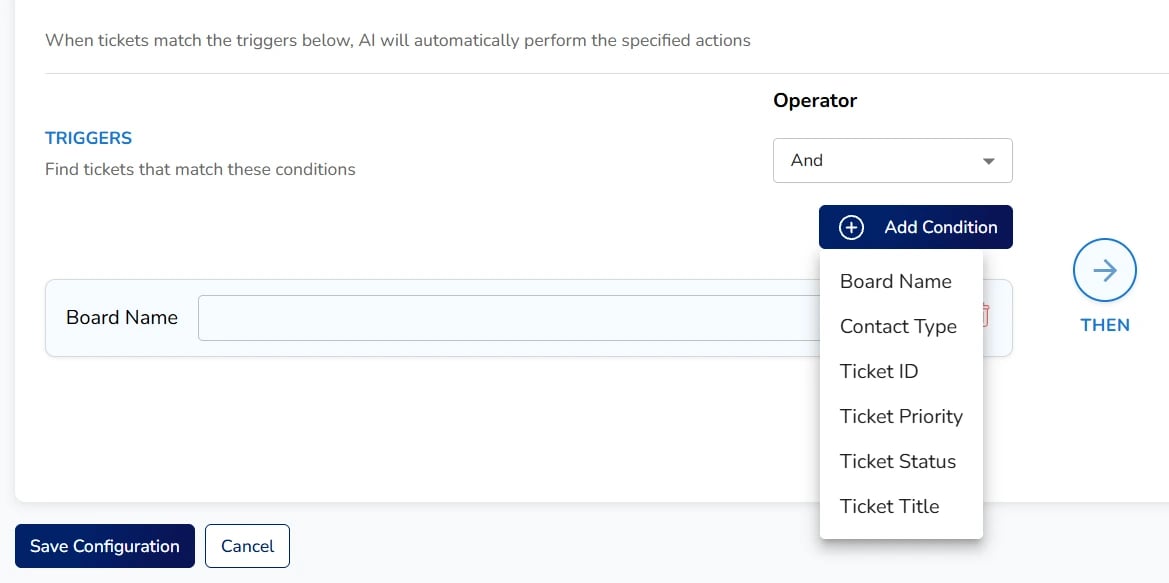
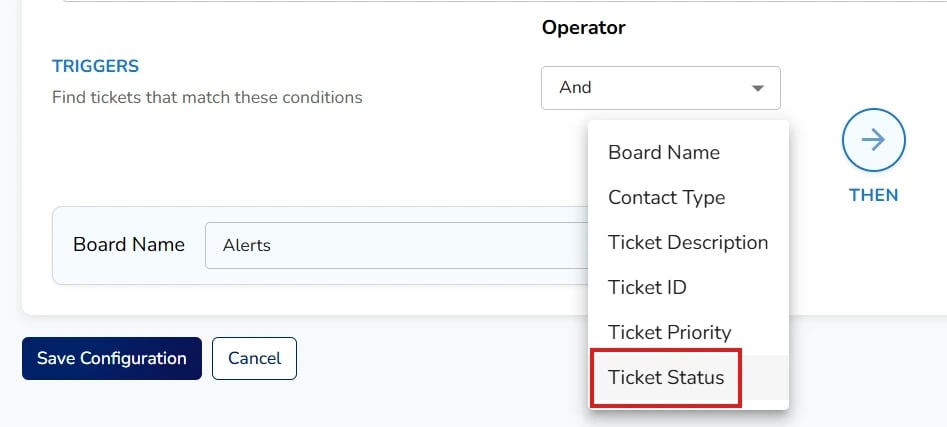 |  |
|---|
 |  |
|---|
Custom Triage Instructions
Custom instructions can be provide to tell the AI how to decide while triaging.| Click the Prompt Icon to add instructions |  | 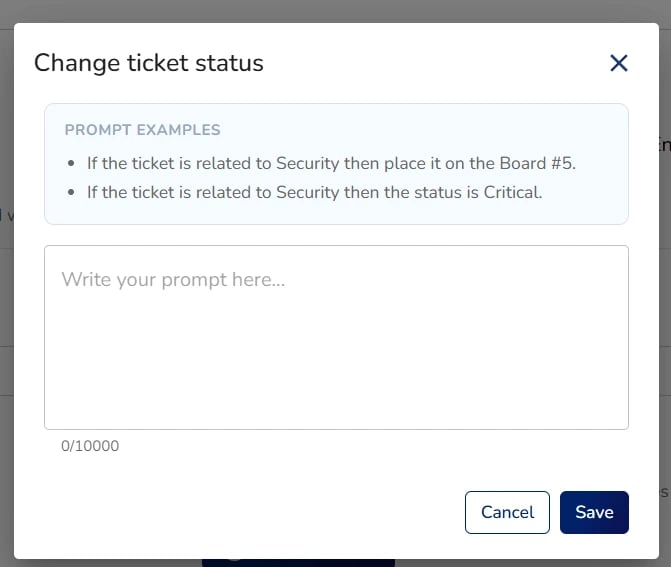 |
|---|
- “Send system-wide outages to Problem, single-user issues to Incident, and requested changes to Request.”
- “If a caller follows up on an existing ticket, add a note and change the status to Scheduling Required.”
Viewing Logs and Analytics
To understand what the Ticket Triage module is doing and the value it provides, you can review its activity in two places.Ticket Triage Logs
For a granular audit log of all actions taken (both successful and failed), navigate to AI Service Desk > Ticketing > Ticket Triage Logs.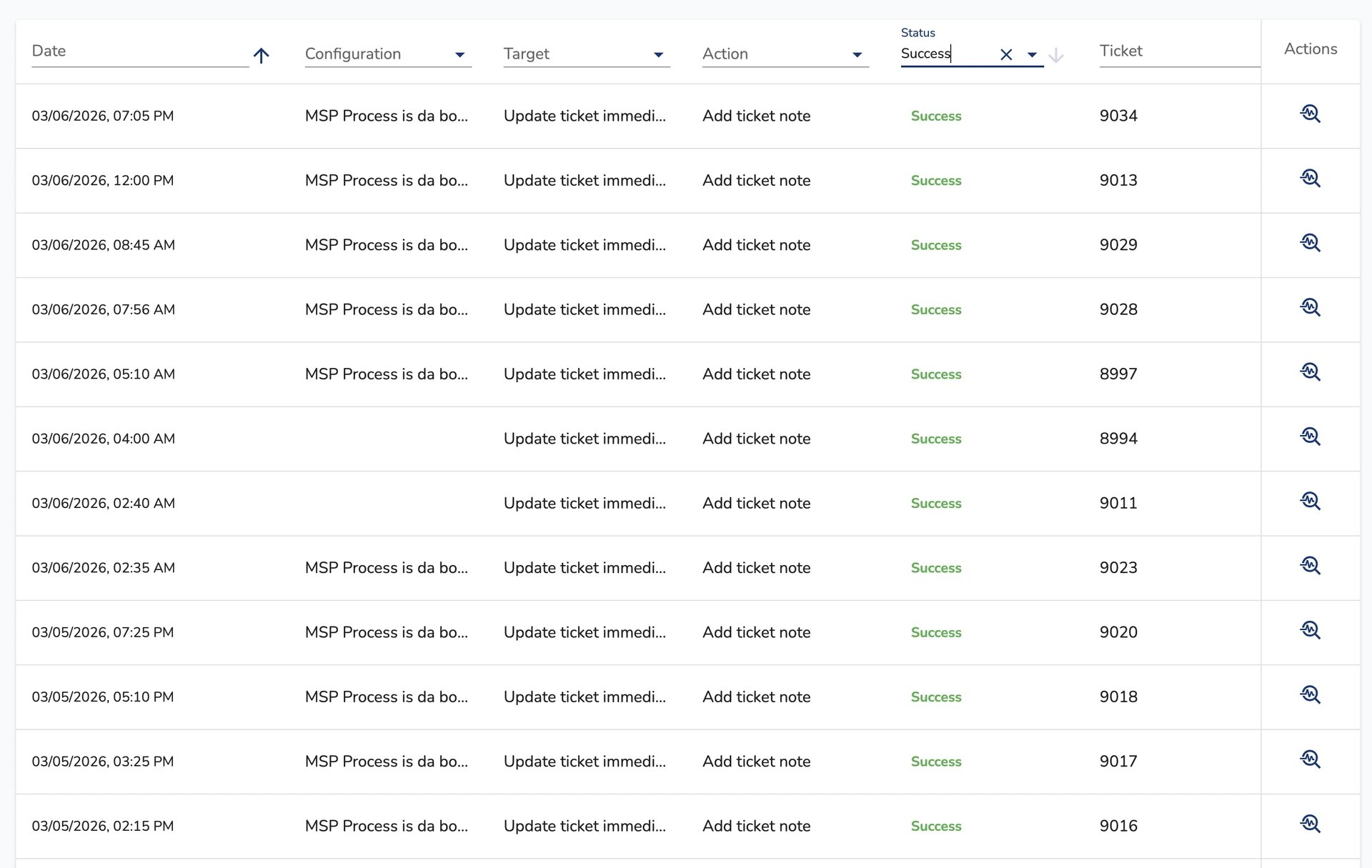
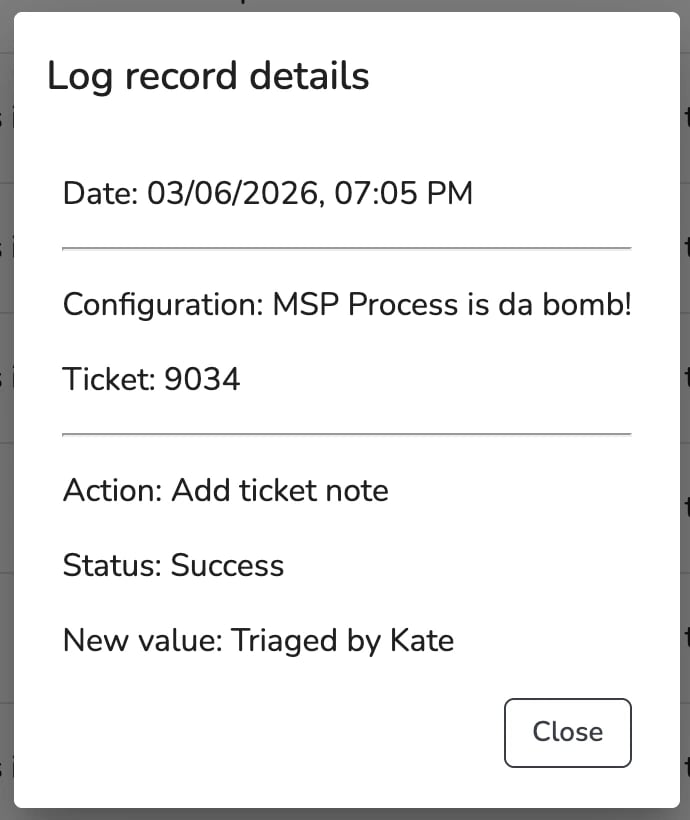
Ticket Triage Dashboard
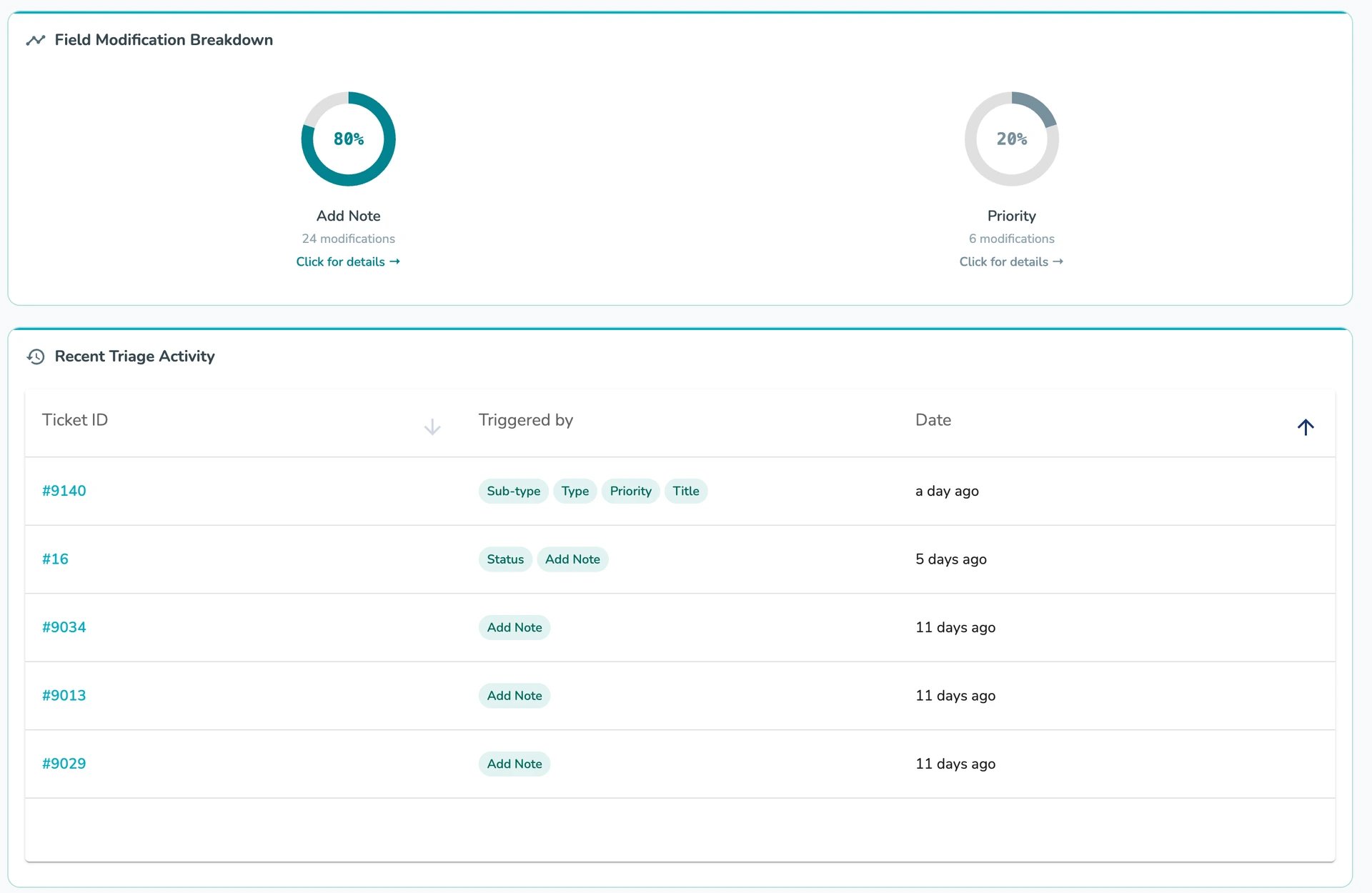
For a high-level overview of the module’s performance, go to the Home page and select the Ticket Triage tab. This dashboard displays metrics such as:- How many tickets were processed over a specific time range.
- Which fields were modified.
- Estimated time and cost savings.
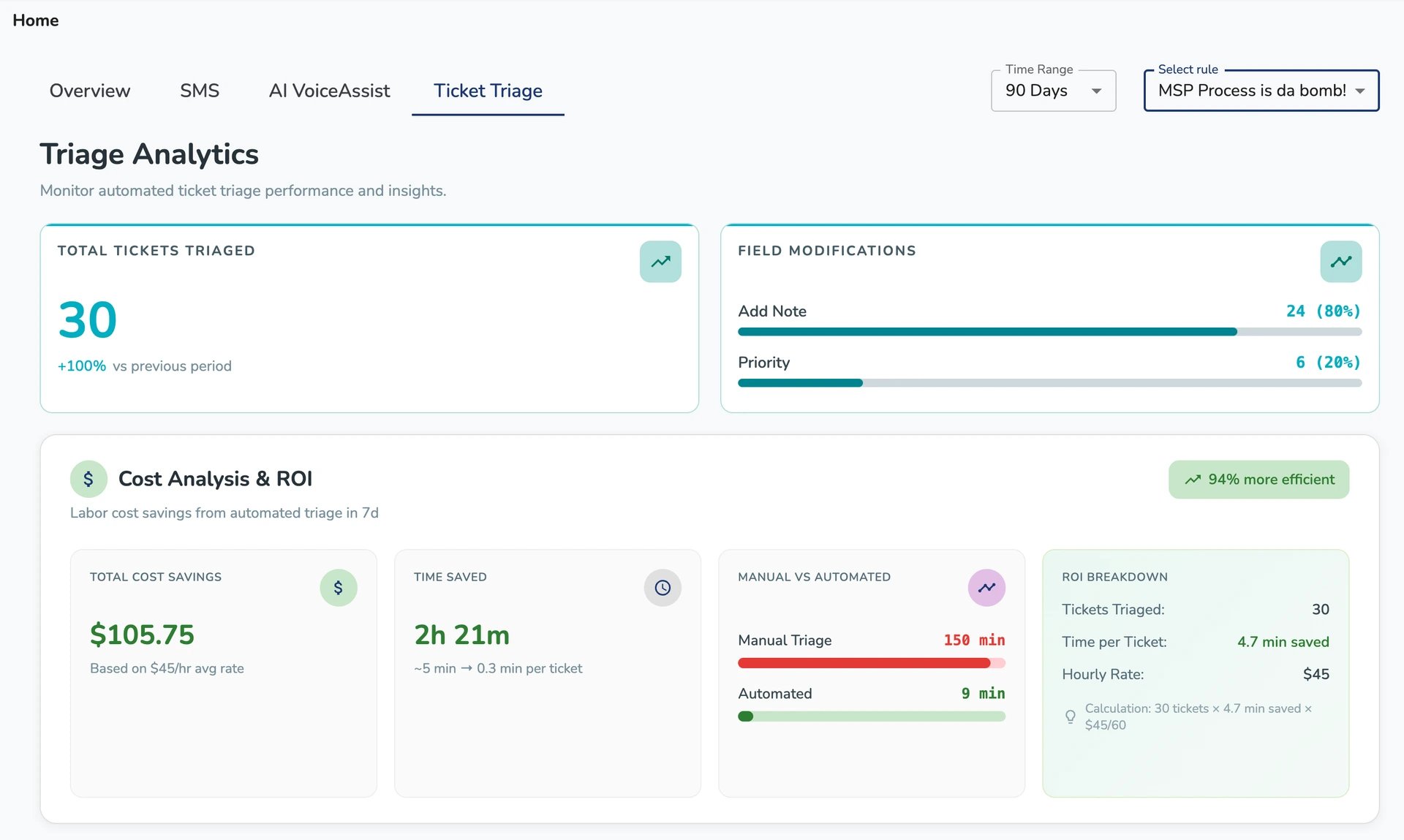
Note: On average, it takes a human about 5 minutes to triage a ticket, whereas the AI can complete the same task in about 30 seconds. The dashboard metrics are designed to highlight these efficiency gains for your MSP.